Manage Catalogs
Viewing Metastores
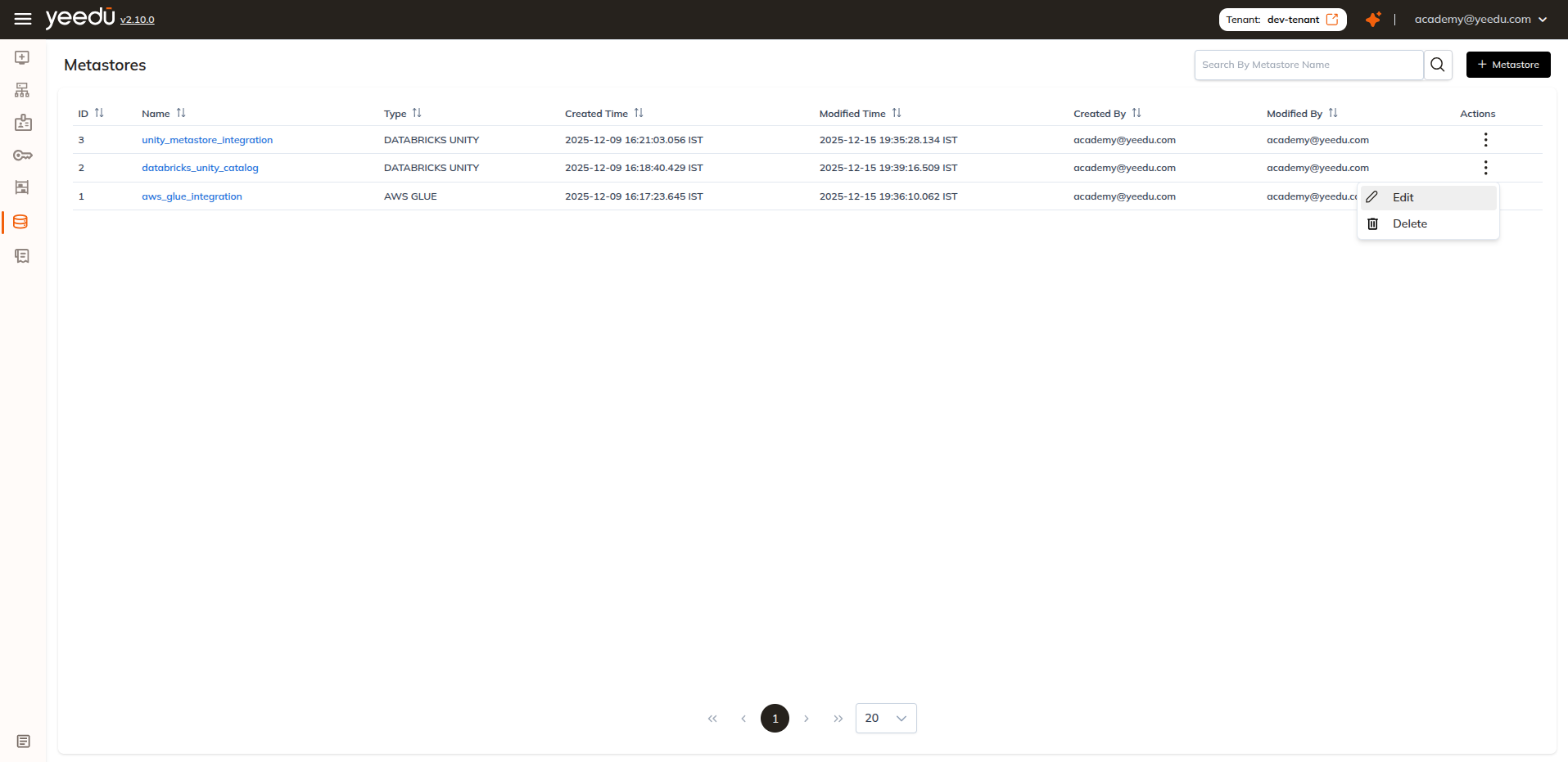
Access the Metastore Dashboard from the sidebar. Each row shows:
- Metastore ID
- Metastore Name
- Type (e.g.,
DATABRICKS UNITY, HIVE, AWS GLUE) - Created Time
- Modified Time
- Created By
- Modified By
- Actions (Edit, Delete)
Managing Metastores
| Action | Description |
|---|---|
| Edit | Modify the metastore configuration such as URL, catalog name, and associated secret values |
| Delete | Permanently remove the metastore from the workspace (admin) |
Editing a Metastore
In the Metastore Dashboard, open the Actions menu for a specific metastore.
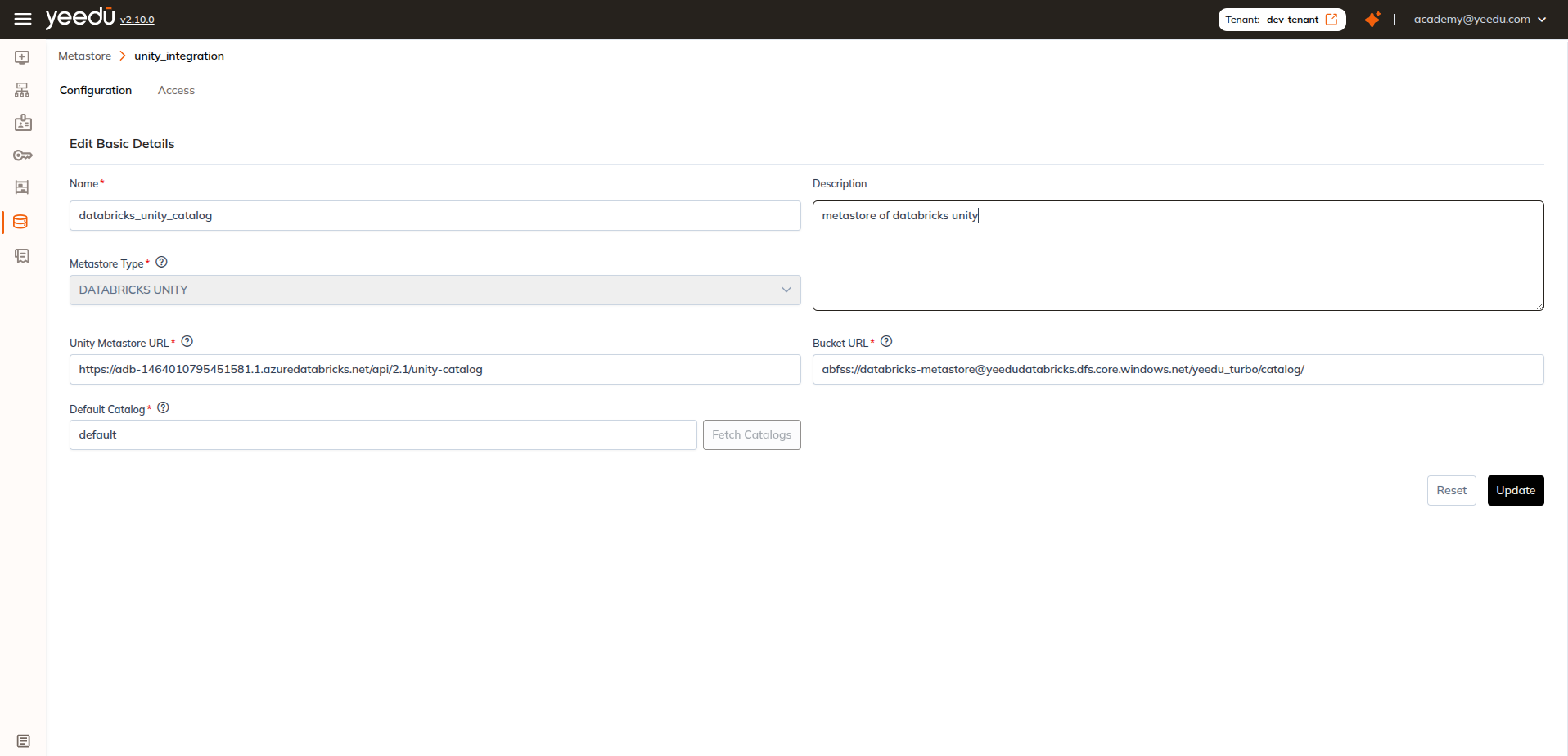
Select Edit to update details such as:
- Metastore URL
- Catalog name
- Linked secrets
After you click the Update button, the changes are applied immediately to all clusters connected to that metastore.
Deleting a Metastore
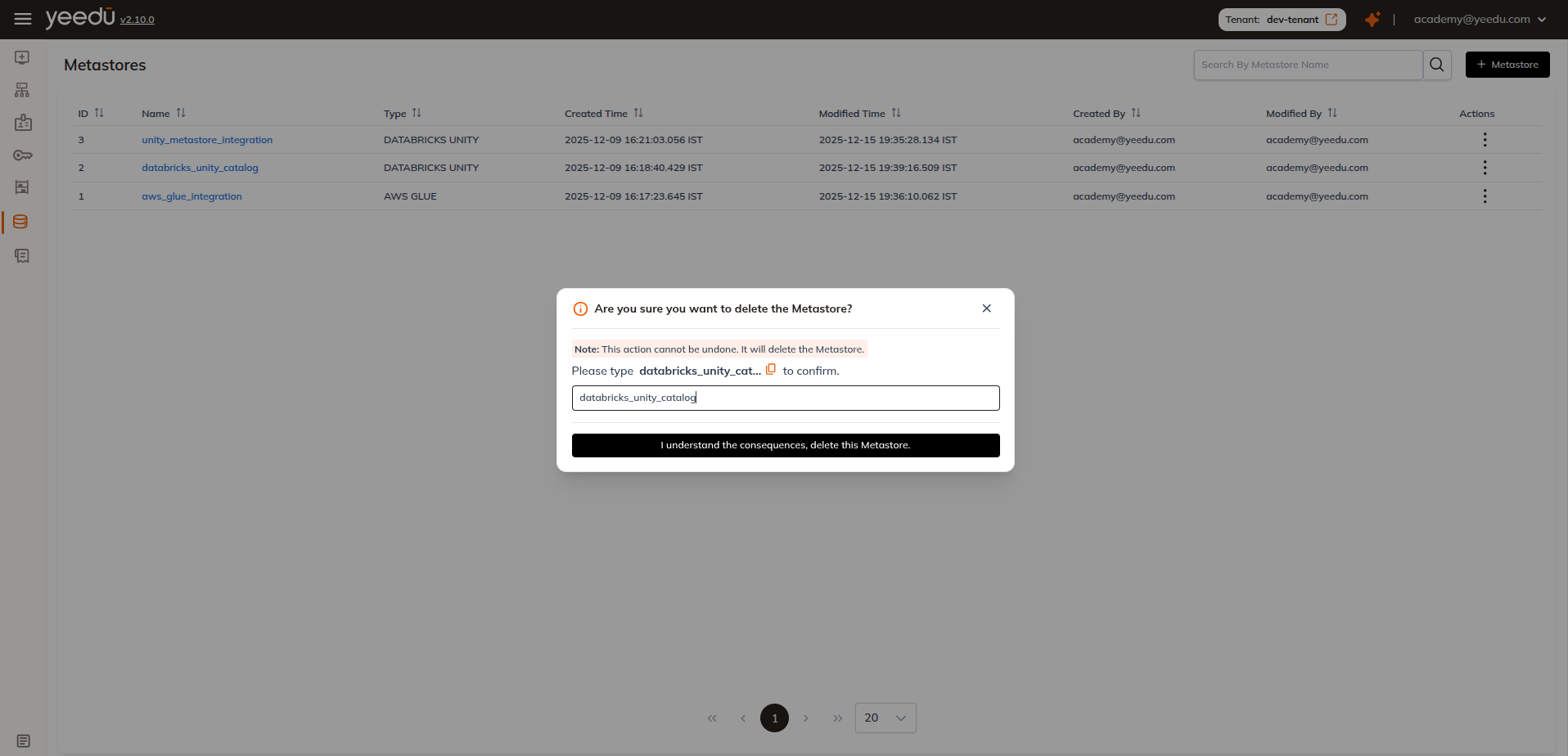
From the Actions menu, choose Delete to remove a metastore.
This action:
- Permanently removes the metastore from your workspace
- Requires admin-level permissions
- Cannot be undone
Ensure no active clusters are using the metastore before deleting.
Attaching Unity Metastore to a Cluster
1. Creating a New Cluster with Unity Metastore
- Navigate to
Clusters→ click+ Create Cluster - Fill the basic cluster details
- Go to the Metastore which is after Labels
- Select the Metastore from the dropdown
- Create / launch the cluster
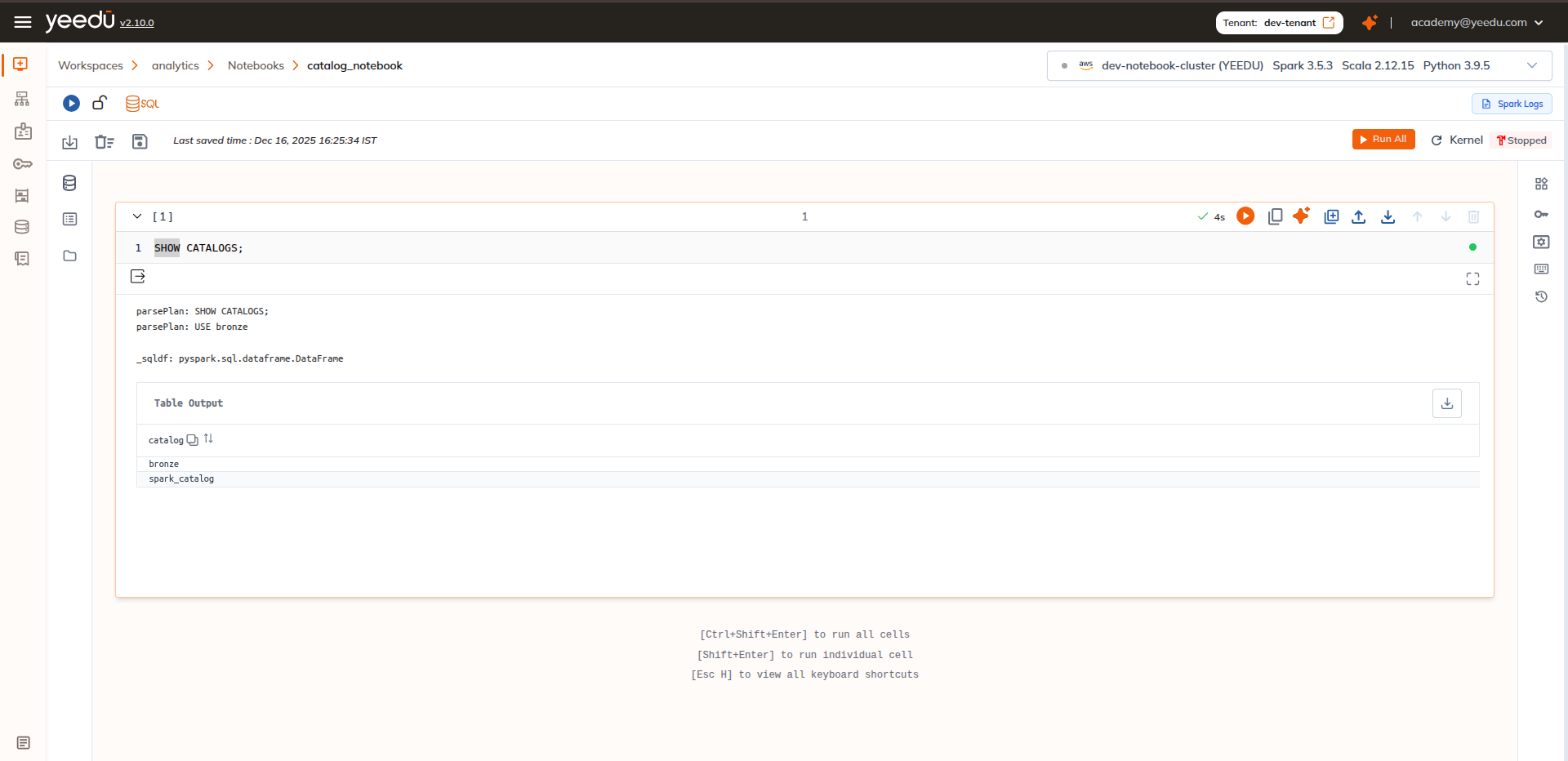
- Open a SQL notebook
- Run test queries:
SHOW CATALOGS;
2. Editing an Existing (Destroyed) Cluster to Attach Unity Metastore
- Open Clusters → locate a cluster in destroyed state
- Click the cluster to edit configuration
- Select the required Metastore from the dropdown
- Update the cluster
- Launch a SQL notebook
- Run test queries:
SHOW DATABASES;
DESCRIBE DATABASE default;