Authentication
Yeedu supports two types of authentication: Azure AD and LDAP.
1. Azure AD
To set up Yeedu with Azure AD, ensure that the Service Principal Name (SPN) has the necessary permissions to read users and groups from your organization's Active Directory.
To add a user to Yeedu, we first add the user to the AD group and once added, user can login to Yeedu. Once the user logs in, Admin will add that user to a tenant based on their usecase requirements.
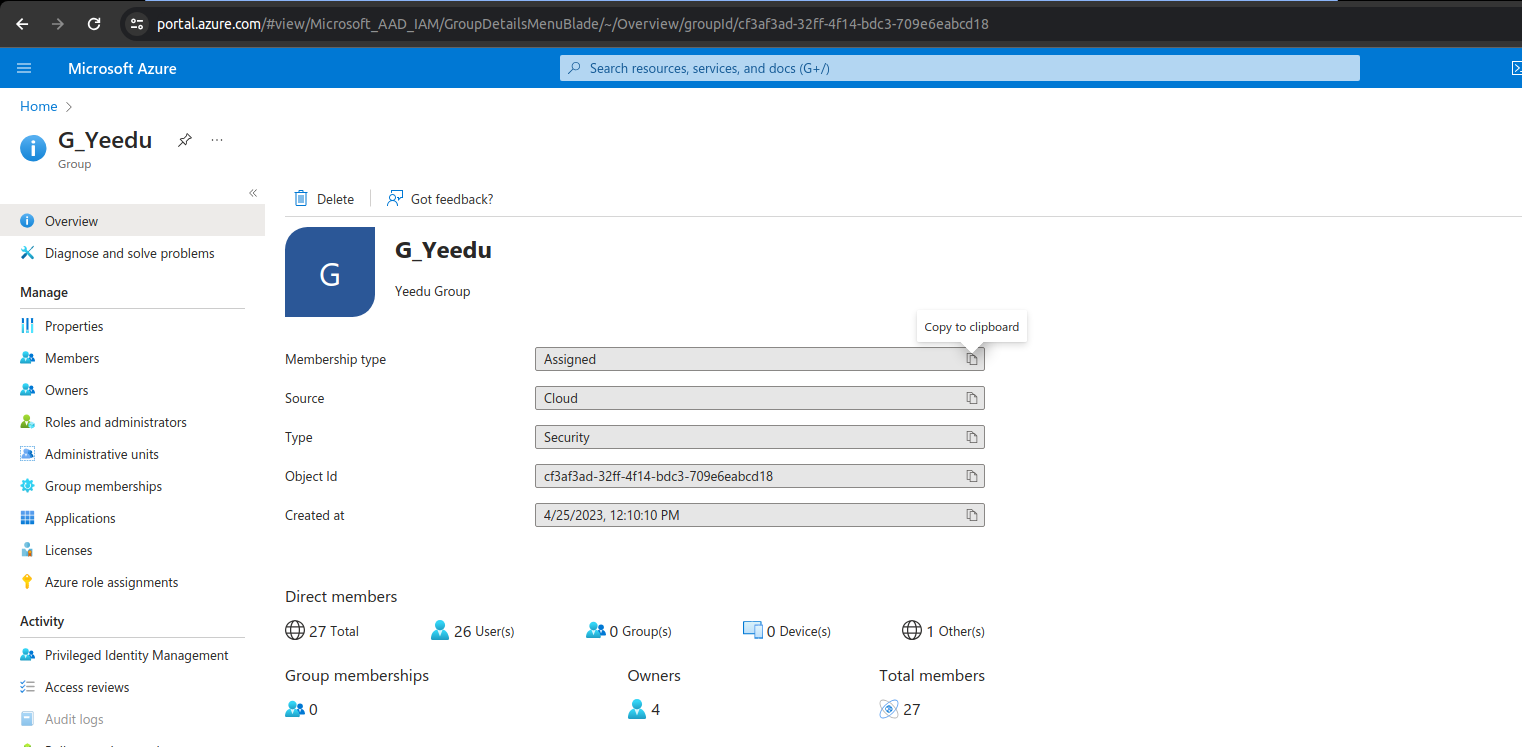
The above screenshot shows a sample AD group G_Yeedu.
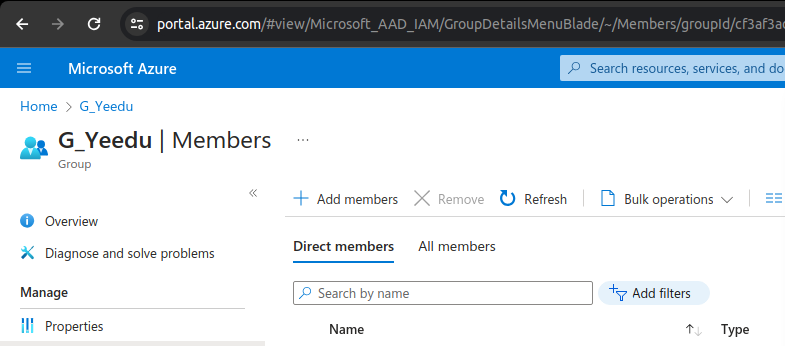
To grant a user access to Yeedu, add the user to the AD group. Once added, the user can log in to Yeedu. Administrators can then assign the user to a tenant based on their specific requirements. To add users to Yeedu, click on the Add Members button and add the respective user to the AD Group. Yeedu automatically gets the new user data and the new user can now login to Yeedu using their Azure credentials.
Below are the variables required to configure Azure AD in Yeedu's connection properties file:
| Variable | Description | Required |
|---|---|---|
| YEEDU_AUTH_AZURE_AAD_CLIENT_ID | Client ID for Azure Active Directory (AAD) authentication | Yes |
| YEEDU_AUTH_AZURE_AAD_TENANT_ID | Tenant ID for Azure Active Directory (AAD) authentication | Yes |
| YEEDU_AUTH_AZURE_AAD_CLIENT_SECRET | Client secret for Azure Active Directory (AAD) authentication | Yes |
| YEEDU_AUTH_AZURE_AAD_ALLOWED_DOMAIN | Allowed domain for Azure Active Directory (AAD) authentication | Yes |
2. LDAP
Below are the variables required to configure LDAP in Yeedu's connection properties file. Based on your organziations LDAP tree structure, provide the BASE_DN and BIND_DN.
| Variable | Description | Default Value | Required |
|---|---|---|---|
| YEEDU_AUTH_LDAP_ORGANISATION | LDAP organization name | yeedu | Yes |
| YEEDU_AUTH_LDAP_DOMAIN | LDAP domain | yeedu.com | Yes |
| YEEDU_AUTH_LDAP_ADMIN_PASSWORD | Password for LDAP administrator | Ndbk5Lgb | Yes |
| YEEDU_AUTH_LDAP_HOSTNAME | Hostname or IP address of the LDAP server | Endpoint URL of LDAP | Yes |
| YEEDU_AUTH_LDAP_PORT | Port number for LDAP server | 389 | No |
| YEEDU_AUTH_LDAP_BASE_DN | Base DN for LDAP | dc=yeedu,dc=com | Yes |
| YEEDU_AUTH_LDAP_BIND_DN | Bind DN for LDAP | cn=admin,dc=yeedu,dc=com | Yes |
| YEEDU_AUTH_LDAP_BIND_PASSWORD | Password for LDAP bind user | Ndbk5Lgb | Yes |
| YEEDU_AUTH_LDAP_SSL_ENABLED | Enable SSL encryption for LDAP connection | false | No |
3. Azure Single Sign-On (SSO) Configuration
Yeedü supports authentication through Azure Single Sign-On (SSO), leveraging your organization’s Azure Active Directory (AAD) to deliver a seamless and secure login experience.
When configured with Azure SSO, users can access Yeedü using their existing Microsoft 365 or Azure credentials, eliminating the need for separate passwords or local authentication.
3.1. User Access Flow
- Ensure the user is part of the designated Azure AD group (for example,
G_Yeedu). - Once added, the user can log in to Yeedü directly through the Azure SSO login page.
- The Yeedü Administrator can then assign the user to the appropriate tenant based on their role or project requirements.
Note:
Yeedü automatically syncs user information from Azure AD. Once a user is added to the AD group, they can sign in immediately via SSO — no manual user provisioning is required.
Example:
- The Azure AD group
G_Yeedumanages user membership for Yeedü access. - To add a user, click Add Members, select the required user, and confirm.
- After the addition, Yeedü recognizes the user automatically and enables login through Azure SSO.
3.1.2. Application Registration
To integrate Yeedü with Azure Single Sign-On, register the Yeedü application in Azure Active Directory:
- Sign in to the Azure Portal.
- Navigate to Azure Active Directory → App registrations.
- Click + New registration.
- Set the following values:
- Name:
Yeedu - Redirect URI: Leave blank or configure later, if required.
- Name:
- Click Register.
Once registered, you’ll obtain the following values from the Azure portal:
- Application (Client) ID
- Directory (Tenant) ID
- Client Secret (generated under Certificates & Secrets)
Use these values in the Yeedü configuration file as shown below.
3.2. Configuration Variables
Add the following variables to the yeedu-connection.properties file to enable Azure SSO authentication:
| Variable | Description | Required |
|---|---|---|
YEEDU_AUTH_TYPE | Set this value to AZURE_SSO to enable Single Sign-On authentication. | Yes |
YEEDU_AUTH_AZURE_AAD_CLIENT_ID | Client ID for Azure AD SSO integration (from App registration). | Yes |
YEEDU_AUTH_AZURE_AAD_TENANT_ID | Tenant ID associated with the Azure AD directory. | Yes |
YEEDU_AUTH_AZURE_AAD_CLIENT_SECRET | Client secret for the registered Azure AD application. | Yes |
YEEDU_AUTH_AZURE_AAD_ALLOWED_DOMAIN | Domain allowed for Azure AD SSO authentication. | Yes |
Summary
- Azure SSO provides passwordless, secure access using Azure AD credentials.
- User onboarding is automated once they’re added to the configured AD group.
- Configure
YEEDU_AUTH_TYPE=AZURE_SSOinyeedu-connection.propertiesto enable Single Sign-On during deployment. - Ensure the Yeedü application is registered in Azure AD to obtain the required Client ID, Tenant ID, and Client Secret.