Setting Up Thrift Server for Yeedu
Overview
This guide provides instructions for configuring a Yeedu Thrift Server to interact with a JDBC client. The Thrift Server enables executing SQL queries using various client applications, such as BI tools and SQL editors.
Prerequisites
- Operates exclusively in YEEDU mode of a cluster.
- Supported Spark versions: 3.5.3 and 3.4.3. A runtime version supports Thrift only if it carries the Thrift Support badge in the cluster's Run Time Version dropdown.
- Requires cluster association with a workspace.
- Permissions required: CAN RUN, CAN EDIT, or CAN MANAGE on the workspace.
Configuration Steps
Access the JDBC Section
- The JDBC section provides the necessary information to establish a connection.
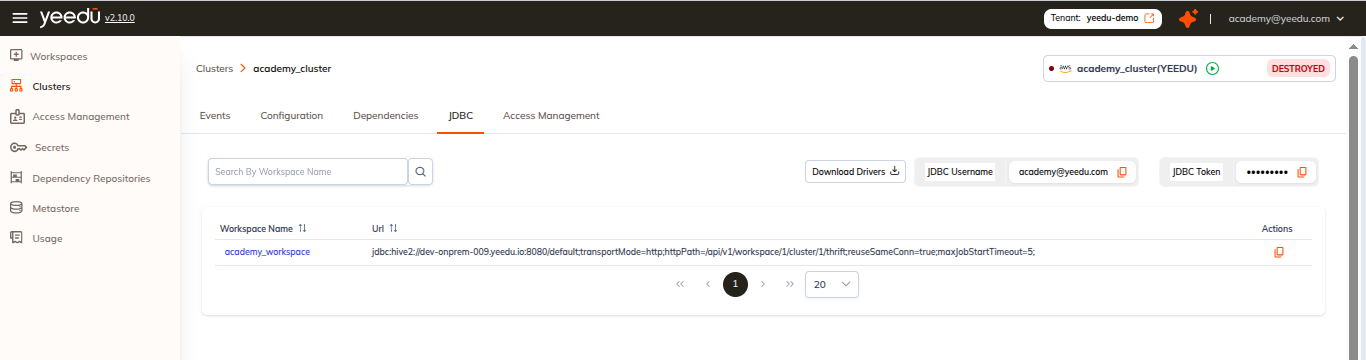
From Clusters Dashboard
- Open the Clusters Dashboard in the Yeedu UI.
- Select a cluster from the list.
- Locate the JDBC section, which includes:
- Workspace Name: Displays the workspace where the Yeedu Thrift Server will be created.
- JDBC URL: The connection string used to interact with the Yeedu Thrift Server.
- Download Drivers: Provides the custom Yeedu Thrift JAR file for JDBC tools like DBeaver.
- JDBC Username and JDBC Password: Required for authenticating with the Yeedu Thrift Server.
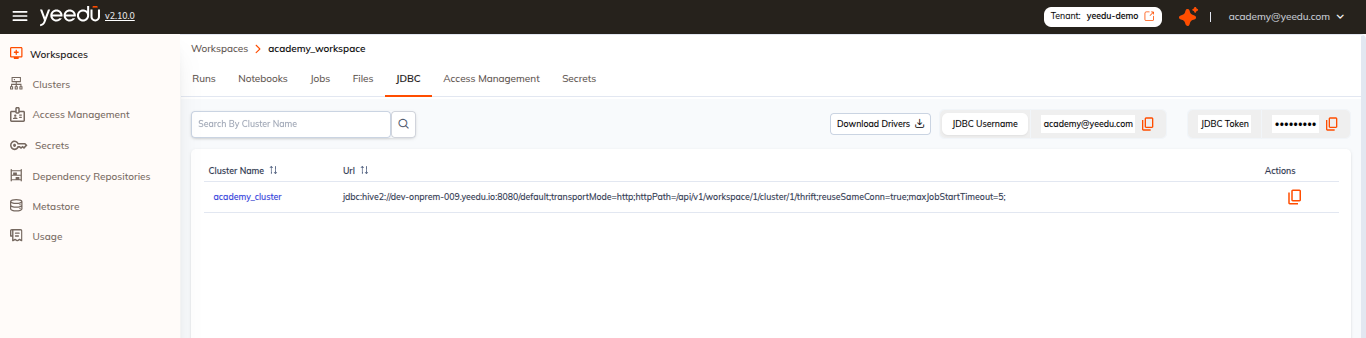
From Workspaces Dashboard
- Open the Workspaces Dashboard in the Yeedu UI.
- Select a workspace from the list.
- Locate the JDBC section, which includes:
- Cluster Name: Displays the cluster where the Yeedu Thrift Server will start.
- JDBC URL: The connection string used to interact with the Yeedu Thrift Server.
- Download Drivers: Provides the custom Yeedu Thrift JAR file for JDBC tools like DBeaver.
- JDBC Username and JDBC Password: Required for authenticating with the Yeedu Thrift Server.
Configuring the Thrift Driver in DBeaver
- Open DBeaver and navigate to Database > Driver Manager.
- Click New to create a new driver.
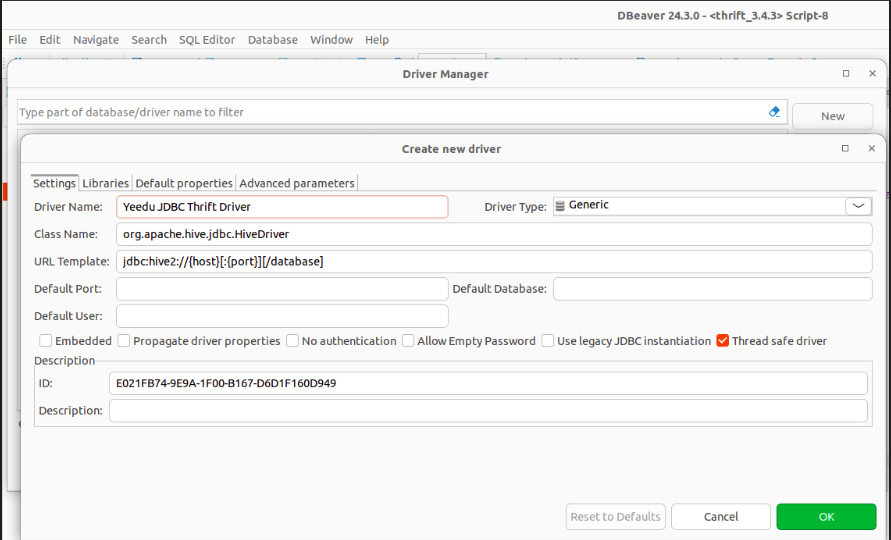
- Complete the following fields in the Settings tab:
- Driver Name: Enter a name such as
Yeedu JDBC Thrift Driver. - Class Name: Use
org.apache.hive.jdbc.HiveDriver. - URL Template: Set it to
jdbc:hive2://{host}[:{port}][/database].
- Driver Name: Enter a name such as
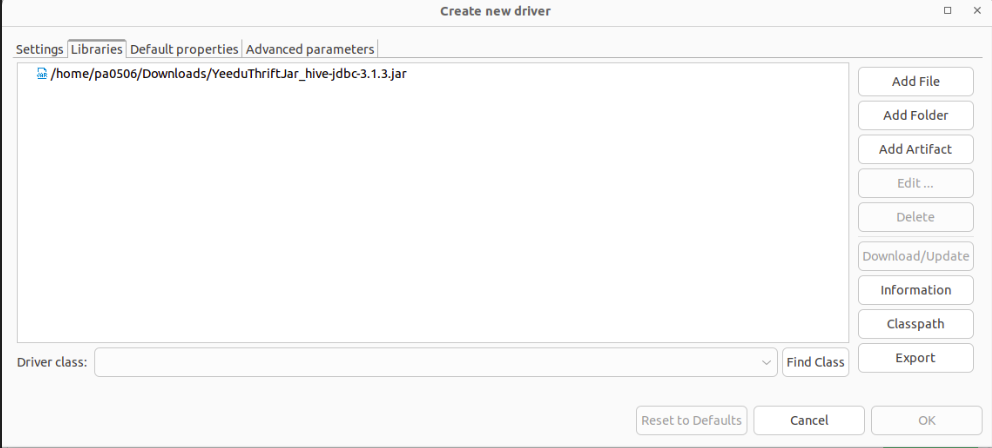
- In the Libraries tab, click Add File:
- Navigate to the location where the
Yeedu Thrift DriverJAR file was downloaded. - Select the JAR file (e.g.,
YeeduThriftJar_hive-jdbc-3.1.3.jar) and add it to the configuration.
- Navigate to the location where the
Establishing a Connection in DBeaver
- Click New Database Connection in DBeaver.
- Select the configured driver and click Next.
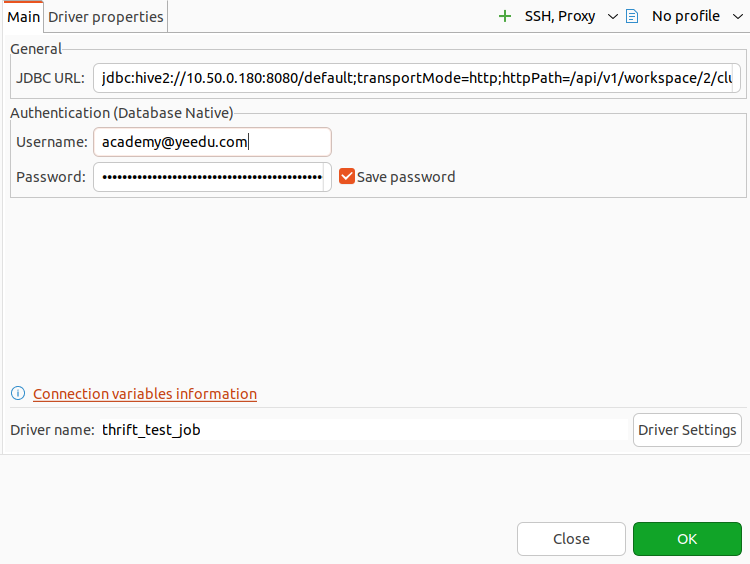
- Use the JDBC URL from the JDBC Section. Example format:
jdbc:hive2://{hostname}:{port}/default;ssl=true;sslTrustStore=<trust_store_path>;trustStorePassword=<trust_store_password>;transportMode=http;httpPath=/api/v1/workspace/{workspace_id}/cluster/{cluster_id}/thrift;ignoreHttpVerify=false;maxJobStartTimeout=5;
- Copy the JDBC Username and JDBC Password from the Yeedu JDBC section and enter them as authentication credentials in DBeaver.
- Click Test Connection.If the connection test is successful, it confirms that the database connection is established.
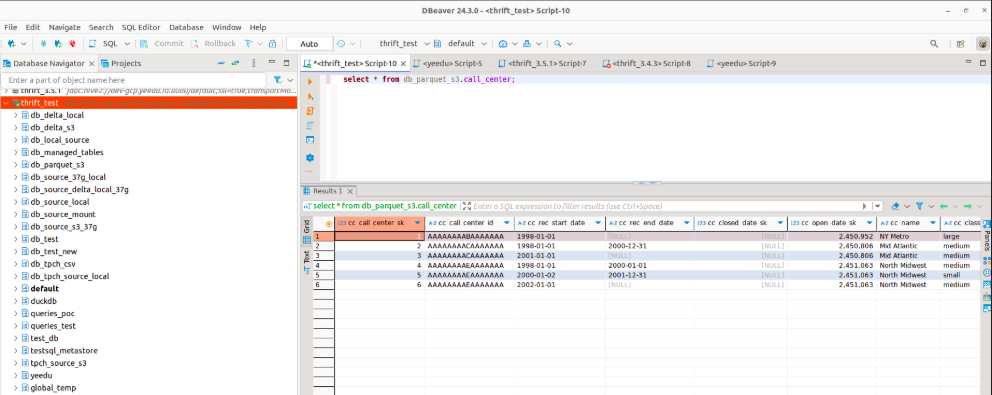
- You will then be able to open a SQL editor in DBeaver and start executing queries.
Connection Options
1. Unencrypted Connection
Use the following JDBC URL for an unencrypted connection:
jdbc:hive2://{hostname}:{port}/default;transportMode=http;httpPath=/api/v1/workspace/{workspace_id}/cluster/{cluster_id}/thrift;maxJobStartTimeout=5;
- maxJobStartTimeout: How long, in minutes, the driver waits for the Thrift server job to reach a running state before giving up (default:
5). If the server does not start in time the driver fails with "Failed to start the Thrift server within the allotted time of N minutes".
2. SSL-Enabled Connection
For secure connections, include ssl=true and specify the truststore:
jdbc:hive2://{hostname}:{port}/default;ssl=true;sslTrustStore=<trust_store_path>;trustStorePassword=<trust_store_password>;transportMode=http;httpPath=/api/v1/workspace/{workspace_id}/cluster/{cluster_id}/thrift;ignoreHttpVerify=false;maxJobStartTimeout=5;
- sslTrustStore=
<trust_store_path>: Specifies the location of the client's truststore file. - trustStorePassword=
<trust_store_password>: The password required to access the truststore.
3. SSL with ignoreHttpVerify=true
Bypass truststore validation using the following JDBC URL:
jdbc:hive2://{hostname}:{port}/default;ssl=true;transportMode=http;httpPath=/api/v1/workspace/{workspace_id}/cluster/{cluster_id}/thrift;ignoreHttpVerify=true;maxJobStartTimeout=5;
- Parameters sslTrustStore and trustStorePassword are not required in this configuration.
The property name is case-sensitive: ignoreHttpVerify, not ignoreHTTPVerify. A misspelled key is
ignored silently and the driver falls back to the default (false), i.e. full certificate verification.
JDBC URL parameter reference
Every parameter below is a session variable — it goes after the database name, separated by ;.
| Parameter | Default | Meaning |
|---|---|---|
transportMode | — | Must be http for Yeedu. |
httpPath | — | /api/v1/workspace/{workspace_id}/cluster/{cluster_id}/thrift — identifies the workspace and cluster the Thrift server runs on. |
ssl | false | Set to true to connect over HTTPS. |
sslTrustStore / trustStorePassword | — | Client truststore and its password. Required when ssl=true and ignoreHttpVerify=false. |
ignoreHttpVerify | false | When true, skips certificate verification, so no truststore is needed. Case-sensitive. |
maxJobStartTimeout | 5 | Minutes to wait for the Thrift server job to start. |
reuseSameConn | true | When true, a second connection opened with the same JDBC URL attaches to the Thrift server already started by the first one instead of launching another job run. Set it to false to force a dedicated Thrift server (and therefore a separate job run) per connection. |
The URL that Yeedu generates for you on the cluster page already includes these — for example:
jdbc:hive2://demo.yeedu.io:8080/default;ssl=true;transportMode=http;httpPath=/api/v1/workspace/{workspace_id}/cluster/{cluster_id}/thrift;reuseSameConn=true;ignoreHttpVerify=true;maxJobStartTimeout=5;