Yeedu Assistant
Yeedu Assistant is a platform-wide AI assistant that answers questions about Yeedu, queries the platform on your behalf, and diagnoses run and cluster errors.
The product name shown in the UI is Yeedu Assistant. AssistantX is the name of this documentation section only. The two refer to the same feature.
Where It Lives
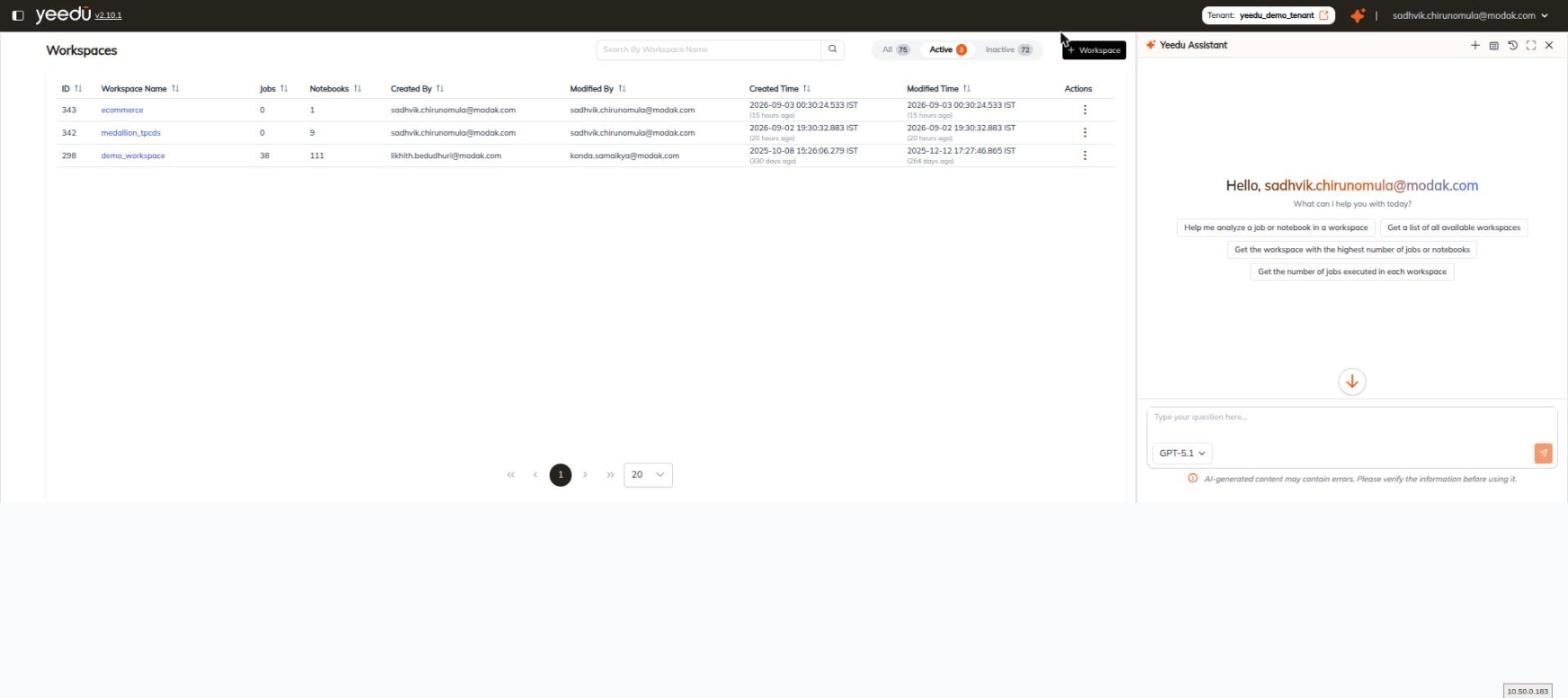
Yeedu Assistant has no page or route of its own. It's a right-hand drawer opened by the orange sparkle icon in the global top bar, between the tenant chip and the account menu. The icon carries no tooltip, and it's present on every page of the application, so the assistant can be opened from Workspaces, Clusters, a cluster's Events tab, a run detail page, and anywhere else in the UI.
Drawer Header
The drawer header reads Yeedu Assistant behind a sparkle glyph, followed by five controls. Left to right:
| # | Icon | Tooltip | Opens |
|---|---|---|---|
| 1 | + | Add Chat | A new, empty conversation. |
| 2 | Grid | Instructions | The Instructions modal. |
| 3 | History | View History | The chat History list, which replaces the chat body. |
| 4 | Expand | Expand | The full-screen assistant view. |
| 5 | ✕ | (no tooltip) | Closes the drawer. |
Suggestion Chips
On an empty conversation the drawer greets you with Hello, <your email> and What can I help you with today?, then offers a set of suggestion chips. Clicking a chip sends it as your first message. The chip set changes with the page you're on. We observed three sets in version 2.10.1:
| Page | Chips, in order |
|---|---|
| Workspaces | Help me analyze a job or notebook in a workspace · Get a list of all available workspaces · Get the workspace with the highest number of jobs or notebooks · Get the number of jobs executed in each workspace |
| Job or notebook run detail | List the jobs that have been successful in the last 24 hours · Which jobs are failing the most? · Which jobs are currently running? · List the jobs that have failed in the last 24 hours |
| Clusters list, and Cluster ▸ Events | List the cluster Statistics · List the clusters with the highest number of failed jobs or notebooks |
These three sets are the ones we observed on version 2.10.1. They aren't a closed list. Other pages present chips of their own, tailored to what is on screen.
The Composer
The composer sits at the bottom of the drawer.
| Element | Detail |
|---|---|
| Input | A text area with the placeholder Type your question here.... |
| Context gauge | A small ring and percentage chip to the left of the model select. It appears only once the conversation has content, so a brand-new chat doesn't show it. See Context Window. |
| Model select | Tooltip Change AI model. Defaults to GPT-5.1. |
| Send | The orange paper-plane button on the right. |
Beneath the composer, a fixed disclaimer reads, verbatim:
AI-generated content may contain errors. Please verify the information before using it.
Models
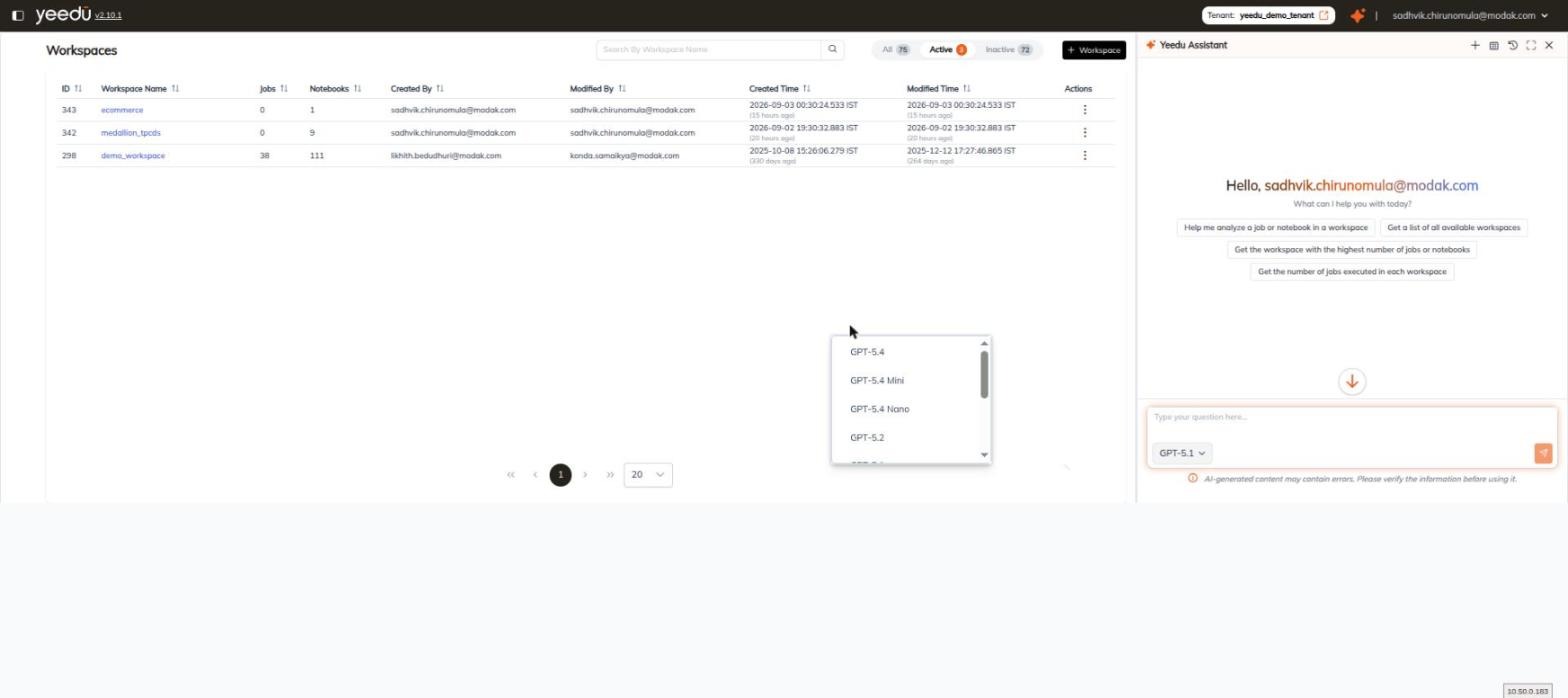
The model select offers nine models. This is the same roster the notebook cell AI assistant uses.
| # | Model |
|---|---|
| 1 | GPT-5.4 |
| 2 | GPT-5.4 Mini |
| 3 | GPT-5.4 Nano |
| 4 | GPT-5.2 |
| 5 | GPT-5.1, default selection |
| 6 | GPT-5 |
| 7 | GPT-5 Mini |
| 8 | GPT-5 Nano |
| 9 | GPT-4o |
The model is chosen in the composer. No default-model setting for Yeedu Assistant exists elsewhere in the product.
Context Window
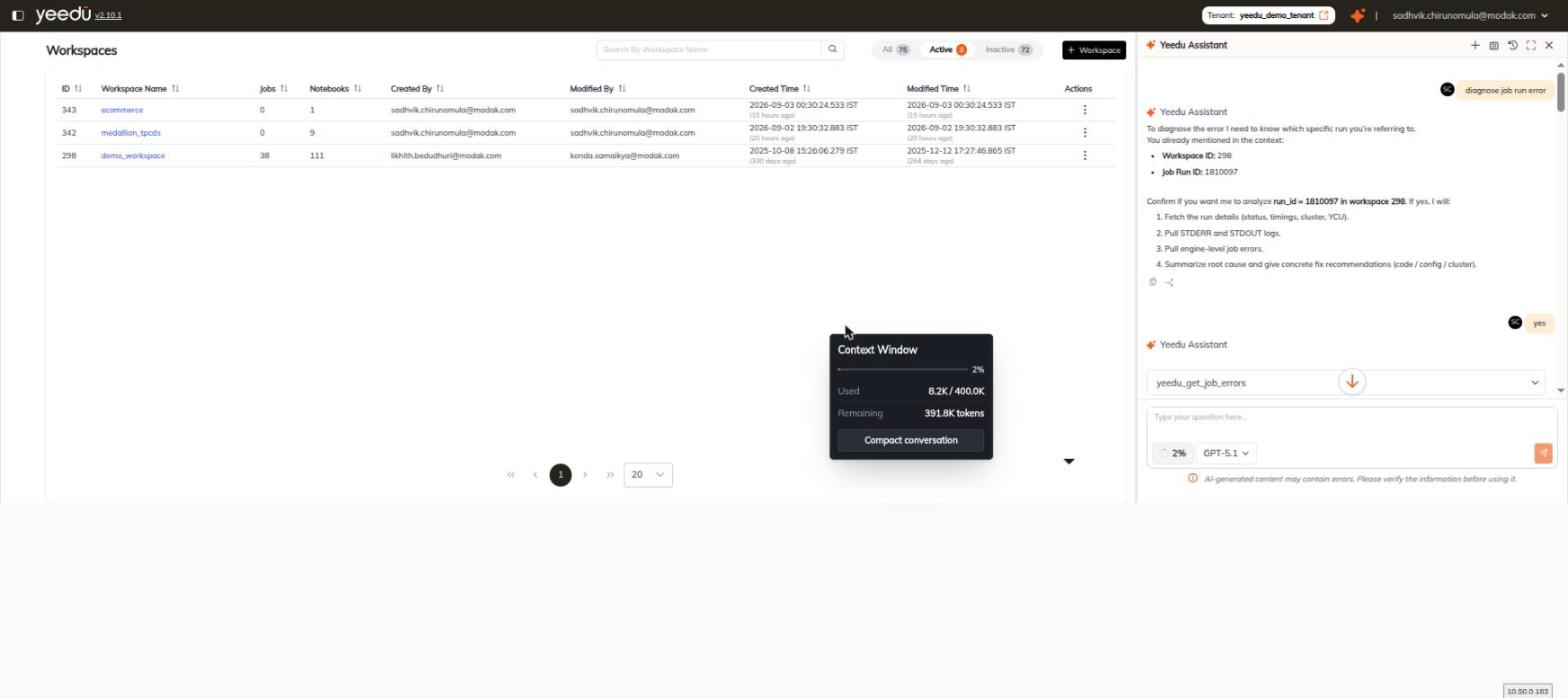
Hovering the percentage chip opens the Context Window popover, which reports how much of the model's context the conversation currently occupies.
| Field | Example value |
|---|---|
Context Window heading, with the percentage used on the right | 2% |
| Progress bar | Fills in proportion to the percentage. |
Used | 8.2K / 400.0K |
Remaining | 391.8K tokens |
| Compact conversation | A button that summarises the conversation so far to free context. |
Use Compact conversation on a long diagnosis thread rather than starting over. It frees context while keeping the thread's conclusions.
Conversation Rendering
- Your turns are right-aligned chips carrying your initials avatar.
- Assistant turns are left-aligned, prefixed by the orange sparkle, and rendered as full Markdown: headings, ordered and unordered lists, bold, and inline code.
- A floating down-arrow button scrolls to the newest message.
Each assistant turn carries two footer icons:
| Icon | Tooltip | Action |
|---|---|---|
| Copy | Copy | Copies the assistant's message. |
| Branch | Branch | Forks the conversation from that message, so you can explore an alternative line of questioning without losing the original. |
Tool-Call Cards
When the assistant needs to read the platform to answer you, it calls a Yeedu tool and renders one collapsible card per call, stacked inside the assistant turn. The card title is the tool name.
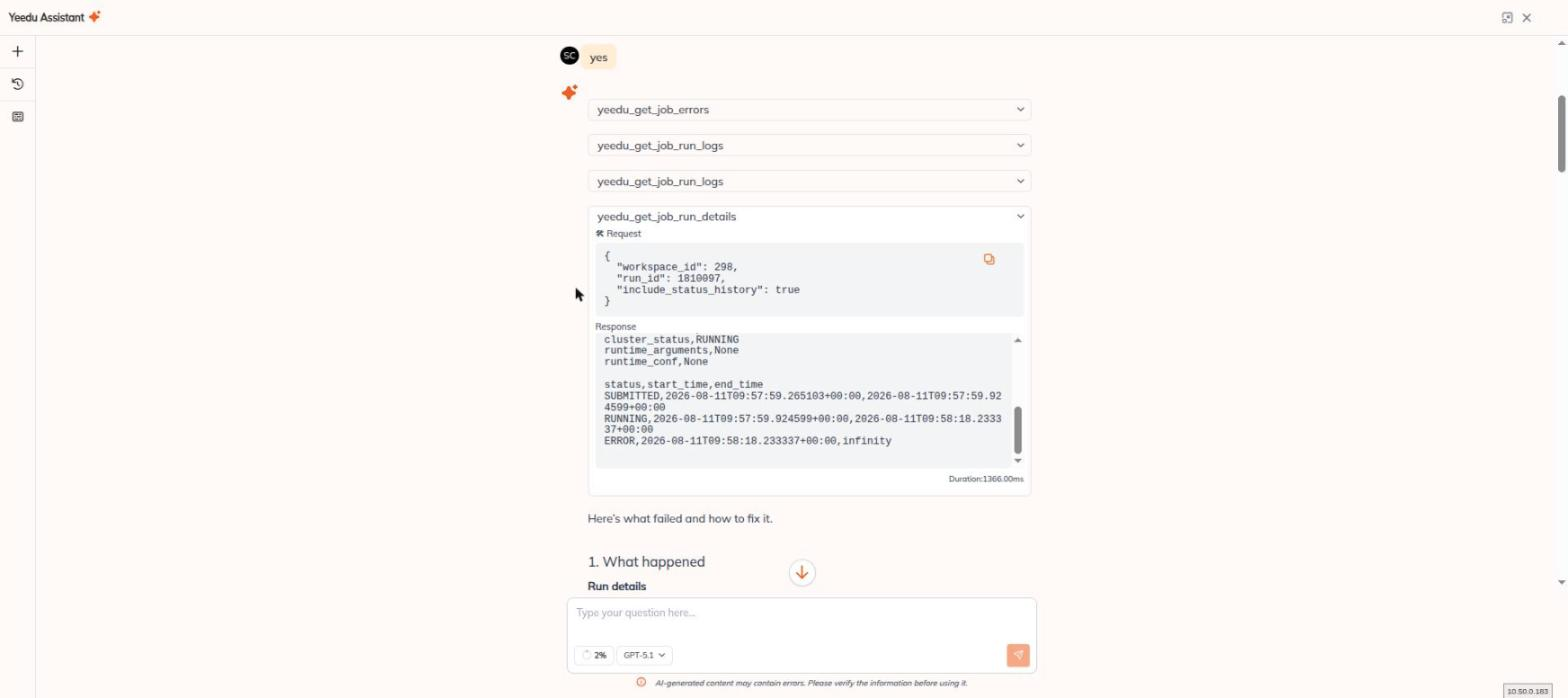
Expanding a card shows three parts:
| Part | Content |
|---|---|
Request | The JSON arguments sent to the tool, for example { "workspace_id": 298, "run_id": 1810097, "include_status_history": true }, with a copy icon. |
Response | The raw tool output, in a scrollable box. |
Duration:<n>ms | How long the call took, in the card footer. |
Tool names we observed on version 2.10.1 include yeedu_get_job_errors, yeedu_get_job_run_logs and yeedu_get_job_run_details.
Those three are a sample of what we saw in one diagnosis thread, not the assistant's full tool catalogue. Expect other tool names depending on what you ask.
Expand View
The Expand control takes the assistant full-screen over the application. The content is identical; only the layout changes:
- The header keeps a collapse icon and
✕. - The three panel controls,
+(Add Chat), History (View History) and the grid (Instructions), move to a left icon rail. - The composer is centred at the bottom.
The wider measure makes long diagnoses and large tool responses considerably easier to read.
Yeedu Assistant vs. the Notebook Cell AI Assistant
Yeedu is two distinct AI surfaces.
They share a model roster and nothing else.
| Yeedu Assistant | Notebook cell AI assistant | |
|---|---|---|
| Where | The global right-hand drawer, on every page | Inside a single notebook code cell |
| Opened by | The sparkle icon in the top bar | The cell-toolbar sparkle, or Ctrl + Shift + Y |
| Purpose | Platform questions, cross-workspace queries, error diagnosis | Generating, fixing and explaining the code in that cell |
| Input | Free-text questions and suggestion chips | A free-text prompt, plus seven slash commands |
| Reads Yeedu through | Tool calls against the platform | The cell and notebook context |
For the cell assistant's prompt bar, its nine models and the full slash-command list, see LLM Model Selection.