Git Credentials (Linked Accounts)
Git credential management lives in Settings → Linked Accounts. Linking a Git provider account lets you access repositories directly from a workspace: creating Git folders, syncing repositories, and managing code files inside the platform.
A linked account is a prerequisite for cloning. The Git Provider dropdown on the Git Repository Information modal is constrained to the providers you've linked here. See Git Clone (Git Folder).
Navigating to Linked Accounts
- Click your username / avatar in the top-right corner of any page.
- Select Settings from the dropdown.
- In the left rail, under the USER group, click Linked Accounts.
The page opens at /tenant/{tenantId}/settings/linked-accounts.
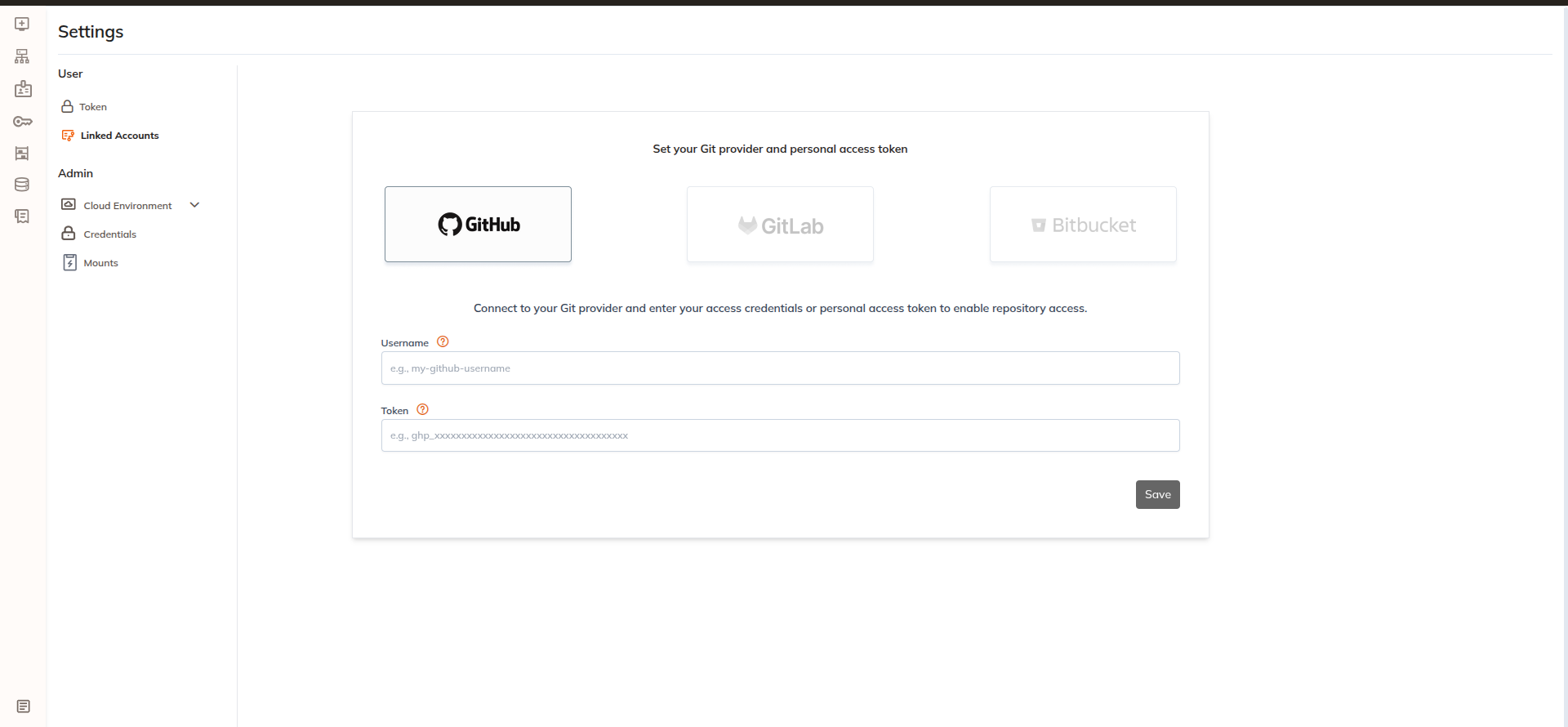
Settings left rail
The Settings page groups its pages into two sections:
| Group | Pages |
|---|---|
| USER | Token, Linked Accounts |
| ADMIN | Cloud Environment (expandable → Networks, Bootdisks), Credentials, Mounts |
Page layout
The page is headed "Set your Git provider and personal access token" and shows three provider tiles:
| Tile | State observed in this build |
|---|---|
| GitHub | Active — bordered, full colour, selectable |
| GitLab | Greyed out, doesn't respond to clicks |
| Bitbucket | Greyed out, doesn't respond to clicks |
Beneath the tiles the page explains:
Connect to your Git provider and enter your access credentials or personal access token to enable repository access.
GitHub is the only supported Git provider in v2.10.1. The GitLab and Bitbucket tiles are permanently disabled in this build. They're rendered as static images with no clickable control, and there's no setting a platform administrator can change to enable them. The backend still carries GIT_LAB and BITBUCKET_CLOUD provider values, so support is planned but not yet enabled.
Creating a Git credential
- Go to Settings → Linked Accounts.
- Select GitHub as the Git provider.
- Enter the required information:
- Username
- Token (GitHub Personal Access Token)
- Click Save to create the credential.
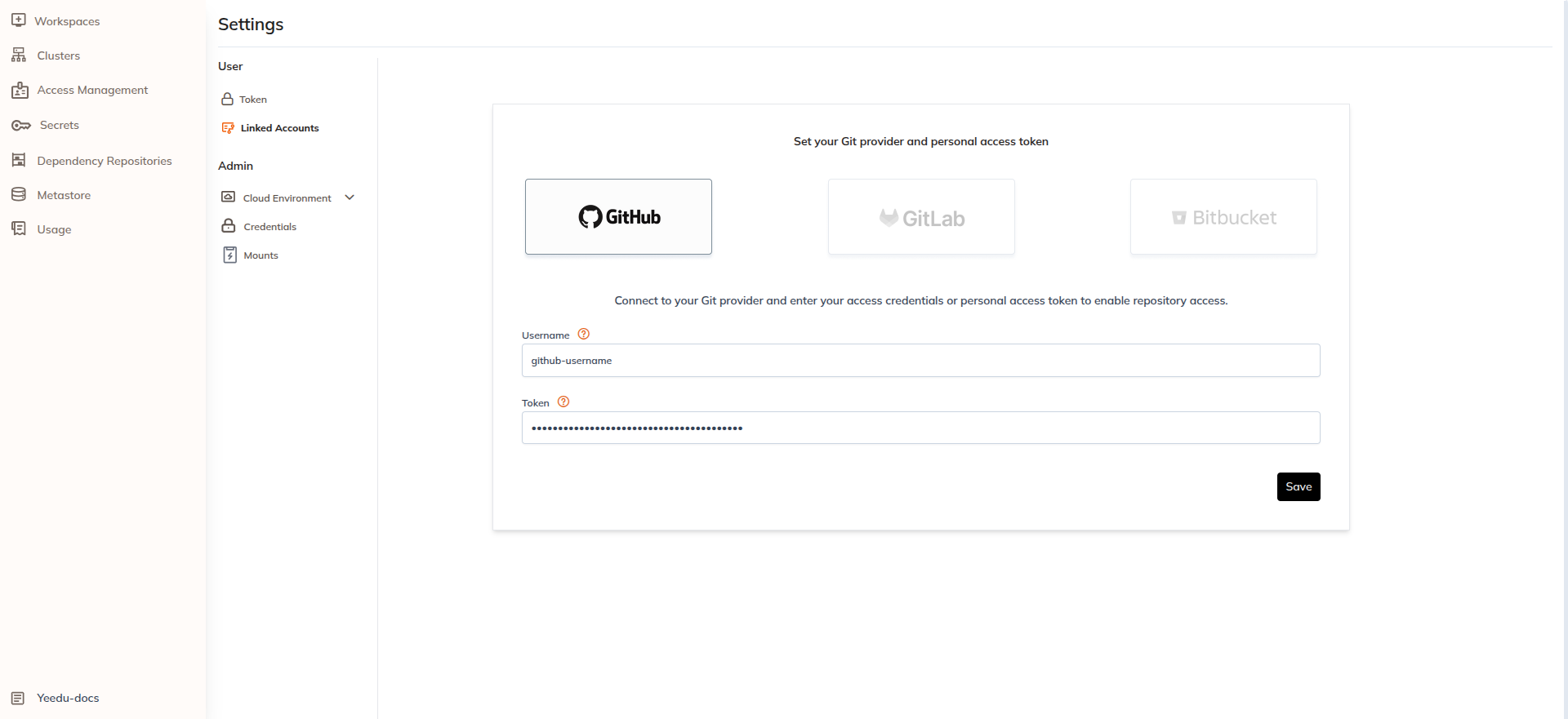
Once the credentials are saved, the platform stores them securely and enables repository access for Git operations.
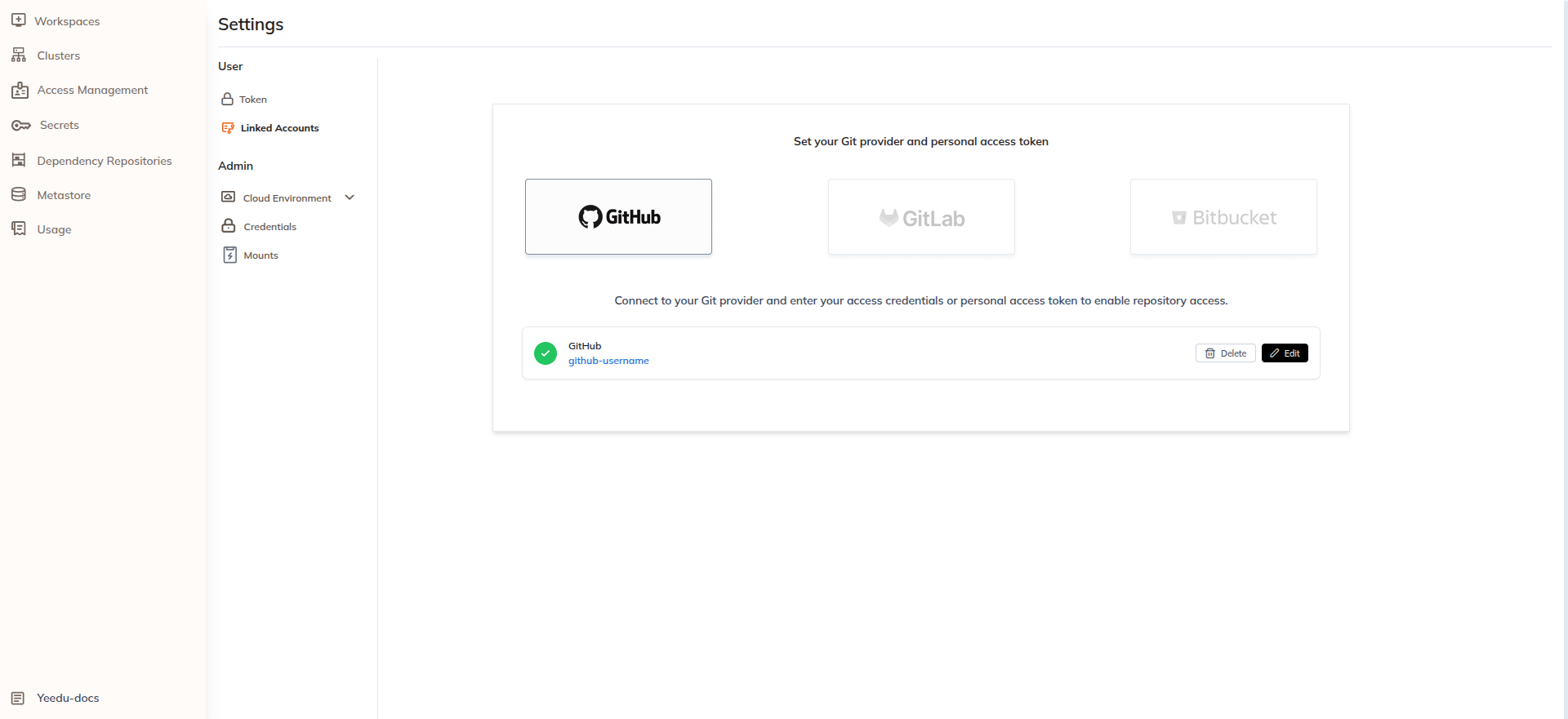
Linked account row
A successfully linked account appears as a row containing:
| Element | Example |
|---|---|
| Status indicator | Green check |
| Provider | GitHub |
| Account name | Sadhvik-Modak |
| Actions | Delete, Edit |
Username and token validation
Yeedu validates the Username and Token fields against per-provider patterns supplied by the backend, so the credential must match the format GitHub itself publishes. In practice that means:
- A GitHub username contains letters, numbers and single hyphens, starts and ends with a letter or number, and is at most 39 characters long.
- A classic Personal Access Token starts with
ghp_. The field's own placeholder ise.g., ghp_xxxxxxxxxxxxxxxxxxxxxxxxxxxxxxxxxxxx. - A fine-grained Personal Access Token starts with
github_pat_.
Ensure the token has sufficient permissions to access the required repositories.
The exact validation patterns are configured server-side and aren't part of the documented interface. If a credential is rejected, check it against GitHub's current username and token formats.
Editing a linked account
To edit credentials:
- Click the Edit button on the linked account row.
- Modify the necessary fields.
- Enter the token again for security verification.
- Click Save to apply the changes.
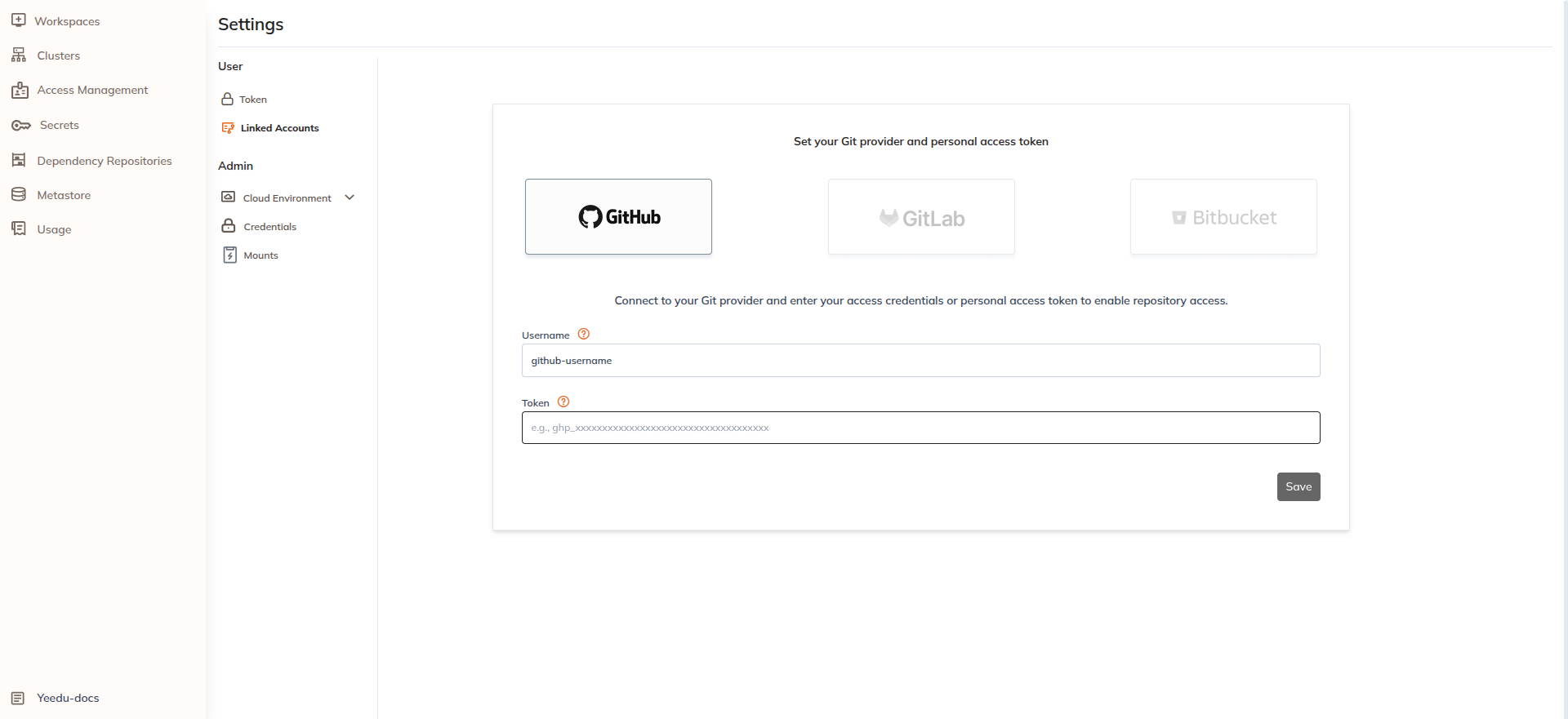
The username may remain the same or can be edited depending on configuration, but the token must always be provided again when editing credentials.
Deleting a linked account
To delete credentials:
- Click the Delete button on the linked account row.
- A confirmation popup will appear.
- Type the GitHub username to confirm the action.
- Click I understand the consequences, disable this git credential.
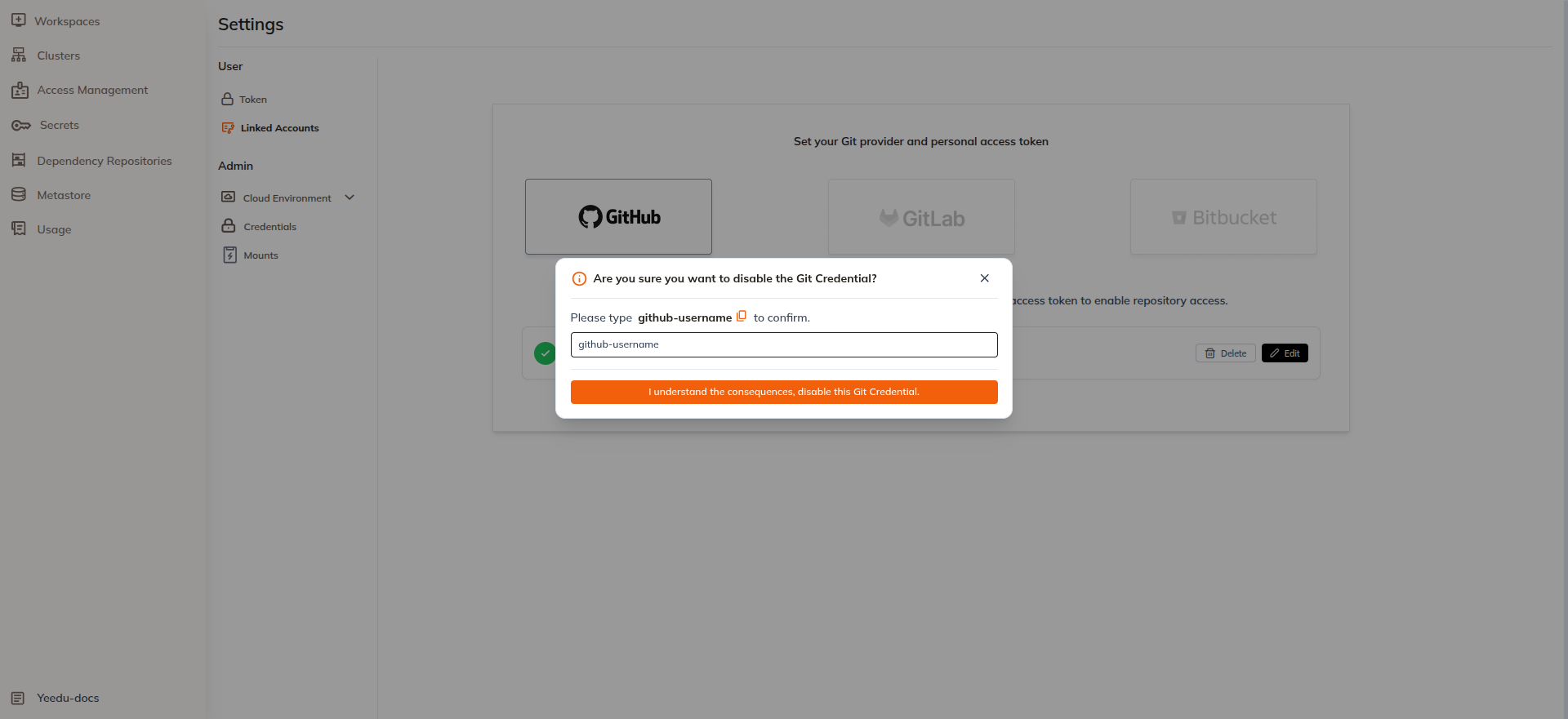
This step ensures that credentials aren't accidentally removed.
Deleting a linked account removes the credential that Git folders resolve against. Existing Git folders cloned with that credential will no longer be able to authenticate for pull, commit, or push.
Benefits
- Securely connect Git repositories to the platform.
- Simplify repository access for workspace files and Git folders.
- Enable seamless integration between Git workflows and data engineering pipelines.
- Manage credentials directly from the platform without external configuration.