Git Operations
We provide built-in Git capabilities that let users run common Git operations directly from the workspace UI. These operations help manage branches, track file changes, synchronize with remote repositories, and push updates, so you don't have to leave the platform to do any of it. They are available for Git folders inside Workspace → Files.
Opening Git Operations
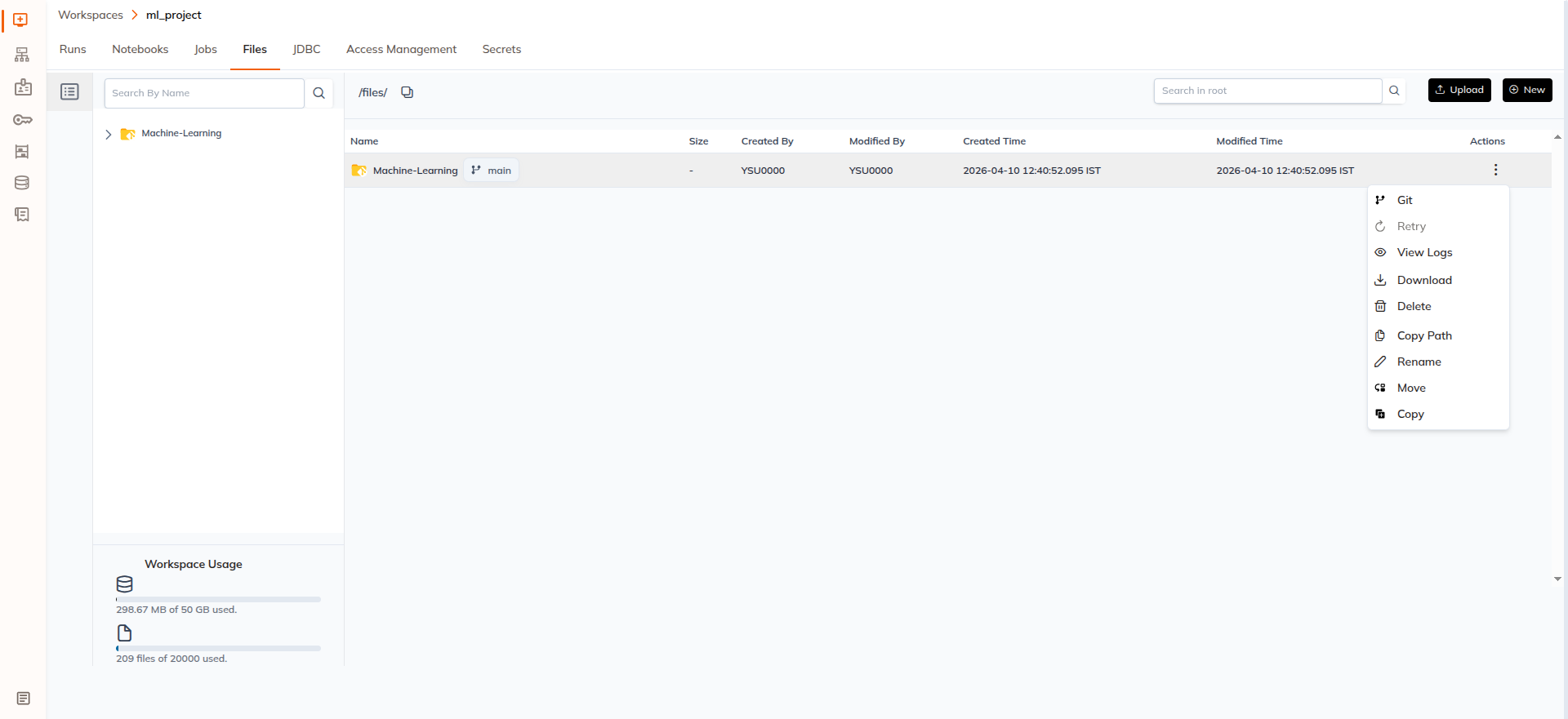
To access Git operations:
- Navigate to Workspace → Files
- Locate the Git folder
- Click the Action Menu (⋮)
- Select Git
This opens the Git Operations popup, where you'll find every repository-related action.
Branch Management
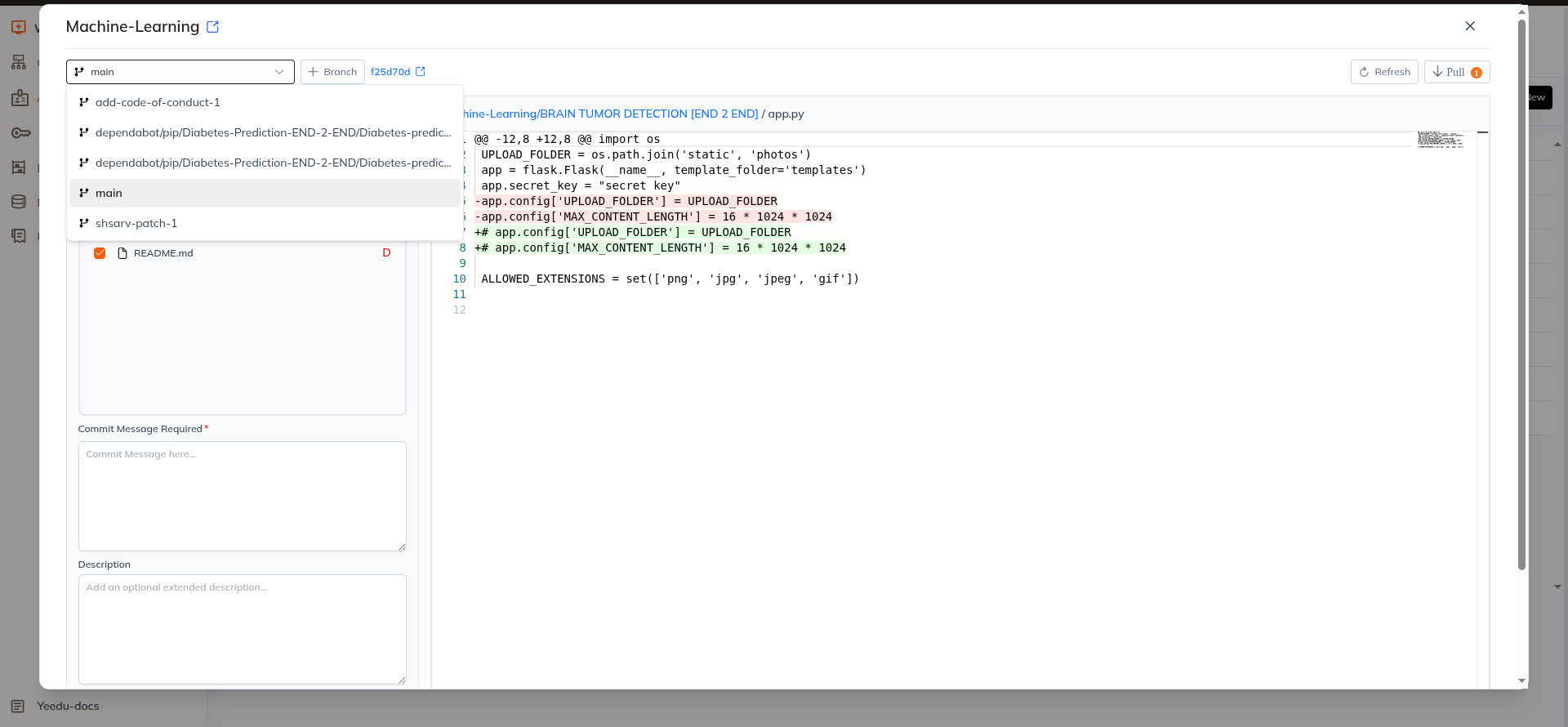
List Branches
We let users view all branches available in the repository. The branch dropdown displays the list of branches present in the Git repository, and users can select any branch from it to view that branch's contents.
Switch Branch
Users can switch between branches using the branch selector.
Steps
- Click the branch dropdown
- Select the desired branch
- The repository switches to the selected branch
You can't switch branches when there are uncommitted changes.
To switch branches, users must either:
- Commit and push the changes, or
- Discard the changes
Create Branch
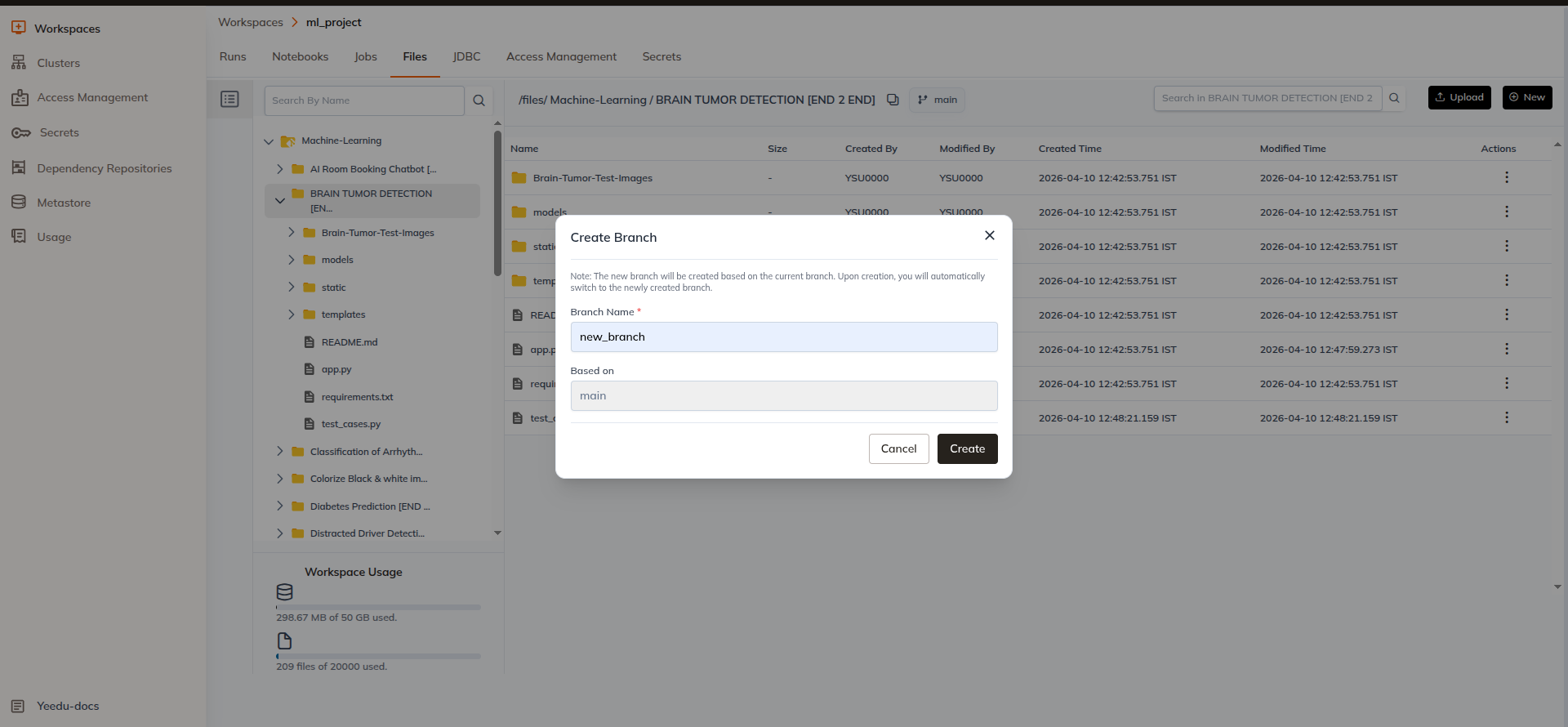
Users can create a new branch from the current branch.
Steps
- Click the
+ Branchbutton - Enter the new branch name
- Click Create
The new branch will be created using the current branch as the base branch.
Upon creation, the system automatically switches to the newly created branch.
Local Clone HEAD Commit
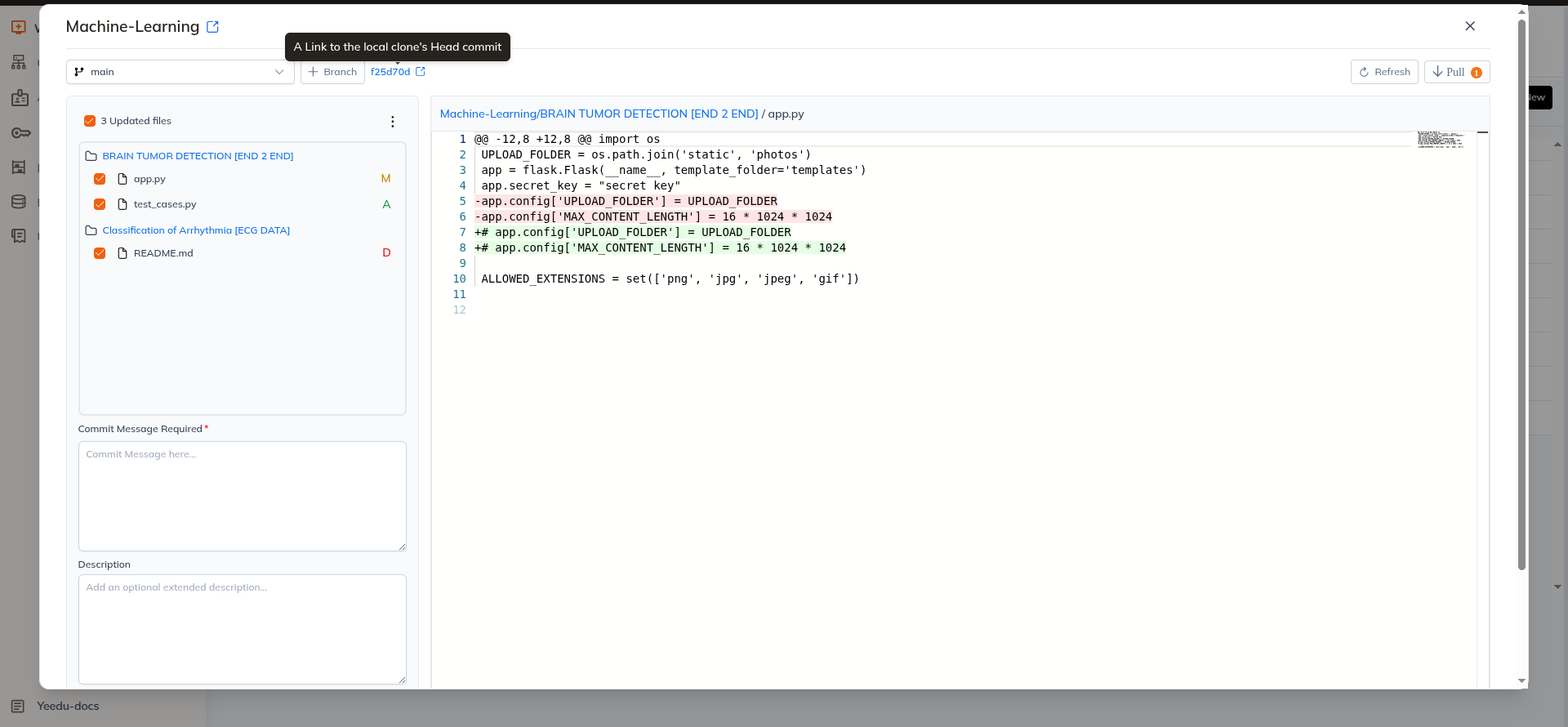
Next to the Create Branch option, the UI displays the Local Clone HEAD Commit. This represents the current commit hash of the repository that is checked out in the workspace, which is the quickest way to identify the exact version of the repository currently in use.
Repository Synchronization
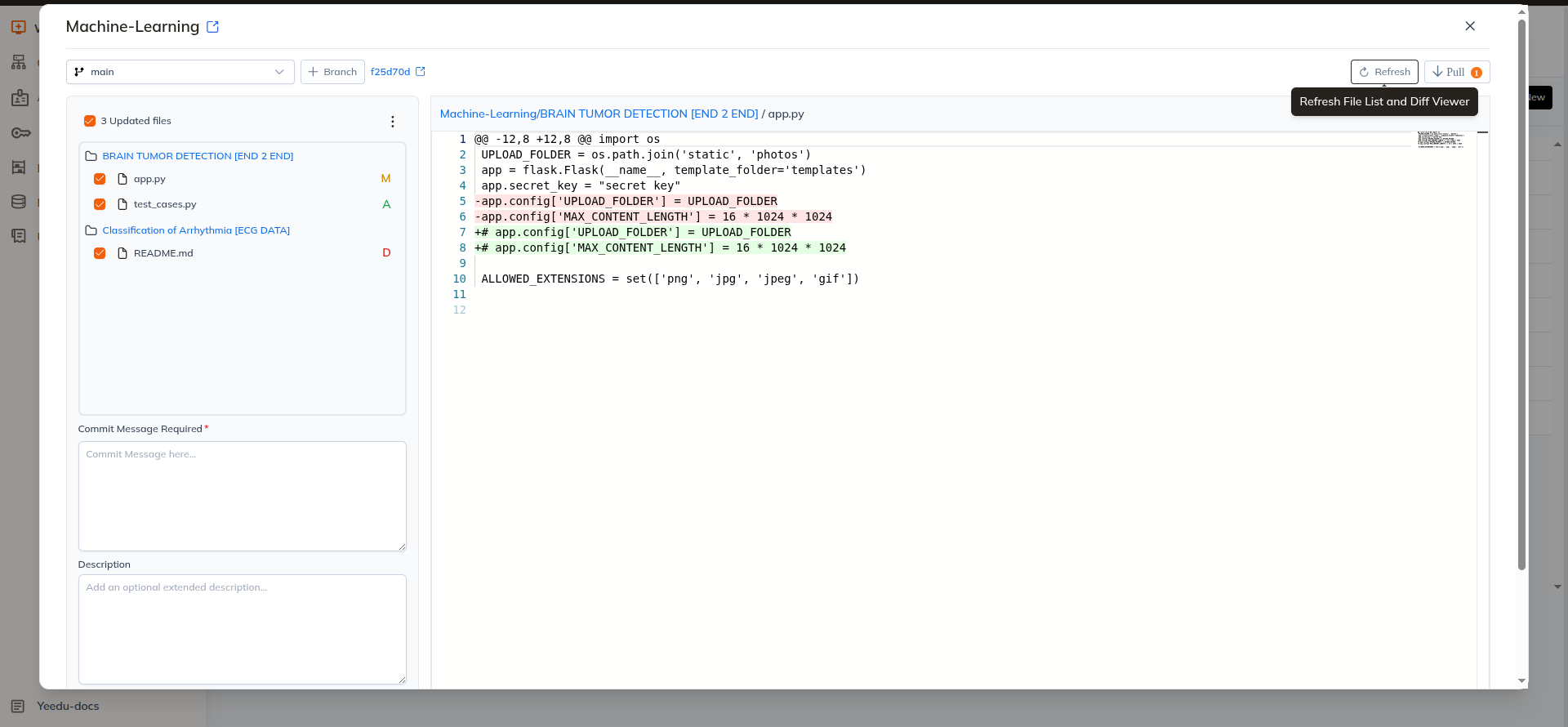
Refresh
The Refresh button reloads the repository status and updates:
- Branch information
- File change status
- Repository differences
This helps ensure the UI reflects the latest repository state.
Pull Changes
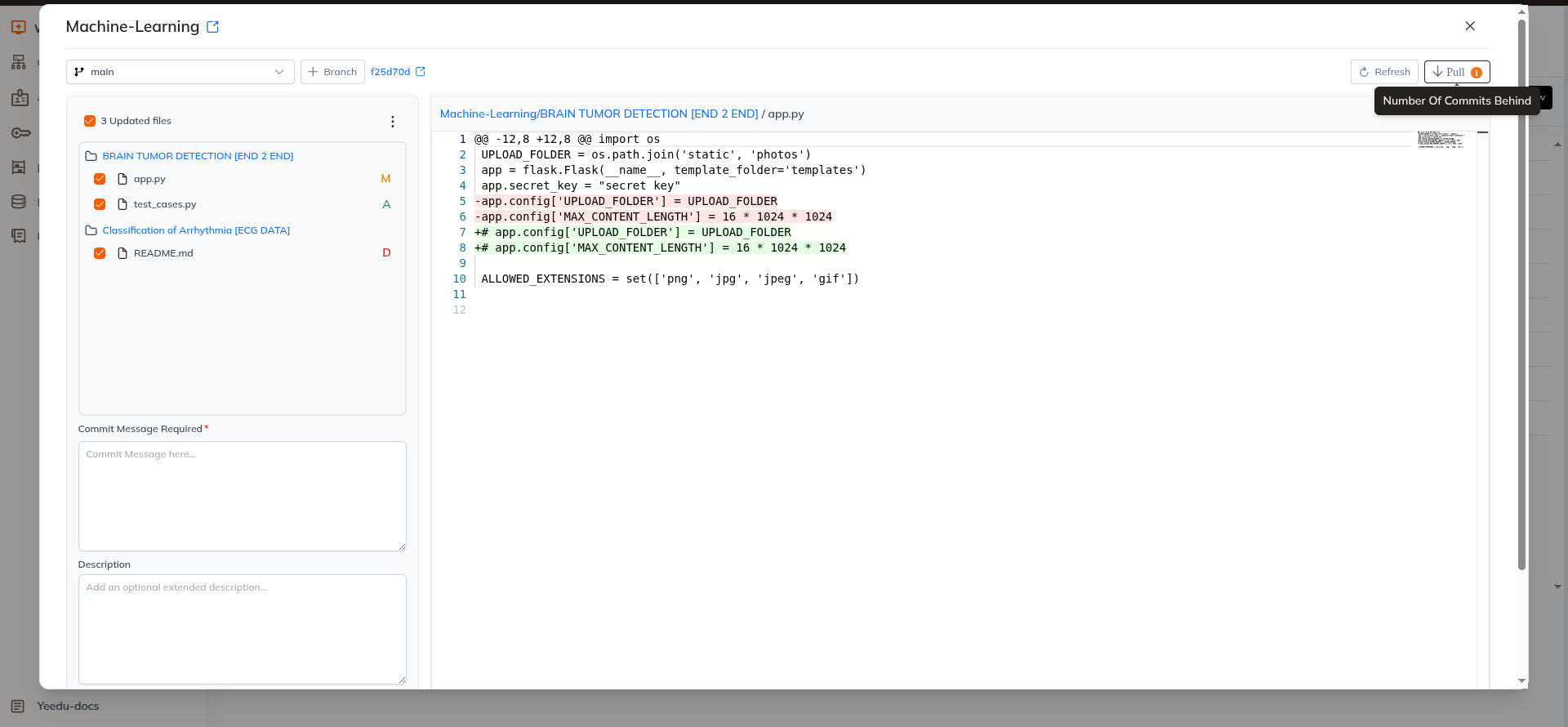
If the local repository is behind the remote repository, the UI will show the number of commits behind, and users can click Pull to fetch the latest changes from the remote.
Steps
- Click the Pull button
- The latest commits are fetched from the remote repository
- The local repository is updated
Merge Conflicts
If merge conflicts occur during the pull process:
- Users must manually resolve the conflicts
- After resolving conflicts, click Mark as resolved
This completes the merge process.
File Changes and Diff Viewer
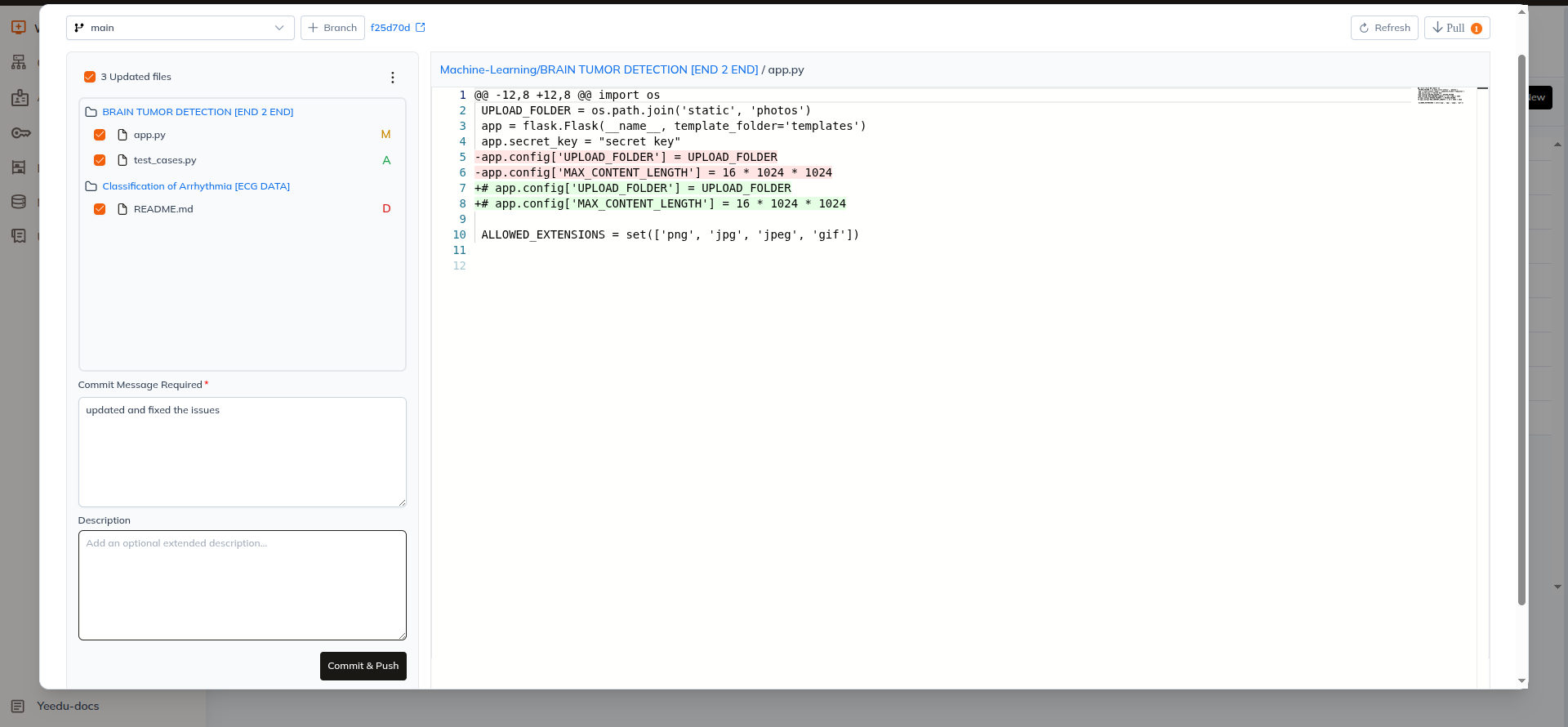
The Git interface displays file changes detected in the repository. The left panel shows all changed files, the right panel displays the file diff view, similar to the output of the git diff command, and selecting any file from the left panel brings up the detailed differences for that file.
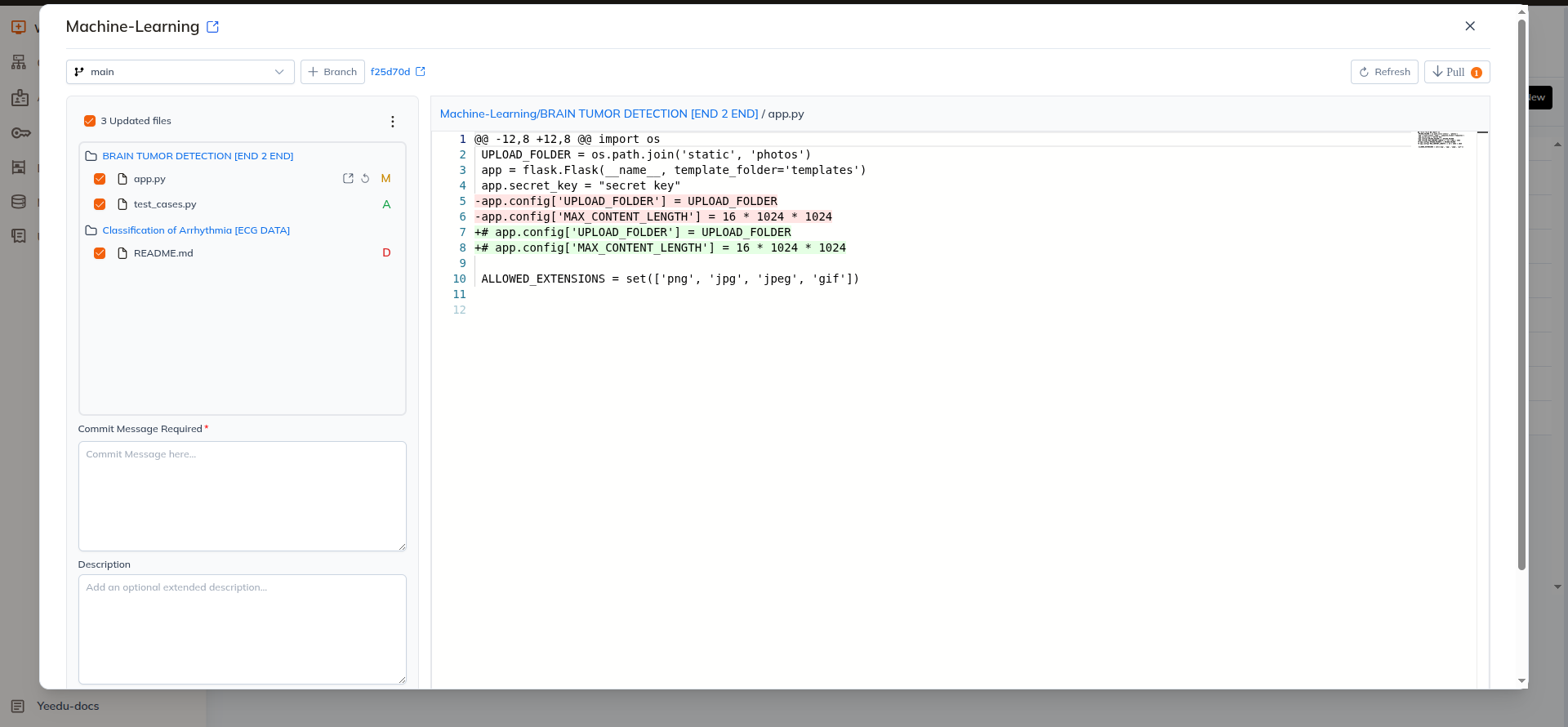
Git tracks the following file change types:
| Code | Meaning |
|---|---|
| A | Added file |
| M | Modified file |
| D | Deleted file |
| R | Renamed file |
| ! | Merge conflict |
Discarding Changes
If users don't want to keep certain changes, they can discard them.
Discard Options
Users can discard:
- Individual files
- Selected files
- All changed files
Methods
Individual File
Individual files can be discarded directly using the Discard button available beside the file name.
Selected Files
- Select the required files from the file list
- Open the Actions Menu
- Click Discard Selected Changes
All Files
- Open the Actions Menu
- Click Discard All Changes
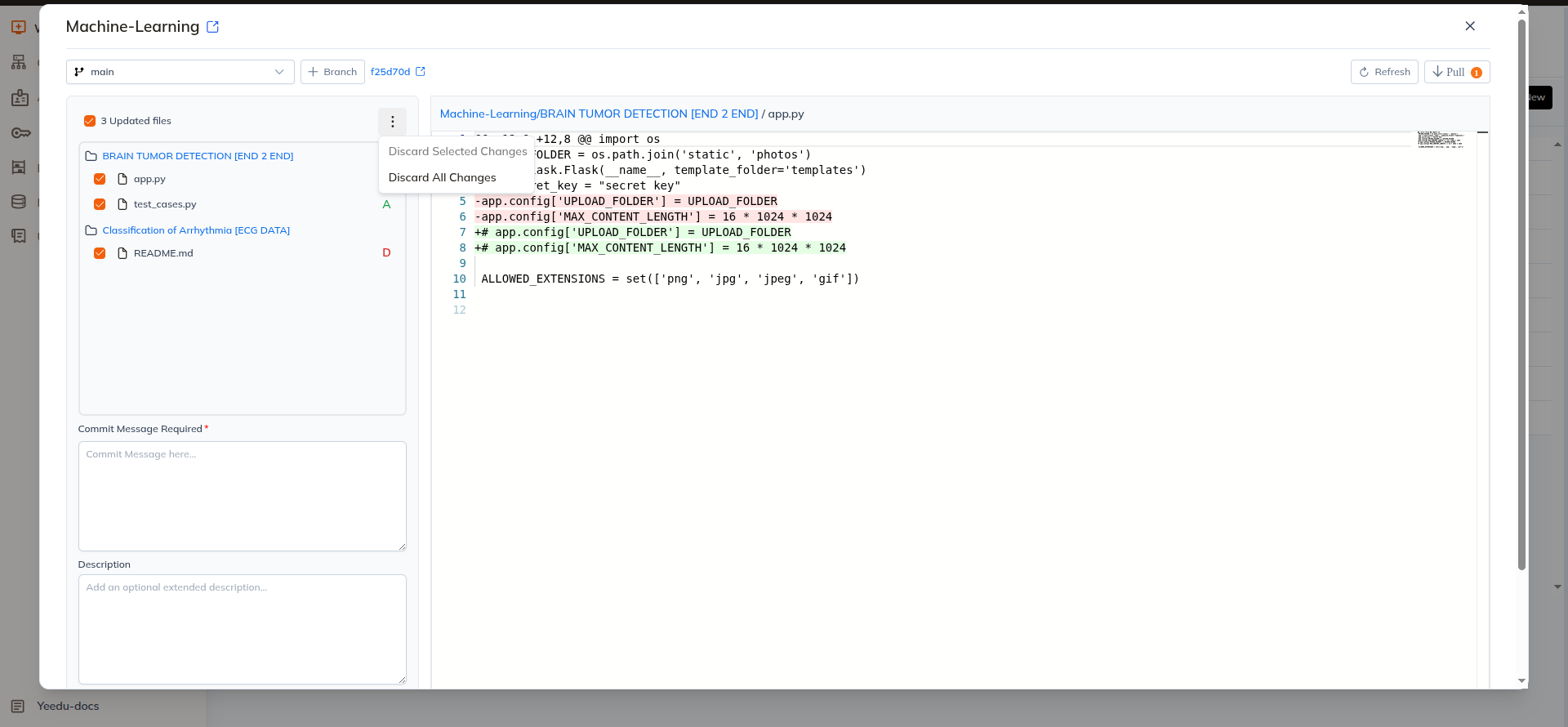
Discarding changes restores the files to the last committed state.
Commit and Push Changes
We allow committing and pushing changes directly from the Git interface.
Users can choose to commit:
- Selected files, or
- All changed files
Steps
- Select files to commit
- Enter a Commit Message (required)
- Enter a Description (optional)
- Click Commit & Push
The changes are committed locally and pushed to the remote repository.
Summary
Git operations in Yeedu provide a seamless interface for managing repositories directly from the workspace environment. The key capabilities are listing and switching branches, creating new branches, viewing file differences, discarding unwanted changes, pulling updates from remote repositories, committing and pushing changes, and viewing repository status. You don't have to leave the workspace: these features cover the essential Git workflows in place.
We currently support Git operations for GitHub repositories. Additional Git providers may be supported in future releases.