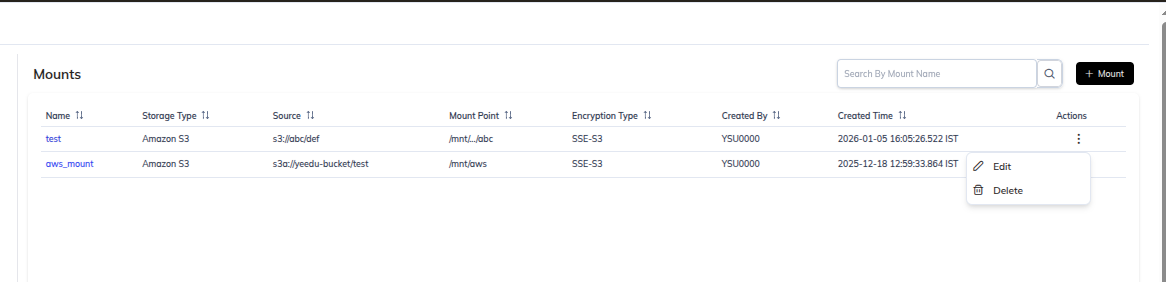
Creating Mounts
Overview
A mount attaches an external object-storage location to Yeedu clusters at a path under /mnt.
Mounts are read-only.
Before creating a mount, create a Credential Config for the storage in
Settings ▸ ADMIN ▸ Credentials. The mount form only lets you select an existing credential; it
doesn't accept keys directly.
Steps to create a mount
1. Navigate through the UI
- Click Profile in the top-right corner
- Click Settings
- Under ADMIN in the settings menu, choose Mounts
- Click + Mount
The form opens at /tenant/<tenantId>/settings/create-mount with the breadcrumb
Mounts ❯ New Mount.
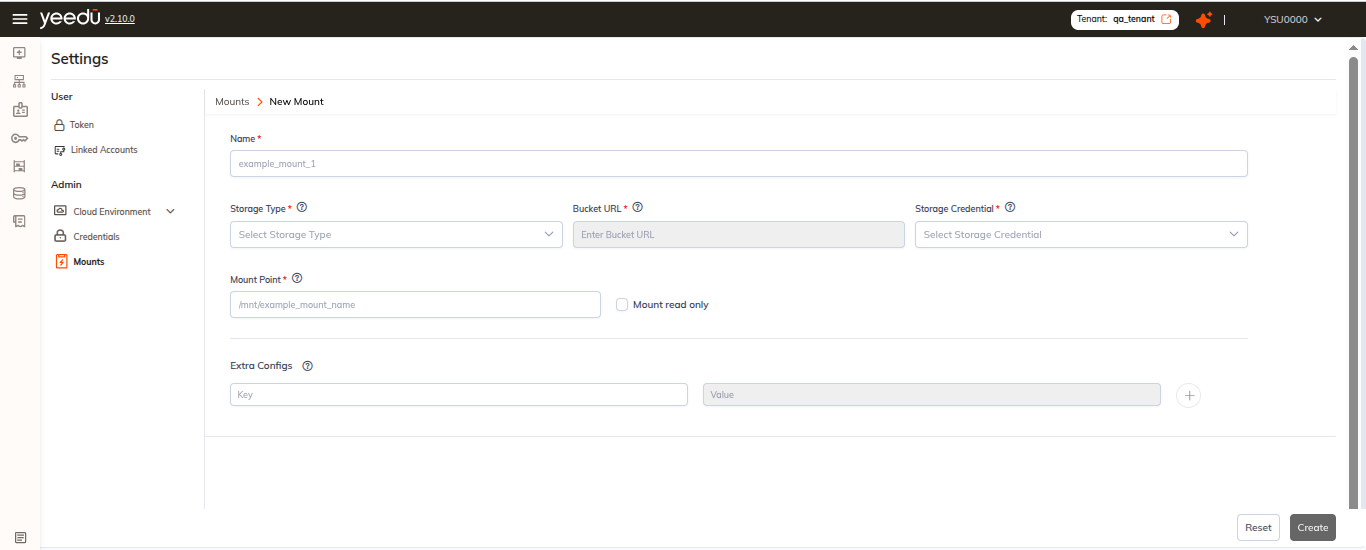
2. Fill in the form
We arrange the fields in the following order.
| Field | Description | Required |
|---|---|---|
| Name | Mount name. Placeholder example_mount_1. Up to 250 characters, using lowercase letters, digits, ., _ or -. | Yes |
| Storage Type | One of Custom S3a Storage, Google Cloud Storage, ADLS Gen2, Amazon S3. Cannot be changed after creation. | Yes |
| Bucket URL / Storage Account URL | The bucket or container URL. The label reads Storage Account URL for ADLS Gen2 and Bucket URL otherwise. Disabled until a Storage Type is chosen (tooltip: "Select a Storage Type first"). | Yes |
| Storage Credential | Searchable dropdown of existing Credential Configs, with a Search Storage Credentials box. Filtered to credentials whose Credential Type matches the chosen Storage Type. Also disabled until a Storage Type is chosen. | Yes |
| Mount Point | Path in the cluster where the storage is mounted. Must begin with /mnt, for example /mnt/example_mount_name. | Yes |
| Mount Read Only | Checkbox labelled Enabled, displayed checked and disabled, with the hint "(read only — cannot be changed)". Mounts are always read-only. | — |
| Extra Configs | Optional key/value rows. | No |
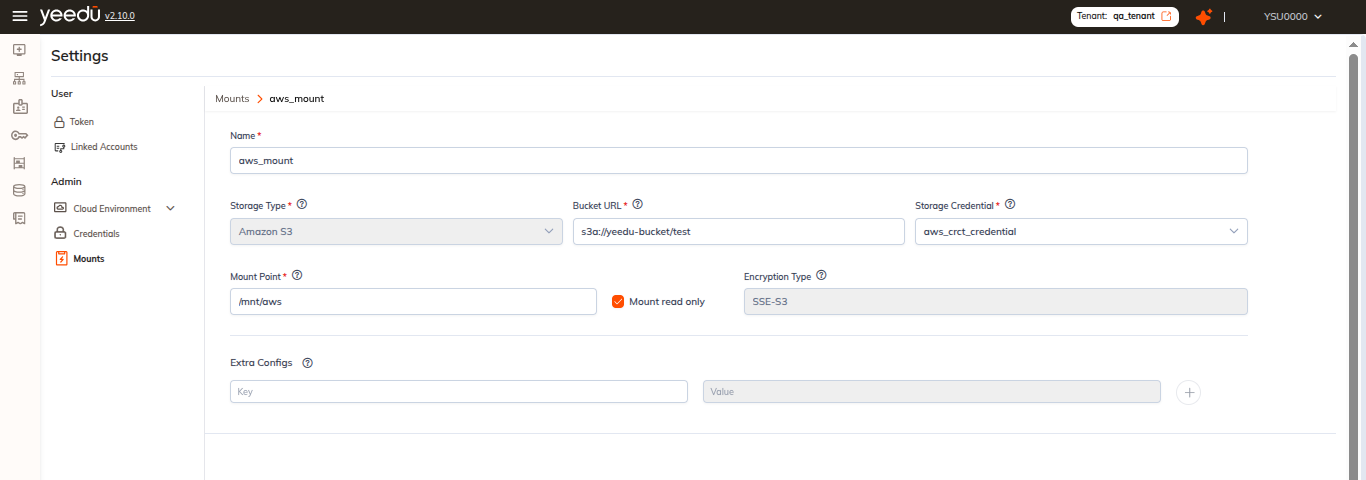
3. Storage Type and the URL field
| Storage Type | URL field label | Placeholder | Accepted prefix |
|---|---|---|---|
Custom S3a Storage | Bucket URL | s3://bronze-bucket/path/ | s3:// or s3a:// |
Google Cloud Storage | Bucket URL | gs://bronze-bucket/path/ | gs:// |
ADLS Gen2 | Storage Account URL | abfss://container_name@storage_account_name.dfs.core.windows.net | abfss:// |
Amazon S3 | Bucket URL | s3://bronze-bucket/path/ | s3:// or s3a:// |
Changing the Storage Type clears the URL and the previously selected credential.
4. Storage credential
Select an existing Credential Config from the Storage Credential dropdown. The list is filtered automatically by the chosen Storage Type:
| Storage Type | Credential Type listed |
|---|---|
Custom S3a Storage | Custom S3a Credentials (OnPrem) |
Google Cloud Storage | Google Service Account (GCP) |
ADLS Gen2 | Azure Service Principal (Azure) |
Amazon S3 | AWS Access Secret Key Pair (AWS) |
If the credential you need is unavailable in that list, create it in Settings ▸ ADMIN ▸ Credentials first.
5. Extra Configs
Extra Configs is a list of key/value rows with Key and Value placeholders. Use the +
button to add a row and the trash icon to remove one. The field's information tooltip gives these
examples:
fs.s3a.endpoint→s3.us-east-1.amazonaws.comfs.azure.account.key→your-storage-account-key
6. Create
The form footer has two actions: Reset and Create. Create stays disabled until every required field is valid.
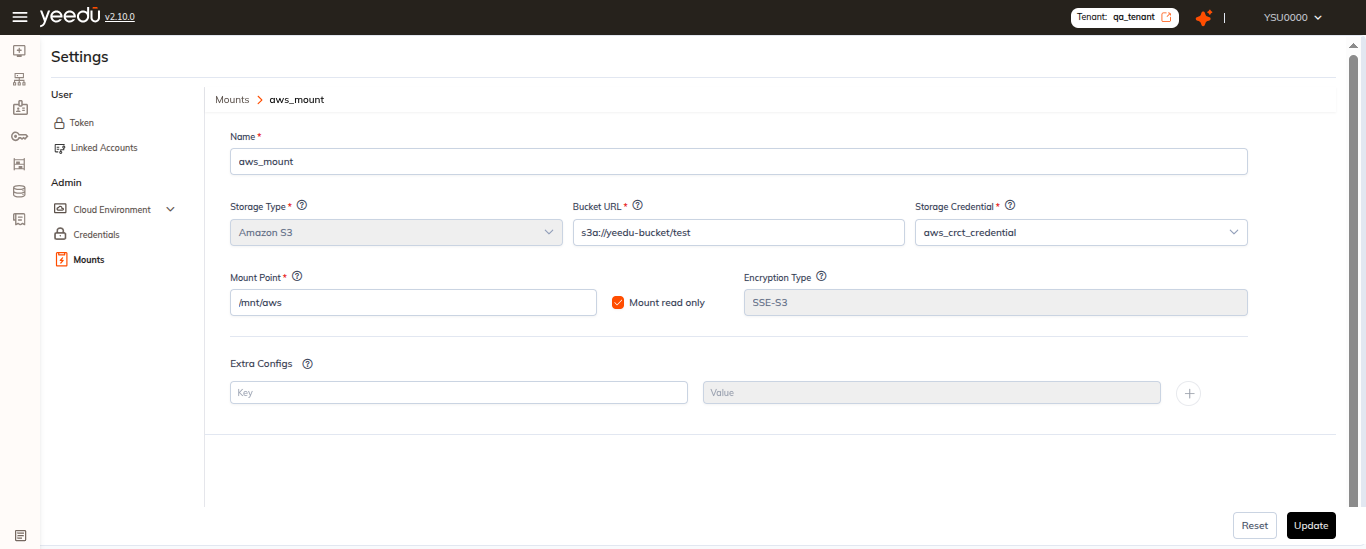
After creation
Once creation completes, the mount:
- Appears in the Mounts list
- Can be attached to clusters from the cluster configuration page
- Can be edited (
⋮ ▸ Edit) or deleted (⋮ ▸ Delete) from the Mounts list
On the edit form the Storage Type field is locked, an Encryption Type field appears as a disabled, read-only value, and the footer action is Update instead of Create. Update stays disabled until you've changed something. Editing and deleting are unavailable to users holding the User or Can Manage Cluster tenant role; the edit form shows the banner "This form is read-only as you do not have update privileges."