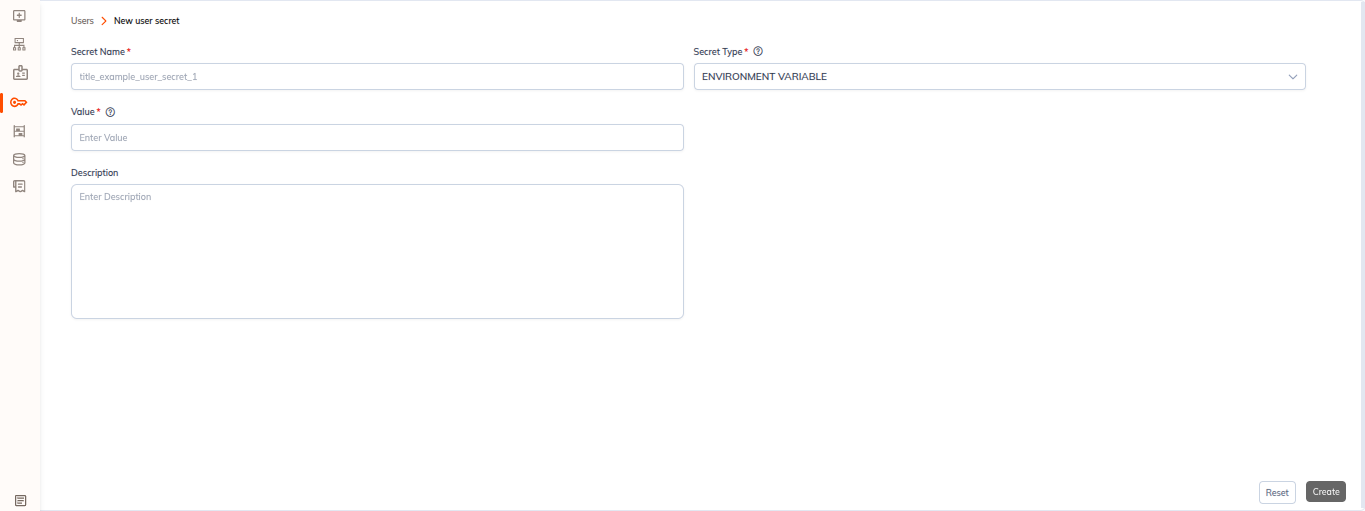
Creating and Managing Secrets
Overview
Secrets store sensitive information such as credentials, API keys and tokens. This page documents the create form: how to reach it, the fields common to every secret, and the field matrix for each of the seven secret types. Every secret lives in one of three scopes, User, Workspace or Tenant, and each scope has its own route and breadcrumb. The form itself is the same everywhere: a Basic Details card, a Secret Details card that swaps its fields with the chosen type, and a footer holding Reset and Create. Six of the seven types offer a Validate button, and three of them add an optional Metastore dropdown.
Opening the Create Form
- Open Secrets from the tenant left navigation.
- Select the scope tab you want the secret to live in, User, Workspace or Tenant.
- Click + Secret on the toolbar (or the + Secret button in the empty state).
Each scope has its own route and breadcrumb:
| Scope | Route | Breadcrumb |
|---|---|---|
| User | /tenant/<tenantId>/secrets/create-user-secret | Secrets ❯ User ❯ New user secret |
| Workspace | /tenant/<tenantId>/secrets/create-workspace-secret | Secrets ❯ Workspace ❯ New workspace secret |
| Tenant | /tenant/<tenantId>/secrets/create-tenant-secret | Secrets ❯ Tenant ❯ New tenant secret |
You can also start from a workspace: the workspace Secrets tab carries the same + Secret button and creates a workspace-scoped secret for that workspace.
Form Layout
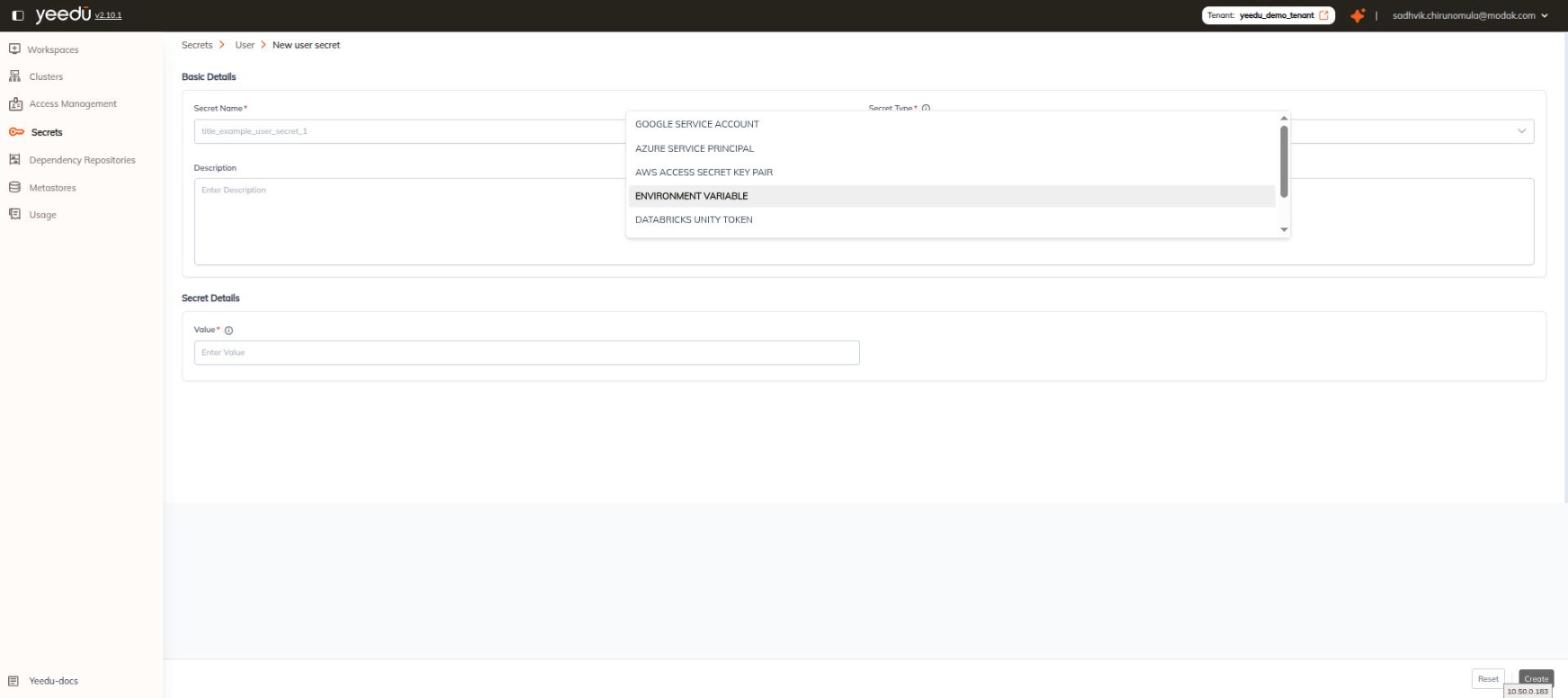
The form has two card sections, Basic Details followed by Secret Details, and a footer bar with Reset and Create.
Basic Details
| Field | Required | Control | Placeholder / default |
|---|---|---|---|
| Secret Name | Yes | text | title_example_user_secret_1 (same placeholder on all three scopes) |
| Secret Type | Yes | dropdown | defaults to ENVIRONMENT VARIABLE |
| Workspace | Yes | dropdown | Workspace scope only — this field is absent on the User and Tenant forms |
| Description | No | textarea | Enter Description |
We mark required fields with a red asterisk. Most fields carry an info icon with a tooltip.
Secret Type Options
The Secret Type dropdown lists all seven types, in this order, at every scope:
GOOGLE SERVICE ACCOUNTAZURE SERVICE PRINCIPALAWS ACCESS SECRET KEY PAIRENVIRONMENT VARIABLE, default selectionDATABRICKS UNITY TOKENHIVE BASICHIVE KERBEROS
The overlay is scrollable, so you won't see all seven at once; five are visible at a time.
Secret Details by Type
The Secret Details card changes with the selected type. Don't paste production credentials into documentation or screenshots. The values below are the placeholders we show in the form itself.
1. GOOGLE SERVICE ACCOUNT
| Field | Required | Control | Placeholder |
|---|---|---|---|
| Credentials | Yes | large JSON textarea | a full service-account JSON skeleton (below) |
| HMAC Access key | No | text | Enter HMAC Access Key |
| HMAC Secret Key | No | text | Enter HMAC Secret Key |
The Credentials placeholder is the standard service-account document:
{
  "type": "service_account",
  "project_id": "project-id",
  "private_key_id": "a123b456c789d012e345f678g901h234i567j890",
  "private_key": "-----BEGIN PRIVATE KEY-----\nMIIEvQIBADANBgkqhkiG9w0BAQ...\n-----END PRIVATE KEY-----\n",
  "client_email": "my-service-account@project-id.iam.gserviceaccount.com",
  "client_id": "123456789012345678901",
  "auth_uri": "https://accounts.google.com/o/oauth2/auth",
  "token_uri": "https://oauth2.googleapis.com/token",
  "auth_provider_x509_cert_url": "https://www.googleapis.com/oauth2/v1/certs",
  "client_x509_cert_url": "https://www.googleapis.com/robot/v1/metadata/x509/my-service-account%40project-id.iam.gserviceaccount.com"
}
We put an inline note above the HMAC pair:
Provide HMAC keys, as Turbo currently supports only HMAC-based authentication.
A Validate button is available for this type.
2. AZURE SERVICE PRINCIPAL
| Field | Required | Control | Placeholder |
|---|---|---|---|
| Client ID | Yes | text | c8b87a2f-41de-4b66-b0d1-9f7cd28fb3c1 |
| Tenant ID | Yes | text | f52d3c1a-9dd8-4a8b-913e-0e27b795ac4a |
| Client Secret | Yes | password | (none) |
| Subscription ID | Yes | text | 7a94c28e-6c32-4ef2-912f-4fcd528918ef |
A Validate button is available, disabled until the fields are filled.
This isn't the same field set as Settings ▸ Credentials ▸ Azure Service Principal, which has six fields: these four plus Storage Account Name and Container Name. A secret doesn't carry the storage target.
3. AWS ACCESS SECRET KEY PAIR
| Field | Required | Control | Placeholder |
|---|---|---|---|
| AWS Access Key ID | Yes | text | e.g., AKIAIOSFODNN7EXAMPLE |
| AWS Secret Access Key | Yes | password | e.g., wJalrXUtnFEMI/K7MDENG/bPxRfiCYEXAMPLEKEY |
| AWS Default Region | Yes | filterable dropdown | Select AWS default region |
A Validate button is available, disabled until the fields are filled.
AWS Default Region offers 25 options, in dropdown order:
us-gov-west-1 · us-gov-east-1 · sa-east-1 · me-central-1 · me-south-1 · eu-north-1 · eu-west-3 · eu-south-1 · eu-west-2 · eu-west-1 · eu-central-1 · ca-central-1 · ap-northeast-1 · ap-southeast-2 · ap-southeast-1 · ap-northeast-2 · ap-northeast-3 · ap-south-1 · ap-southeast-3 · ap-east-1 · af-south-1 · us-west-2 · us-west-1 · us-east-1 · us-east-2
4. ENVIRONMENT VARIABLE (default)
| Field | Required | Control | Placeholder |
|---|---|---|---|
| Value | Yes | password | Enter Value |
It's the only type with no Validate button and no Metastore dropdown.
5. DATABRICKS UNITY TOKEN
| Field | Required | Control | Placeholder |
|---|---|---|---|
| Token | Yes | password | e.g., dapi1234567890abcdef1234567890abcdef |
| Metastore | No | dropdown (right column) | Select Metastore |
A Validate button is available.
6. HIVE BASIC
| Field | Required | Control | Placeholder |
|---|---|---|---|
| Username | Yes | text | Enter Username |
| Password | Yes | password | Enter Password |
| Metastore | No | dropdown | Select Metastore |
A Validate button is available.
7. HIVE KERBEROS
| Field | Required | Control | Placeholder |
|---|---|---|---|
| Principal | Yes | text | e.g., hive/hostname@REALM.COM |
| Keytab | Yes | file upload (upload button) | — |
| Metastore | No | dropdown | Select Metastore |
A Validate button is available.
Validate and Metastore
- We show Validate on six of the seven types, every type except
ENVIRONMENT VARIABLE, and it stays disabled until the required fields are filled. - The optional Metastore dropdown appears on exactly the three metastore-oriented types:
DATABRICKS UNITY TOKEN,HIVE BASICandHIVE KERBEROS.
See Secret Validation for the detail.
Saving
- Create saves the secret and returns to the list for that scope.
- Reset clears the form back to its defaults, including the
ENVIRONMENT VARIABLEtype default.
Managing Existing Secrets
On any secrets list, the Actions kebab menu on a row has exactly two entries:
- Edit : reopen the secret for modification.
- Delete : remove the secret.
Use the Search By Secret Name box on the toolbar to find a secret by name.