Secret Validation
Overview
Secret validation lets you check that a secret's credentials are usable before you rely on them in a metastore, a job or a notebook.
Validation is available directly on the secret form, at every scope: User, Workspace and Tenant.
Which Secret Types Offer Validate
We put a Validate button on the Secret Details card for six of the seven secret types. ENVIRONMENT VARIABLE is the only type that doesn't have one. It stores an opaque value with nothing to connect to.
| Secret Type | Validate | Metastore dropdown |
|---|---|---|
GOOGLE SERVICE ACCOUNT | Yes | No |
AZURE SERVICE PRINCIPAL | Yes | No |
AWS ACCESS SECRET KEY PAIR | Yes | No |
ENVIRONMENT VARIABLE | No | No |
DATABRICKS UNITY TOKEN | Yes | Yes |
HIVE BASIC | Yes | Yes |
HIVE KERBEROS | Yes | Yes |
Validate stays disabled until the required fields for that type are filled.
For example, AWS ACCESS SECRET KEY PAIR needs AWS Access Key ID, AWS Secret Access Key and AWS Default Region before the button becomes active.
The Metastore Dropdown
Three types (DATABRICKS UNITY TOKEN, HIVE BASIC and HIVE KERBEROS) expose an optional Metastore dropdown with the placeholder Select Metastore, alongside their credential fields. Attaching a metastore lets the secret be validated and used in the context of that metastore rather than on its own. The dropdown is optional on all three types; the credential fields themselves remain the required ones.
Multi-Level Validation
We share one create/edit form across the three scopes, so validation works identically in each.
The only structural difference is the extra required Workspace dropdown on the workspace-scoped form.
User-Level Secrets
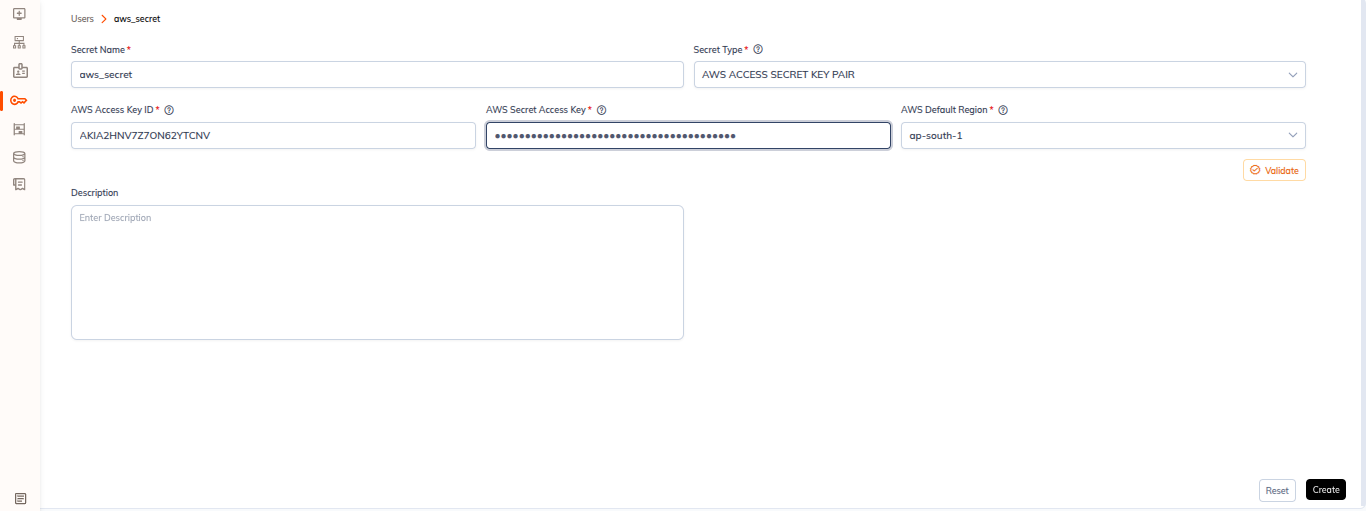
- Open Secrets and stay on the User tab (it's the landing tab).
- Click + Secret for a new secret, or open the Actions kebab on an existing row and choose Edit.
- Choose the Secret Type and fill the required fields.
- Click Validate.
Workspace-Level Secrets
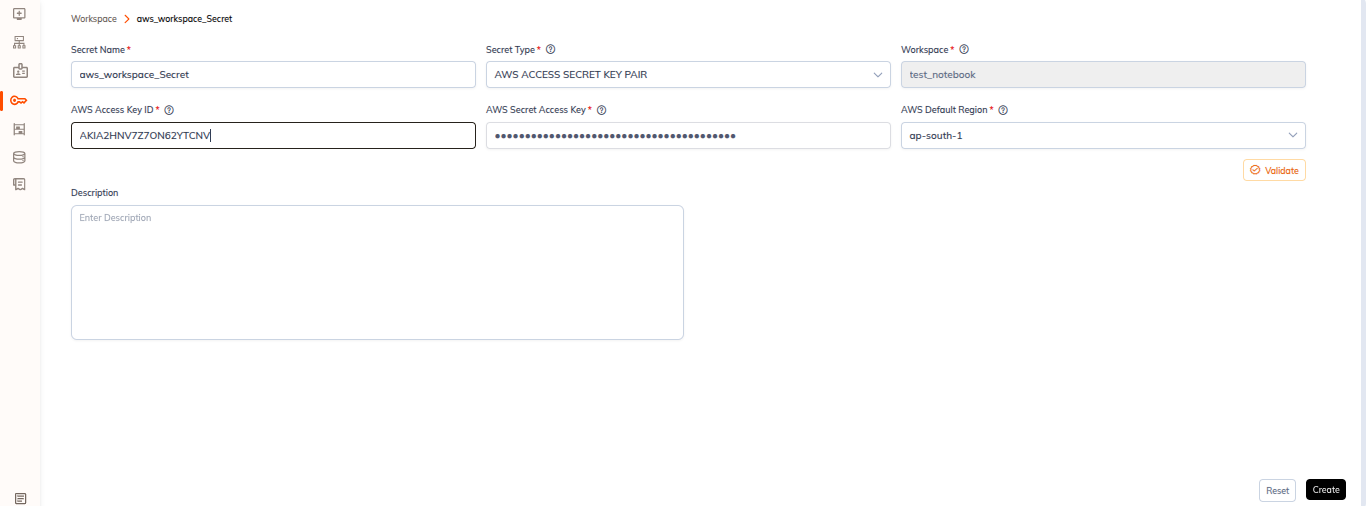
- Open Secrets and switch to the Workspace tab, or open the Secrets tab inside a workspace.
- Create or edit a secret; on this scope the Workspace dropdown is required.
- Fill the required fields for the chosen type.
- Click Validate.
Tenant-Level Secrets
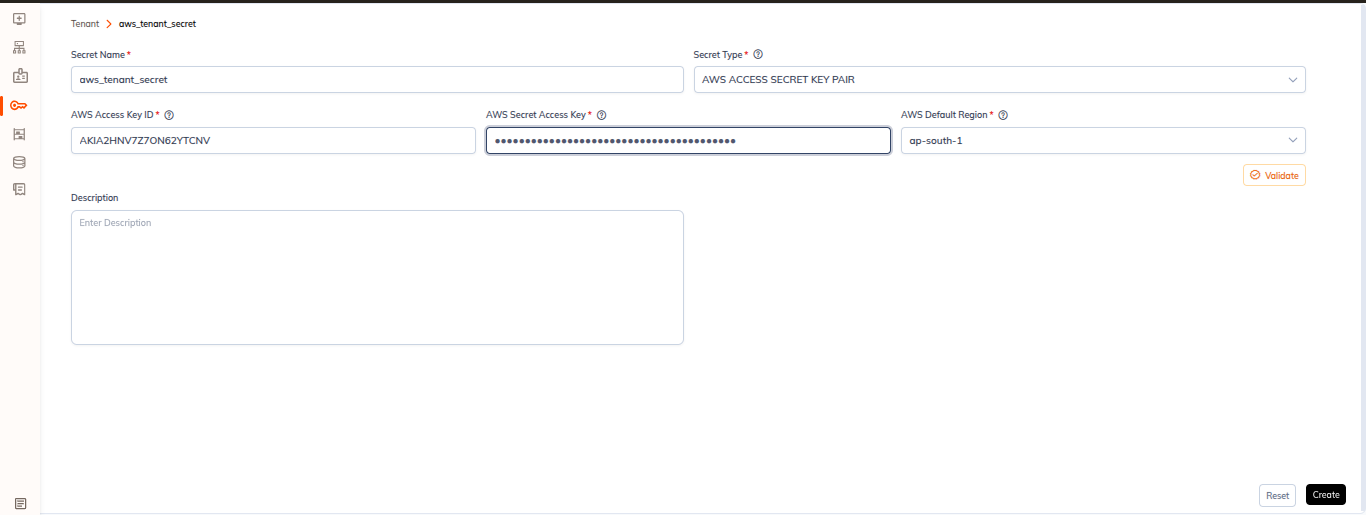
- Open Secrets and switch to the Tenant tab.
- Create or edit a secret.
- Fill the required fields for the chosen type.
- Click Validate.
Validation is performed from the secret form. The row Actions kebab on a secrets list contains exactly two entries, Edit and Delete, so open a secret with Edit to re-validate it.
Validation and Metastores
Secrets are consumed by metastore configurations, so a secret is worth validating before it's attached:
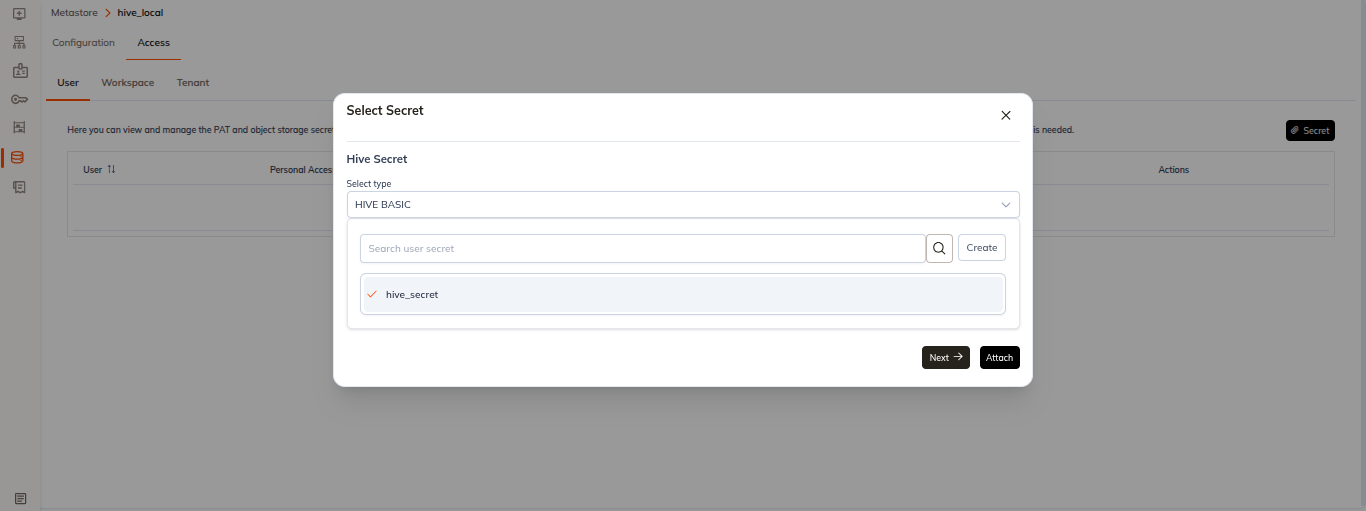
- A HIVE metastore has a Metastore Details card with a Secret Type of
HIVE BASICorHIVE KERBEROS, then a Secret (Select Secret). - A DATABRICKS UNITY metastore has a Databricks Personal Access Token field (
Select Personal Access Token). - The External Storage Location card of a metastore has a Storage Secret field (
Select Object Storage Secret).
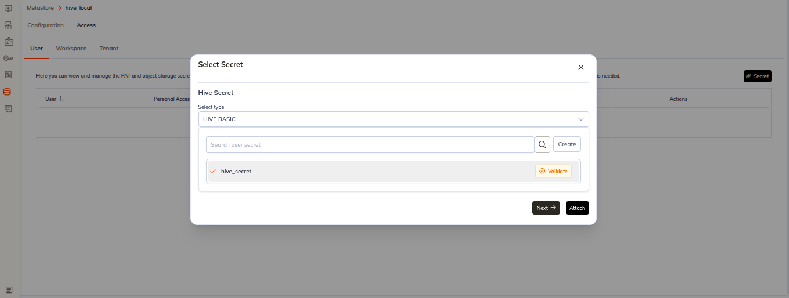
Validating the secret first, with the matching Metastore selected where the type offers that dropdown, confirms the credentials before the metastore depends on them.
We don't document the success and failure presentation of Validate here. It wasn't captured in the v2.10.1 audit.