Personal Access Tokens
Personal Access Tokens (PATs) are secure, time-bound credentials used to:
- Authenticate to the Yeedu API
- Authenticate any external client or scheduler that calls the Yeedu API
- Replace sensitive password-based authentication flows
Tokens are user-scoped and can be revoked at any time.
The page lives at Settings → USER → Token (/settings/user-token) and carries the info bar:
Personal Access Token provide a secure alternative to passwords for authenticating with the Yeedu API.
(Yeedu API in that bar is a link to the API reference.)
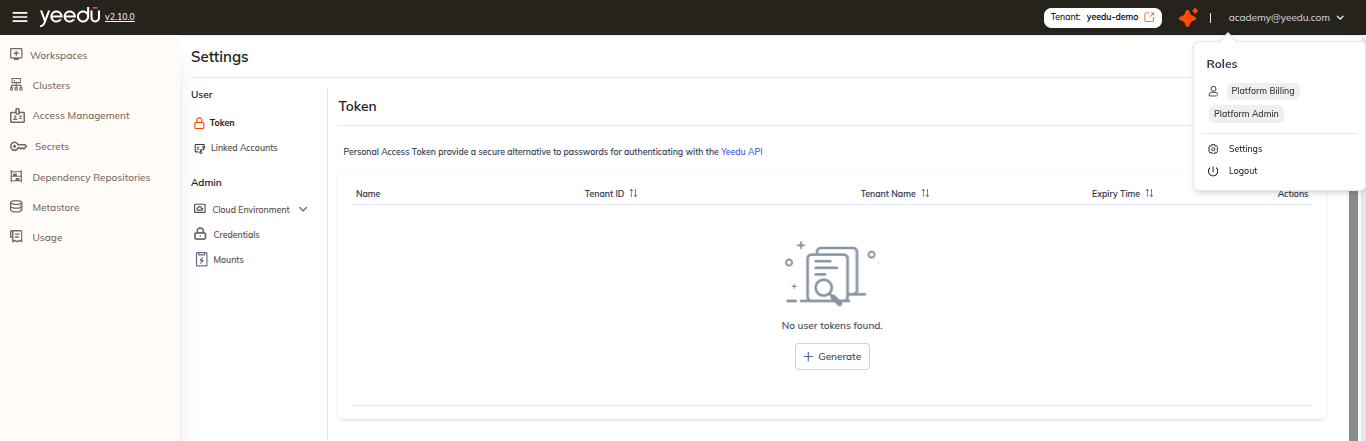
Accessing the Token page
- Click your username / avatar in the top-right corner.
- Select Settings from the dropdown.
- In the left rail, under the USER group, click Token.
See Profile for the full Settings navigation structure.
Generating a Personal Access Token
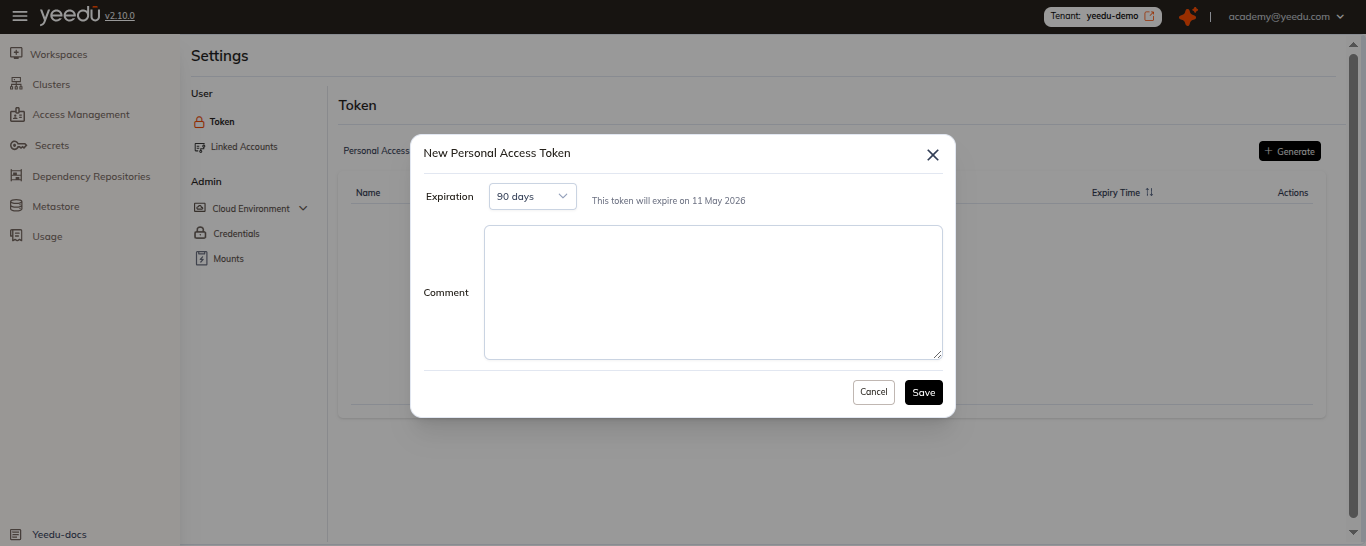
- Click the
+ Generatebutton at the top-right of the Token page. - In the New Personal Access Token pop-up, configure the following:
Expiration
A dropdown, defaulting to 90 days. The options, in order, are:
- 90 days
- 180 days
- 365 days
- No Expiry
- Custom
To the right of the dropdown the modal shows a live preview, "This token will expire on <DD Mon YYYY>", which is recomputed whenever the selection changes. The preview isn't shown for No Expiry.
Choosing Custom replaces the preview with a Select Expiry Date field and a calendar-picker button. Save stays disabled until a date is picked.
Comment
A free-text field. Add a meaningful label (for example):
Test tokenToken for a scheduled job
This helps you easily identify the token later; it's what appears in the Name column on the token list.
- Click Save to create the token. Cancel closes the modal without creating one.
The modal has no tenant selector and no separate Name field. We issue the token against the tenant currently selected in the header switcher, that is what fills the Tenant ID and Tenant Name columns on the list, and the Name column is fed by the Comment you enter here. So the modal really asks you for two decisions, the expiration and the comment, and the comment is the one you'll regret leaving blank once a dozen tokens are sitting in the list.
Copy and Store the Token
Once created:
- A success message will appear displaying your token.
- Copy and save the token immediately : we won't show it again.
- Use the clipboard icon to quickly copy the token.
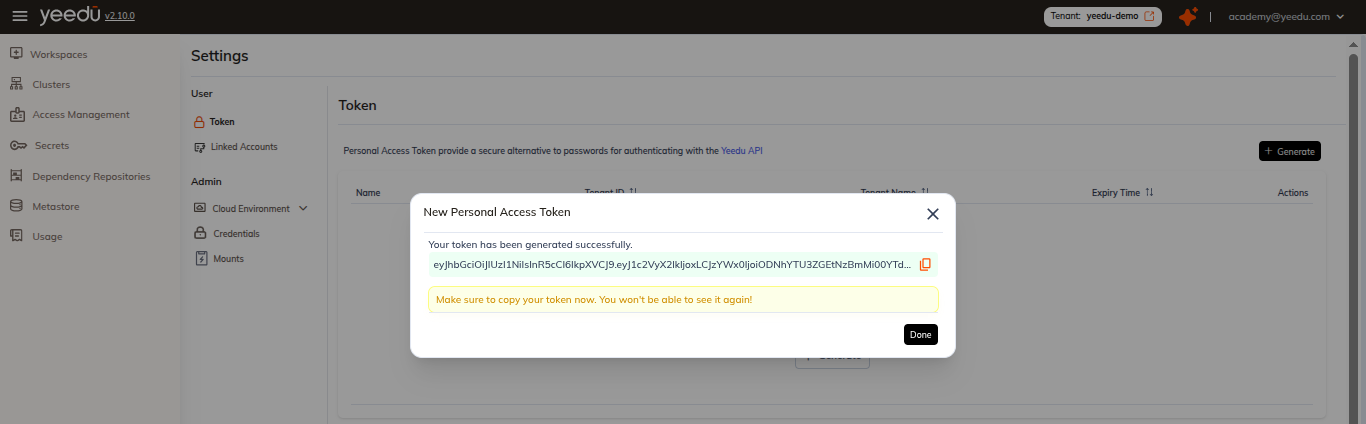
⚠️ We can't retrieve a lost token. If one goes missing, create a new one.
Token list
The Token page lists every token created by the signed-in user.
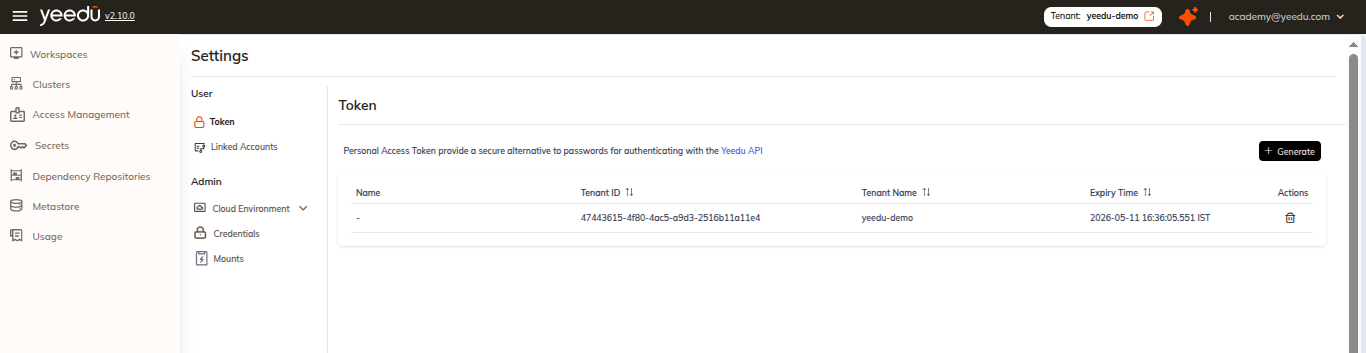
| Column | Sortable | Description |
|---|---|---|
| Name | — | Descriptive name or note supplied when the token was generated |
| Tenant ID | Yes | UUID of the tenant the token is scoped to |
| Tenant Name | Yes | Human-readable name of that tenant |
| Expiry Time | Yes | When the token expires |
| Actions | — | Trash icon to delete / revoke the token |
We render tokens without a name as a –, which makes incomplete entries easy to spot.
How expiry is rendered
The Expiry Time column shows two things together:
- An absolute timestamp in IST, and
- a relative countdown in parentheses, for example
(in 84 days).
Best Practices
- Name wisely: Use clear comments (e.g.,
Nightly ingest scheduler,Local CLI token) - Revoke unused tokens regularly to maintain security
- Track expiry: use the relative countdown in the Expiry Time column to renew or replace tokens before they lapse
- Mind the tenant scope: a token is issued against a specific tenant, shown in the Tenant ID / Tenant Name columns
Note
The recommended resolution for the Yeedu UI is 1920 × 1080.