Edit & Delete Clusters
A cluster is edited from the Configuration tab of its detail page, and destroyed from the chevron menu in that page's persistent header.
Editing a cluster
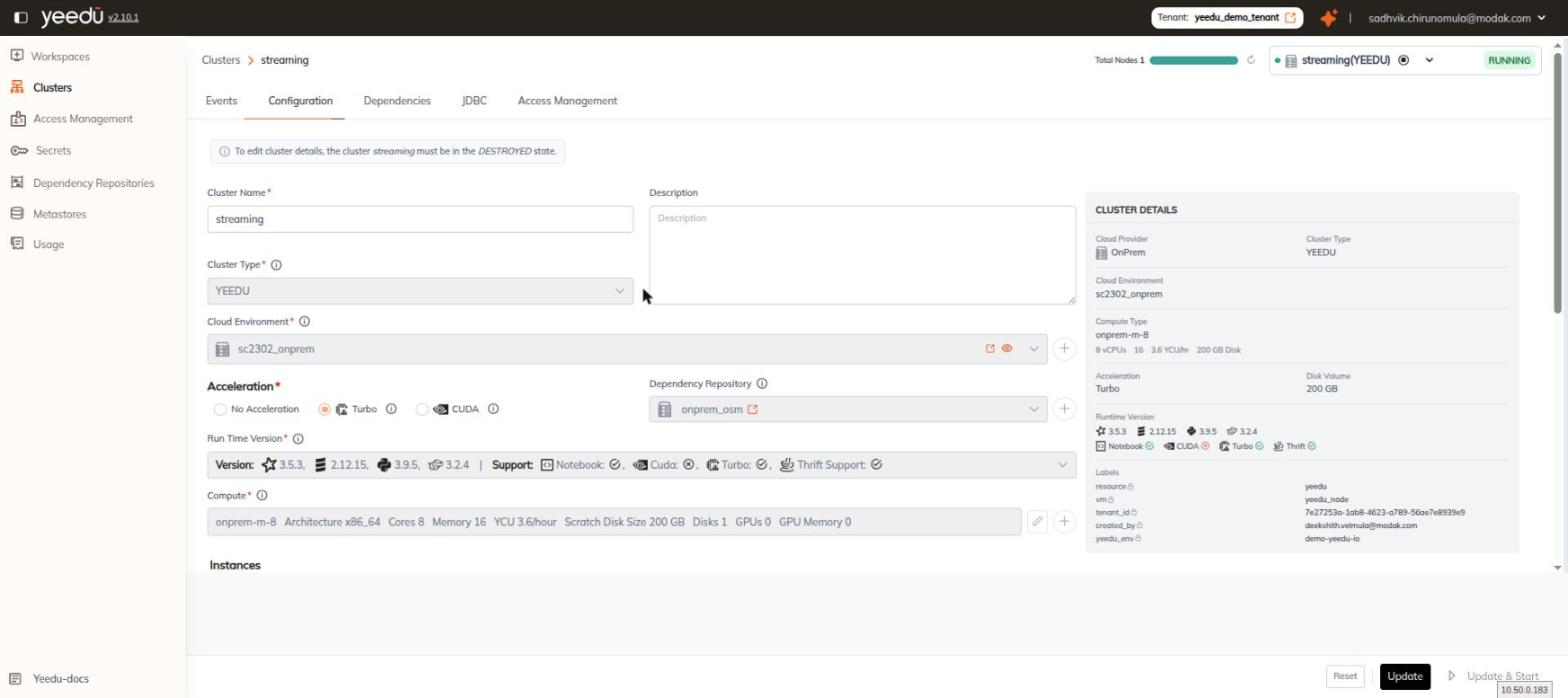
Open Clusters, click the cluster name, then open the Configuration tab. The tab is the cluster's edit form, with a live read-only CLUSTER DETAILS summary panel pinned on the right.
The DESTROYED-state requirement
We show an information banner at the top of the tab:
To edit cluster details, the cluster
<name>must be in theDESTROYEDstate.
While the cluster is not in the DESTROYED state, only three controls stay editable:
- Cluster Name
- Description
- Stop Each Instance After
We keep every other control on the form disabled until the cluster is destroyed.
Fields
| Field | Control | Notes |
|---|---|---|
| Cluster Name (required) | Text | Placeholder example_cluster_1 |
| Description | Textarea | Placeholder Description |
| Cluster Type (required) | Dropdown | Has an info tooltip |
| Cloud Environment (required) | Dropdown | Row icons: open, show-details, expand, and a + to create a new cloud environment |
| Acceleration (required) | Radio group | No Acceleration, Turbo, CUDA — the latter two carry info tooltips |
| Dependency Repository | Dropdown | Has an open icon and a + to create a new repository |
| Run Time Version (required) | Dropdown | Each option lists its Version set and its Support flags — Notebook, Cuda, Turbo and Thrift Support |
| Compute (required) | Read-only summary with an edit icon and a + | Shows the compute type's Architecture, Cores, Memory, YCU/hour, Scratch Disk Size, Disks, GPUs and GPU Memory |
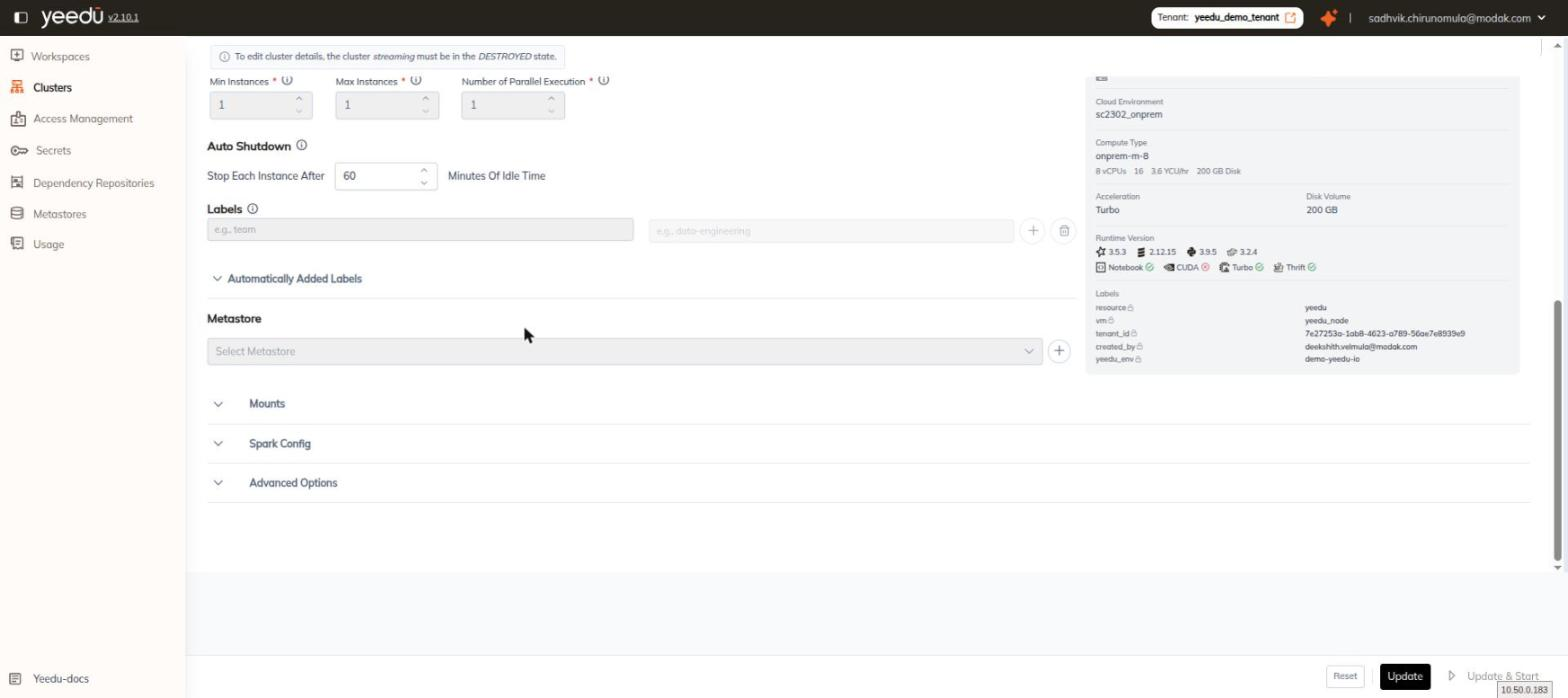
| Min Instances (required) | Numeric spinner | Under Instances |
| Max Instances (required) | Numeric spinner | Under Instances |
| Number of Parallel Execution (required) | Numeric spinner | Under Instances |
| Stop Each Instance After | Numeric spinner | Under Auto Shutdown, read as Stop Each Instance After [N] Minutes Of Idle Time. This is the minute form of the Idle Timeout(ms) shown on the Events tab summary strip |
| Labels | Key/value rows | Placeholders e.g., team and e.g., data-engineering, with an add-row + and a per-row delete icon |
| Automatically Added Labels | Collapsible | Reserved labels applied by Yeedu — resource, vm, tenant_id, created_by, yeedu_env. They appear with a lock icon in the details panel |
| Metastore | Dropdown plus + | Placeholder Select Metastore |
| Mounts | Collapsible | |
| Spark Config | Collapsible | |
| Advanced Options | Collapsible | See below |
Advanced Options contains a package name field (Enter Package Name), a repository name field
(Enter Repository Name), key/value pair rows, a bootstrap shell-script textarea pre-filled with a
#!/bin/bash stub, a disk-size field (placeholder e.g., 100), a number-of-disks field
(placeholder e.g., 2), and a throughput/IOPS numeric field.
Footer actions
The form has a sticky footer with three buttons:
| Button | Effect |
|---|---|
| Reset | Discards the unsaved edits and restores the saved configuration |
| Update | Saves the configuration without starting the cluster |
| Update & Start | Saves the configuration and starts the cluster. It mirrors the create form's Create & Start and is disabled unless the cluster is in a startable state |
CLUSTER DETAILS panel
The panel on the right is a read-only mirror of the saved configuration, it doesn't reflect
unsaved edits. It shows Cloud Provider, Cluster Type, Cloud Environment, Compute
Type with its vCPU, memory, YCU/hour and disk figures, Acceleration, Disk Volume,
Runtime Version as version chips plus capability chips for Notebook, CUDA, Turbo and
Thrift, and Labels as key/value pairs, where the reserved keys carry a lock icon.
Destroying a cluster
Destroy is on the cluster chip in the persistent header of the cluster detail page, so it is reachable from any of the five tabs:
- Open the cluster's detail page.
- On the cluster chip at the right of the header, click the chevron next to the stop/start button.
- Choose Destroy, the menu's single item.
Destroying releases the cluster's resources, and we move it through DESTROYING to DESTROYED. Once
the cluster reaches DESTROYED, the whole Configuration form becomes editable.
The same chip carries the Stop button, which becomes Start on a stopped cluster.
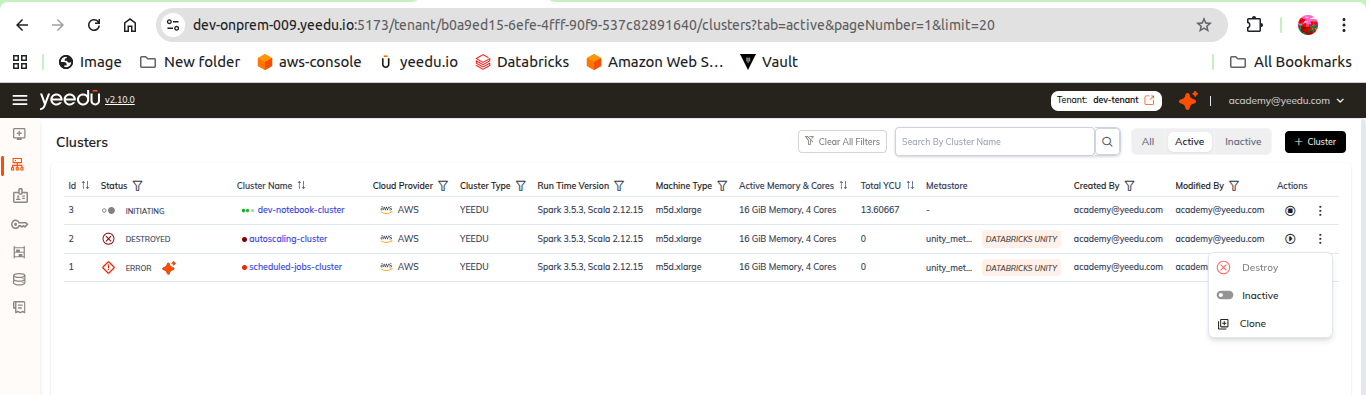
Clusters can also be acted on from the Action column of the Clusters list page.