Warm Start/Stop Mechanism
Stopping a Yeedu cluster preserves the work we already did to build it. Starting it again is
therefore a warm start: the cluster is back in roughly 10 seconds, against 4 to 5
minutes for a cold start from scratch, which is why we keep Stop and Destroy as two different
actions. Stopping parks a cluster you intend to use again; destroying releases it entirely.
Cold start vs. warm start
| Cold start | Warm start | |
|---|---|---|
| When it happens | Creating a new cluster, or starting one that was destroyed | Starting a cluster that was stopped |
Time to RUNNING | 4–5 minutes | ~10 seconds |
| What has to happen | Provision infrastructure, install and configure the runtime, initialise services, set up networking | Resume the already-provisioned cluster |
If you use a cluster on and off through the day, stop it between sessions rather than destroying it. You keep the ~10-second start, and idle compute isn't billed while it's stopped.
Supported platforms
Warm start is supported on every cloud provider Yeedu runs on.
| Cloud Provider | Warm Start Support |
|---|---|
| OCI | Full support |
| OnPrem | Full support |
| GCP | Full support |
| AWS | Full support |
| Azure | Full support |
Stopping a cluster
There are two places to stop a running cluster.
From the Clusters list, the first control in the Actions column is a state toggle, and on a
running cluster its tooltip reads Stop. From the cluster detail page, the cluster chip in the
persistent header carries the same Stop button.
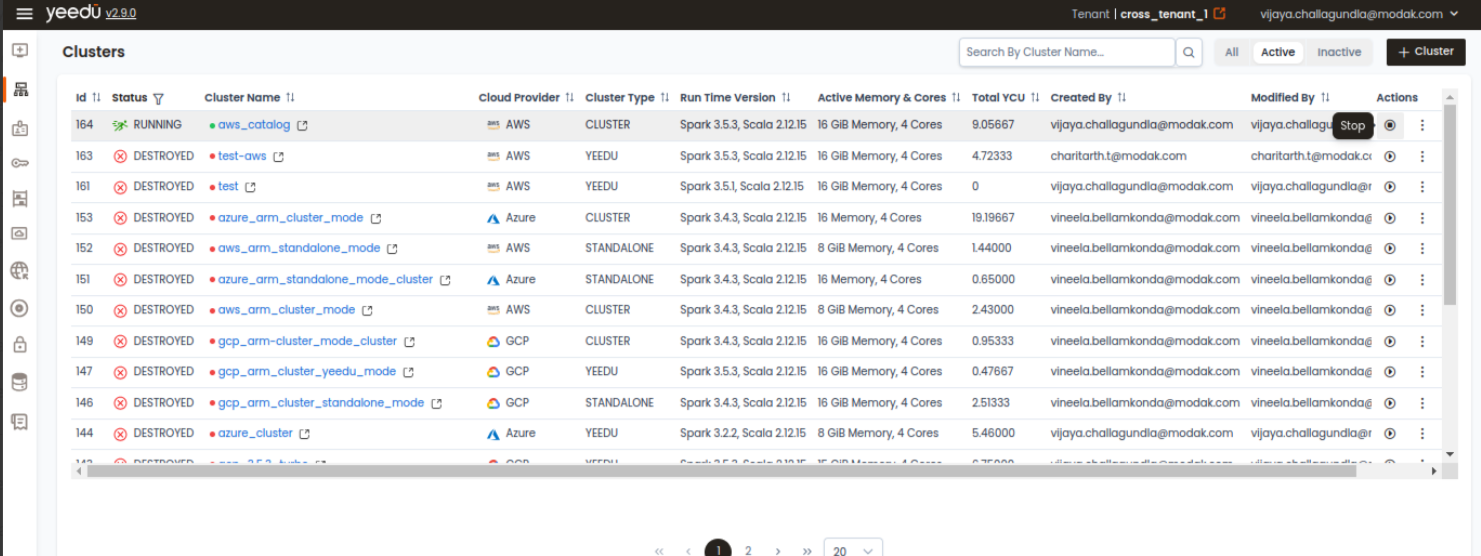
The cluster moves RUNNING → STOPPING → STOPPED. Its configuration, attached metastore, mounts
and dependency repository all persist.
Starting a cluster
On a cluster that is stopped, the same toggle reads Start.
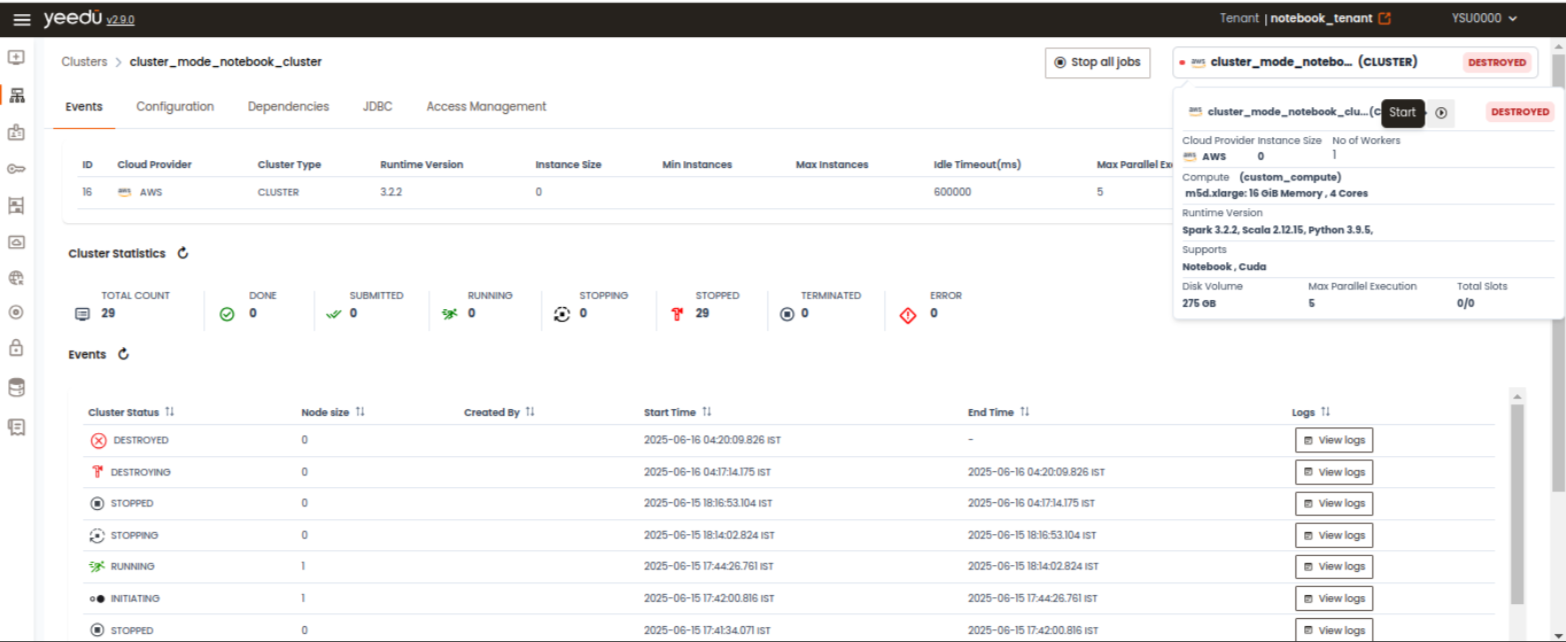
The cluster moves STOPPED → RUNNING. Because nothing needs re-provisioning, this is the warm
path, around 10 seconds.
Starting a cluster that was destroyed isn't a warm start. The infrastructure is gone, so it is rebuilt from scratch and takes the full 4 to 5 minutes.
Cluster states
| State | Meaning | Next states |
|---|---|---|
INITIATING | Being provisioned for the first time, or rebuilt after being destroyed | RUNNING, ERROR |
RUNNING | Active and accepting work | STOPPING, DESTROYING, ERROR |
STOPPING | Shutting down, preserving state | STOPPED, ERROR |
STOPPED | Parked and warm-start ready. Not billed for compute | RUNNING, DESTROYING |
DESTROYING | Tearing down and releasing infrastructure | DESTROYED, ERROR |
DESTROYED | Infrastructure released. Starting it again is a cold start | INITIATING |
ERROR | Failed and needs attention | — |
Every transition is recorded on the cluster's Events tab, with the triggering user (or -- for
system-initiated transitions) and a duration. See Cluster Monitoring.
Stop, Destroy and Inactive
Three different actions, easily confused:
| Action | Where | Effect | Reversible? |
|---|---|---|---|
Stop | The Actions toggle, or the detail-page header | Parks the cluster. Infrastructure preserved, compute not billed | Yes — Start is a ~10s warm start |
Destroy | The row kebab ⋮, or the chevron menu on the detail page | Releases the infrastructure | Yes, but starting it again is a 4–5 minute cold start |
Inactive | The row kebab ⋮, only once the cluster isn't running | Archives the cluster out of the default list view | Yes. Switch to the Inactive pill and choose Active |
A running cluster can't be archived. Inactive only appears in the row menu once the cluster has
been stopped or destroyed.
Stopping automatically when idle
You don't have to stop clusters by hand. The Auto Shutdown setting on the cluster form,
Stop Each Instance After [N] Minutes Of Idle Time. Stops instances once they have been idle for
the configured period, putting the cluster into the warm-start-ready STOPPED state. See
Auto Suspension for how to configure it.
Related pages
- Cluster Dashboard: the list, its columns and its row actions
- Suspend & Resume Clusters
- Auto Suspension
- Cluster Monitoring: the Events tab and state transition history