Chat History
Yeedu Assistant keeps every conversation you've had. History lists them so you can reopen, rename or delete a past chat. Open it from the history icon in the drawer header (tooltip View History), and the list then replaces the chat body; the header of the list carries a + and a ✕.
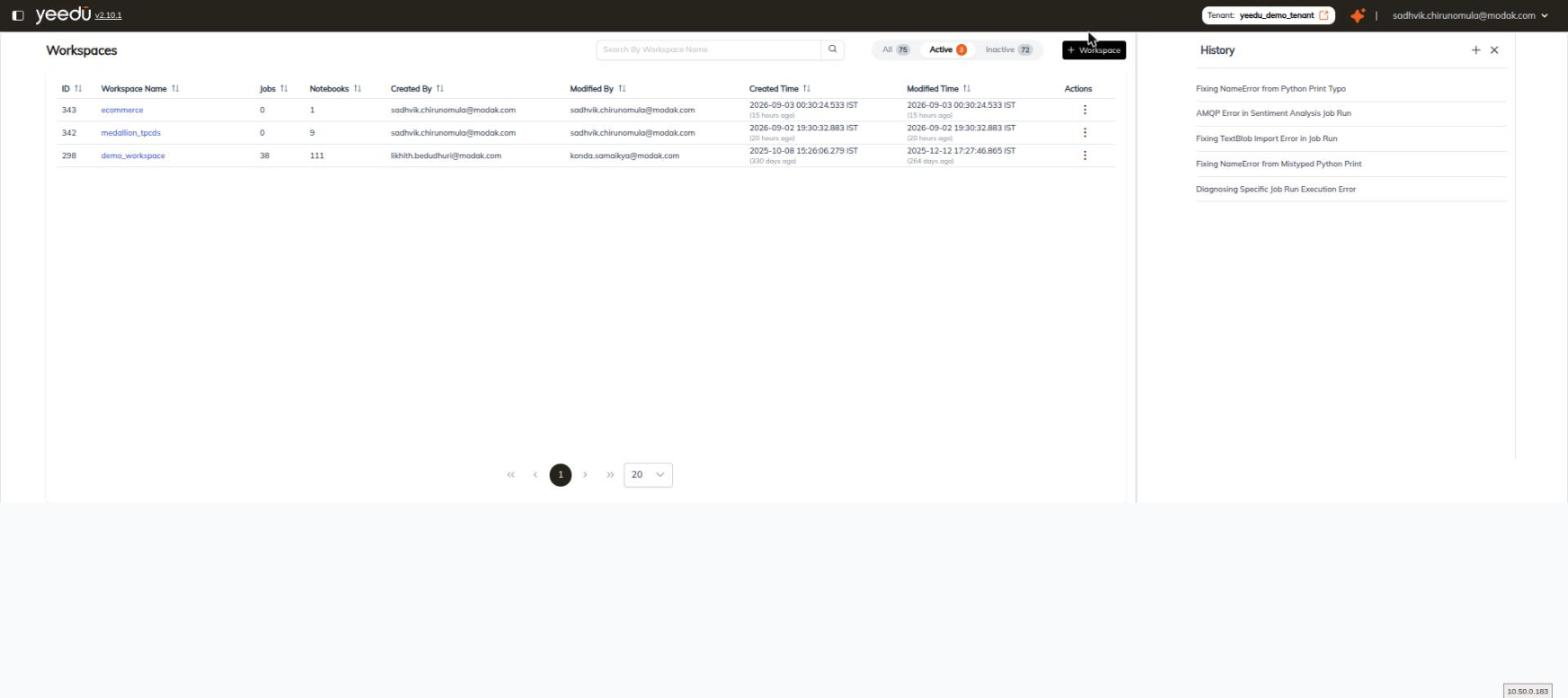
The List
Each row is a chat, titled automatically from its content. You do not name a chat when you start it. Titles we observed on version 2.10.1 include Fixing NameError from Python Print Typo, AMQP Error in Sentiment Analysis Job Run and Diagnosing Specific Job Run Execution Error. Clicking a row restores that conversation in full, including its tool-call cards.
Row Actions
Hovering a row reveals a ... kebab on the right.
The menu has two items:
| Item | Action |
|---|---|
Rename | Replaces the auto-generated title with one of your own. |
Delete | Removes the chat. |
Starting a New Chat
The + control, in the History header and in the drawer header where its tooltip is Add Chat, starts a new, empty conversation.
The current chat isn't lost; it stays in History.
We recommend starting a new chat when you change subject.
A fresh conversation begins with an empty context window, and the suggestion chips are re-drawn for the page you are on.
Branching Instead of Starting Over
Every assistant turn carries a Branch icon in its footer, which forks the conversation from that message. Use it when you want to follow a different line of questioning from a mid-conversation point while keeping the original thread intact.
Both threads then appear in History.