Instructions
Instructions are standing directions you give Yeedu Assistant once, which it then applies to every one of your chats. Use them for preferences you'd otherwise repeat in every prompt — an output format, a default workspace, a level of detail. Open the modal from the grid icon in the drawer header (tooltip Instructions).
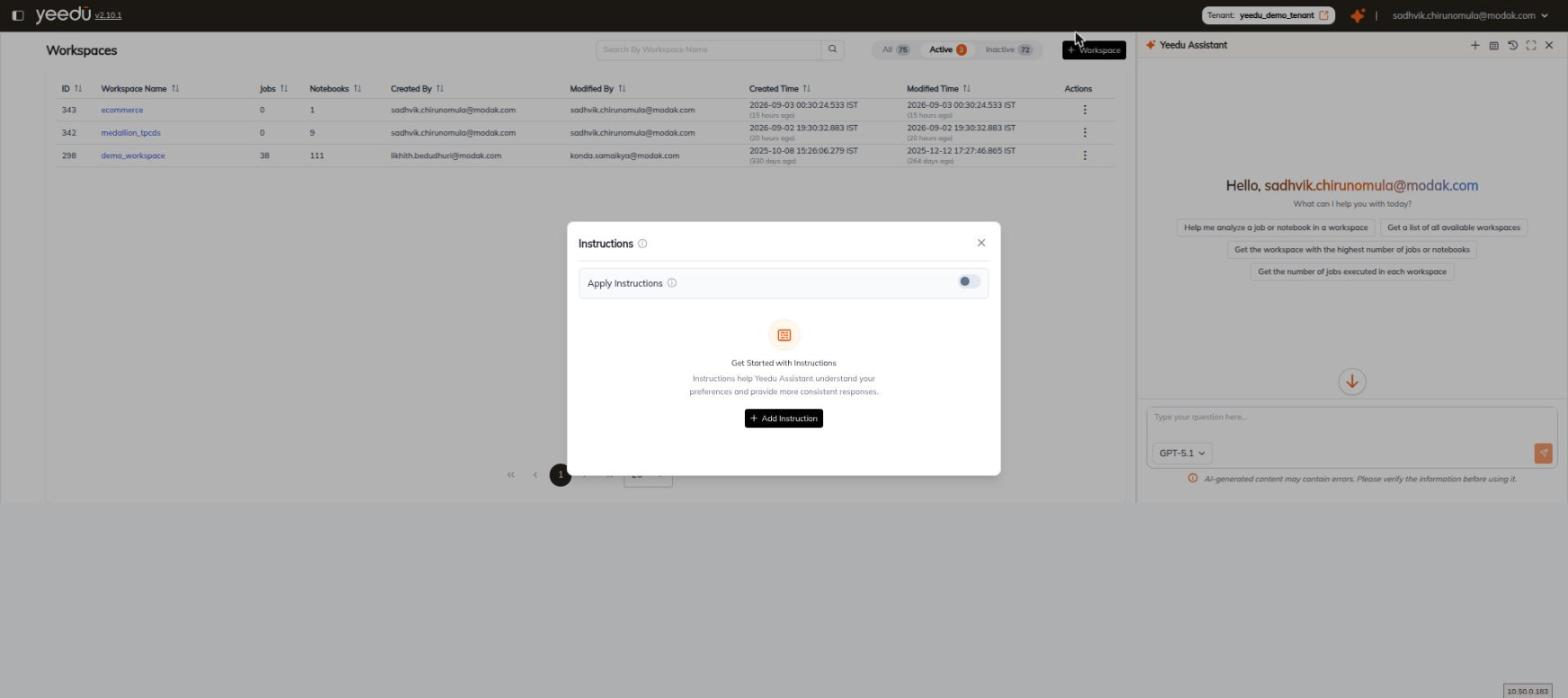
Modal Layout
| Element | Detail |
|---|---|
| Title | Instructions, followed by an information icon. |
Apply Instructions | A toggle, with its own information icon, that turns the saved instructions on or off without deleting them. |
Both icons carry a tooltip. We quote them verbatim:
Define how Yeedu Assistant should behave, respond and execute tasks across your chats.
Enable to apply custom instructions to your assistant conversations.
The first is the tooltip on the Instructions title.
The second is the tooltip on Apply Instructions.
Empty State
Before you've saved anything, the modal body shows an icon, the heading Get Started with Instructions, and this body text, which we quote verbatim:
Instructions help Yeedu Assistant understand your preferences and provide more consistent responses.
A + Add Instruction button sits below it.
Writing an Instruction
+ Add Instruction replaces the empty state with an editor.
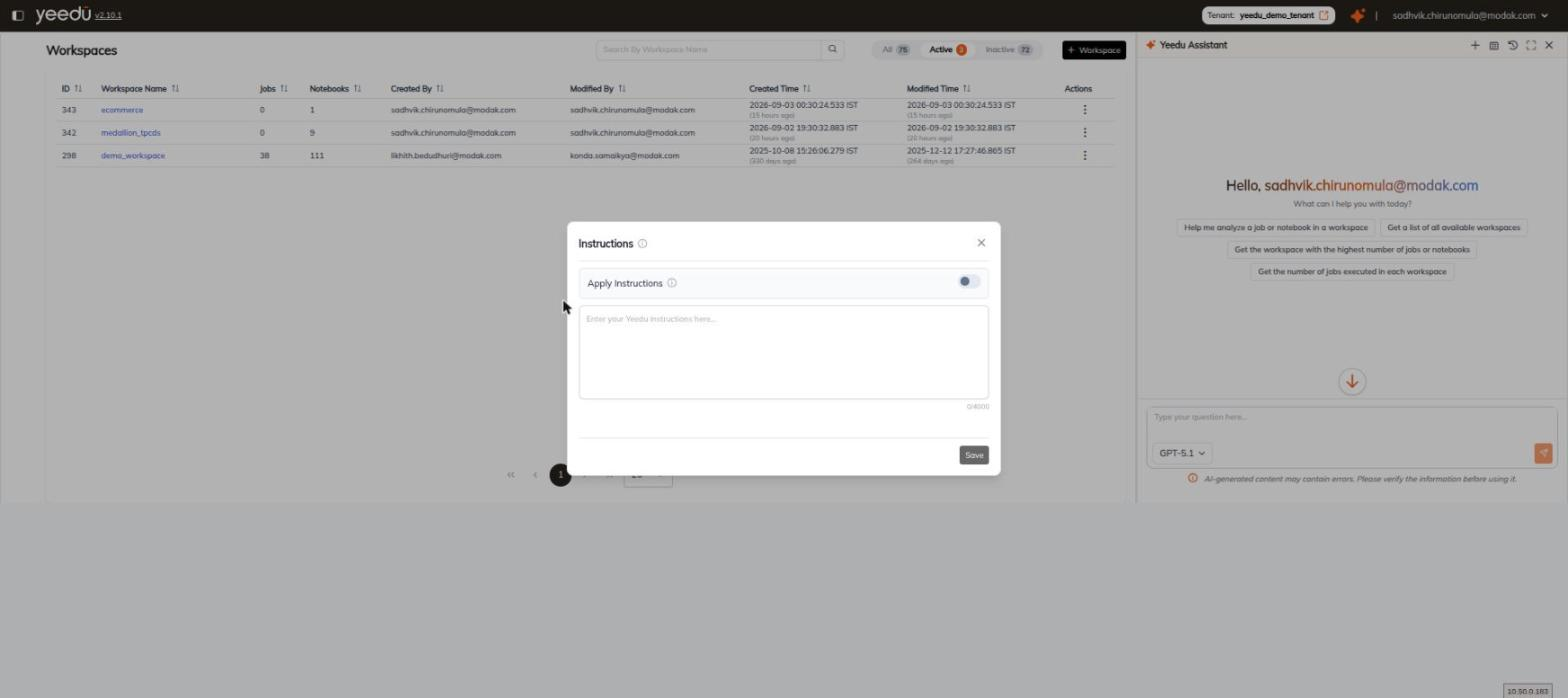
| Element | Detail |
|---|---|
| Text area | Placeholder Enter your Yeedu instructions here.... |
| Character counter | Reads 0/4000 when empty — the instruction is capped at 4000 characters. |
| Save | Stores the instruction. |
Steps
- Open the drawer and click the grid icon to open Instructions.
- Click + Add Instruction.
- Type your instruction into the text area, staying within the 4000-character limit shown by the counter.
- Click Save.
- Make sure Apply Instructions is toggled on.
Scope
Instructions are per-user.
They apply across that user's chats only.
The Apply Instructions toggle is the switch that decides whether saved instructions are used. Turning it off leaves the text in place but stops the assistant applying it.