Create Job
Steps to Create a Job
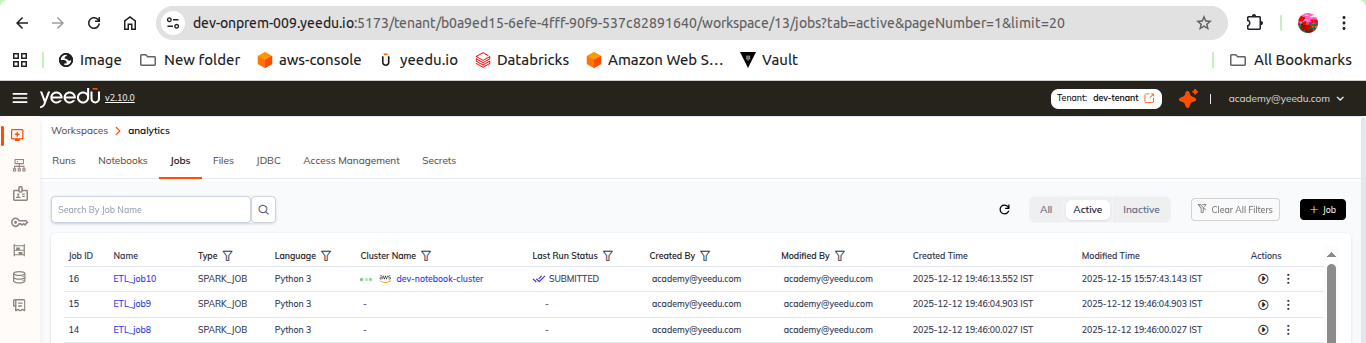
- Open a Workspace and go to the Jobs tab
- Click the + Job button
- You're redirected to the New Job form
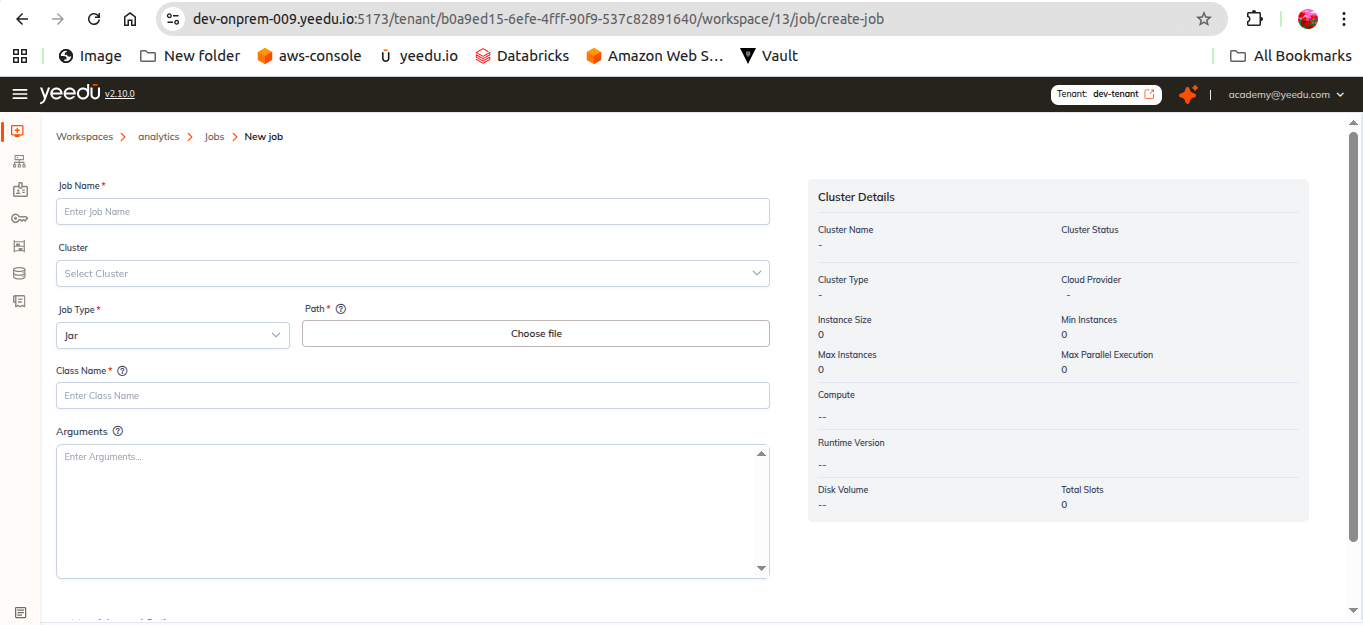
The form uses a two-column layout: the job form on the left and a live CLUSTER DETAILS card on the right. Start with Job Name, which has to be unique, lowercase, at most 64 characters long, and restricted to the symbols -, _, @ and .. Next pick a Cluster already assigned to your workspace, or press the inline + to build one without leaving the form. Then choose a Job Type, because that single dropdown decides which of the remaining fields the form renders. Everything under Advanced Options is optional. Reset clears the form back to its defaults, and once you press Create we create the job.
Common Fields
-
Job Name (required)
- Enter a unique name
- Max length: 64 characters
- Must be lowercase
- Allowed symbols:
-,_,@,.
-
Cluster
- Select an available cluster assigned to your workspace
- Use the inline + button to create a new cluster without leaving the form
-
Job Type (required)
- Determines which fields the rest of the form shows
Job Type
Job Type is the first-level choice. In v2.10.1 we offer three values:
| Job Type | Description |
|---|---|
| JAR | Run a compiled Java/Scala Spark application packaged as a .jar file |
| Functions | Expose a Python function as a REST endpoint (Yeedu Functions) |
| Custom Code | Run a script; a Language sub-dropdown selects the runtime |
Python, Raw Scala and Spark SQL are no longer top-level job types. They're now languages under Custom Code.
Job Type = JAR
| Field | Required | Notes |
|---|---|---|
| Path | Yes | JAR location, selected with Choose file |
| Class Name | Yes | Fully qualified class containing the main method |
| Arguments | No | Arguments passed to the application |
See JAR Jobs.
Job Type = Custom Code
Selecting Custom Code reveals a Language dropdown:
| Language | Reference page |
|---|---|
| Raw Scala | Scala |
| Python | Python |
| Spark SQL | SQL |
| Field | Required | Notes |
|---|---|---|
| Language | Yes | Raw Scala | Python | Spark SQL |
| Path | Yes | Script location, selected with Choose file |
| Arguments | No | Arguments passed to the script |
Job Type = Functions
| Field | Required | Notes |
|---|---|---|
| Language | Yes | Python |
| Project Path | No | Choose Project Path — project folder containing the function code |
| Script Path | Yes | Choose Script Path — script that defines the function |
| Function Name | Yes | Name of the function to invoke |
| Function Requirements | No | Pip requirements, one per line (for example pandas==2.1.1, numpy==1.26.0) |
| Function URL | — | REST endpoint generated for the function |
| Auth Token | — | Token used to authenticate calls to the Function URL |
| Example Request Body | No | JSON editor with a Format JSON action |
Behind the Copy cURL button we assemble a ready-to-run request from the Function URL, Auth Token and example body.
Functions also add Function Concurrency and Function Timeout groups, and we document every one of their fields in Yeedu Functions.
Advanced Options
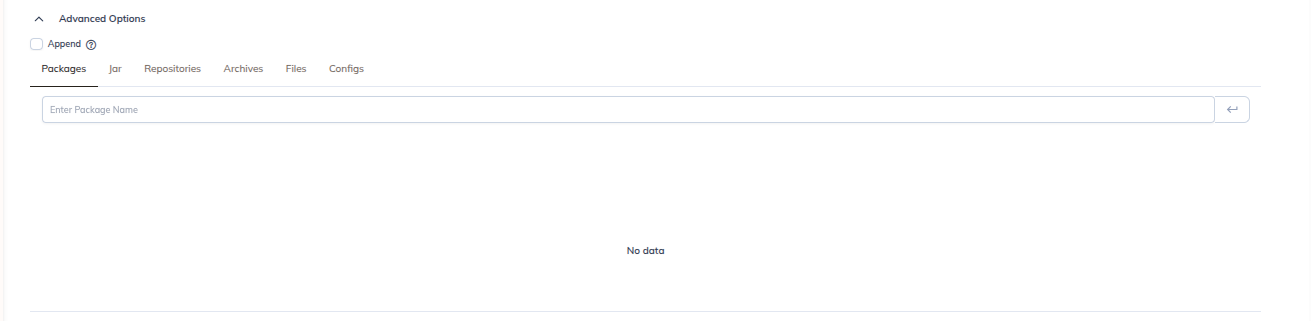
Advanced Options is a collapsible section that starts with an Append checkbox, followed by a tabbed dependency editor.
- Append : appends the values entered here to the configuration inherited from the cluster instead of replacing it
Dependency Tabs
| Tab | Purpose |
|---|---|
| Configs | Spark configuration Key / Value rows, with a Bulk Edit toggle and + / delete row actions |
| Packages | External libraries or packages |
| Jars | Additional JAR dependencies |
| Repositories | Repositories used to resolve dependencies |
| Archives | Archive files made available to the job |
| Files | Supporting files attached to the job |
Principal & Key Tab
- Principal
- Key Tab
Driver Config
- Driver Java Options
- Driver Library Path
- Driver Class Path
Concurrent Runs
- Maximum Concurrent Job Runs : default
0. "Set this value higher than the default of 0 to perform multiple runs of the same job concurrently."
Timeout
- Job Timeout (minutes) : default
0. "Maximum allowable time that a job is permitted to run before it's automatically terminated."
Cluster Details Panel
We refresh the right-hand CLUSTER DETAILS card live as you pick a cluster, and it shows:
- Cluster Name
- Cloud Provider
- Cluster Type
- Instance Size
- Min Instances
- Max Instances
- Turbo Acceleration (Enabled / Disabled)
- Compute
- Runtime Version
- Disk Volume
- Max Parallel Exec
- Slots (Avail / Total)
Actions
| Button | Behaviour |
|---|---|
| Reset | Clears the form back to its defaults |
| Create | Creates the job |