Job Enhancements
Changes to how job files are selected and how we report per-run compute cost.
The file picker
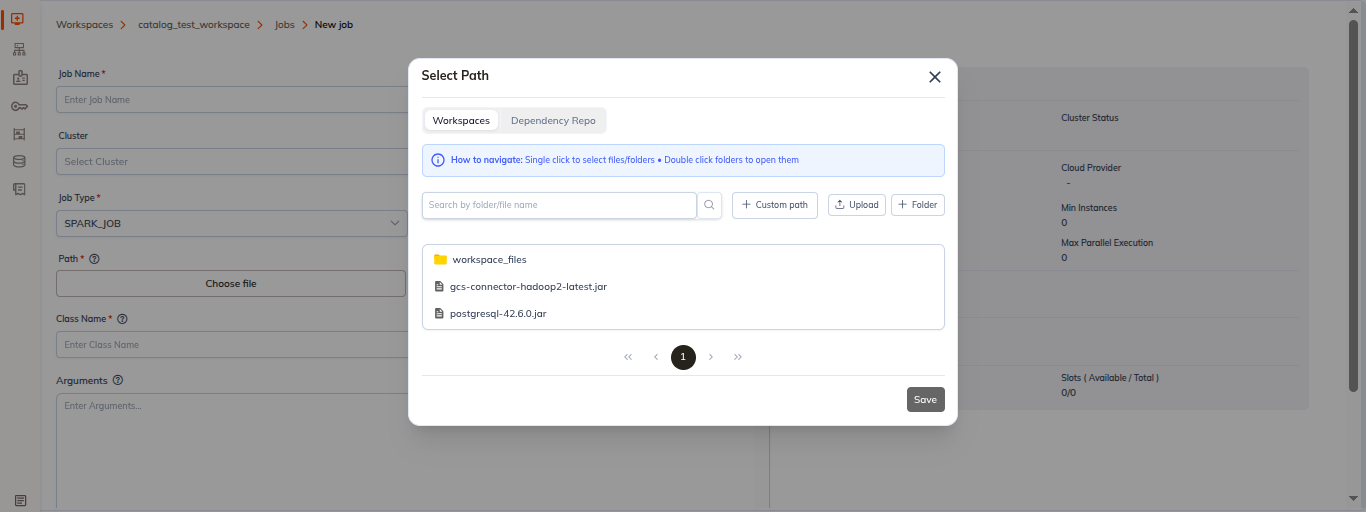
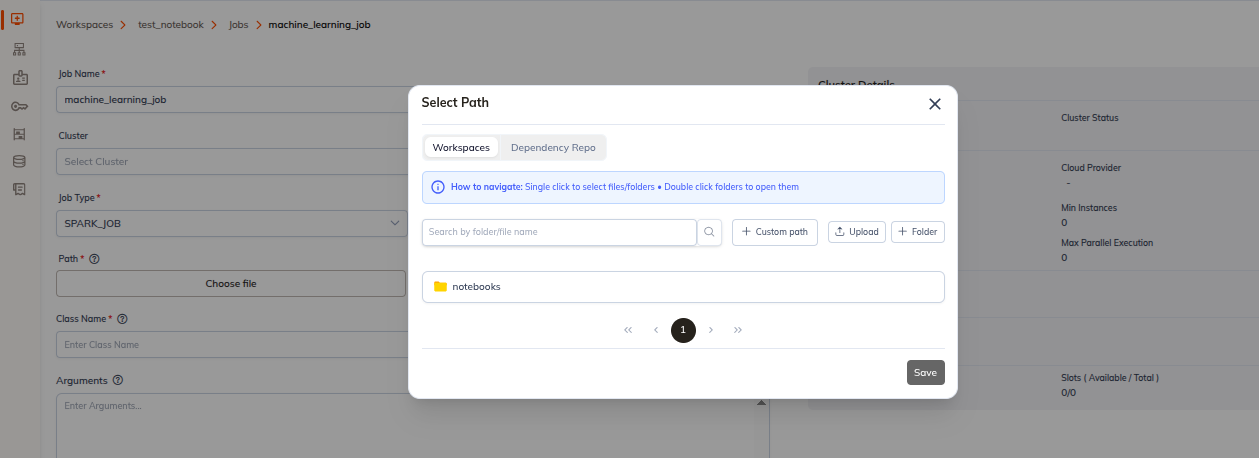
Every Choose file / Choose Project Path / Choose Script Path button on the
Create Job form opens the same picker dialog, headed Select <thing>.
A hint bar at the top states the interaction model:
Single-click to select · Double-click a folder to open it
Toolbar
| Control | Behaviour |
|---|---|
| Search box | Search by folder/file name, with a ✕ to clear it. |
+ Custom path | Swaps the toolbar for a free-text path entry. See below. |
Upload | Opens a menu with two entries, Folder and File, each starting an upload into the workspace files. |
Folder | Creates a new folder at the current location. |
We show the Upload and Folder controls when the picker is opened from the job or notebook
creation form.
Custom path
Rather than navigating the tree, you can type a path directly.
- Click
+ Custom path. - Type the path into the
Add custom pathfield. - Press Enter or click the ⏎ icon to add it, or
Cancelto go back to the tree. - Click
Saveto apply the selection to the job.
If the path you type is already in the selection, the field turns red and shows
The custom path you have entered already exists.
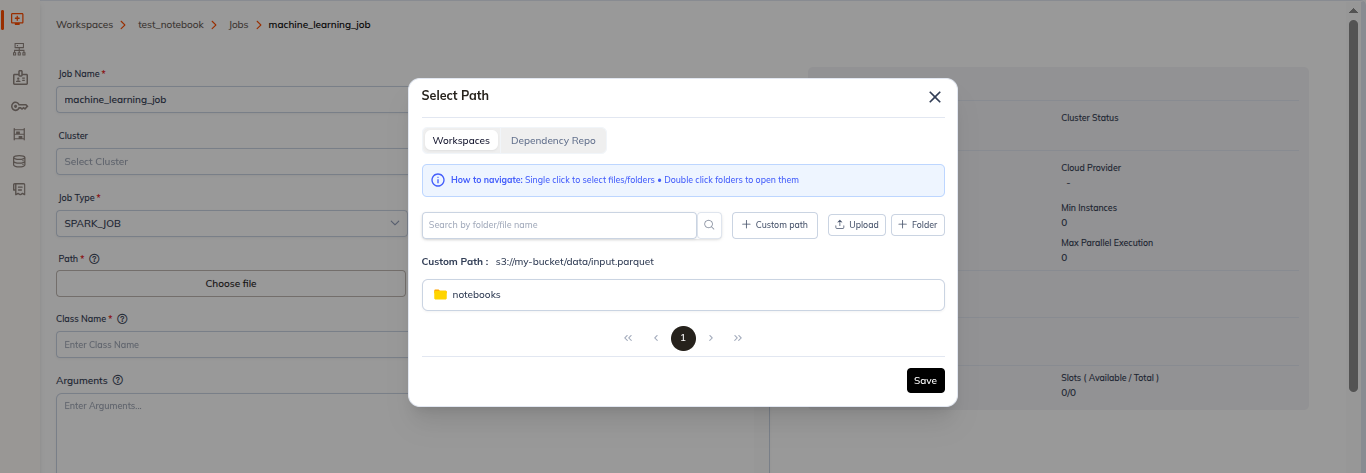
The custom path field takes a literal path. There is no variable or date-substitution syntax.
Copying a path from the Files page
The workspace Files page carries its own toolbar: ⬆ Upload (with Folder / File
options) and ⊕ New. Each file's row menu includes Copy Path, alongside Move and
Copy. Use Copy Path to put a path on the clipboard, then paste it into the picker's
Add custom path field.
Approx YCU per run
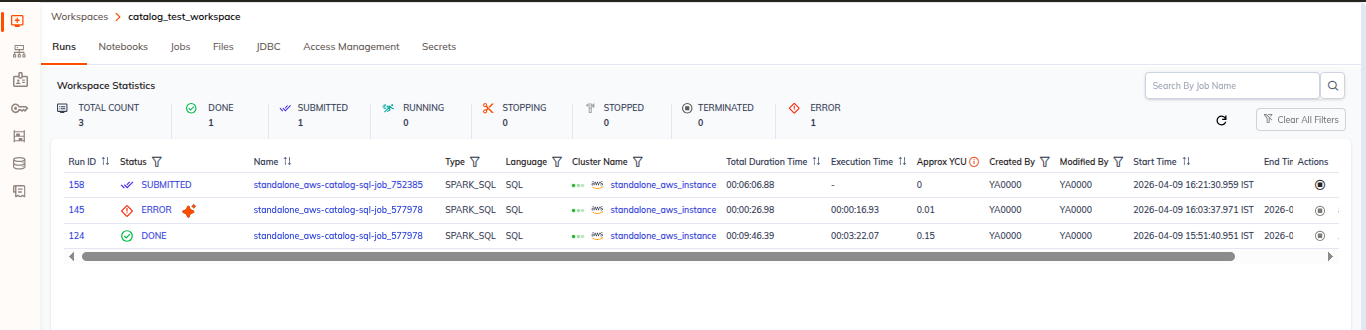
The workspace Runs table has an Approx YCU column giving
the approximate Yeedu Compute Units a run consumed. The column header carries an ⓘ info button
explaining the figure. It is an approximation of resource consumption, not a billed amount. See
Usage and Cost Management for how we
define YCU.