View / Update Workspace
View Workspace
To view your Workspaces, select Workspaces in the Yeedu navigation panel. The list shows the Workspaces you've access to, with the creator, the last-modification timestamp, and the number of Jobs and Notebooks in each. Click a Workspace name to open it.
The list page is served from:
/tenant/<tenantId>/workspaces?tab=active&page=1&limit=20
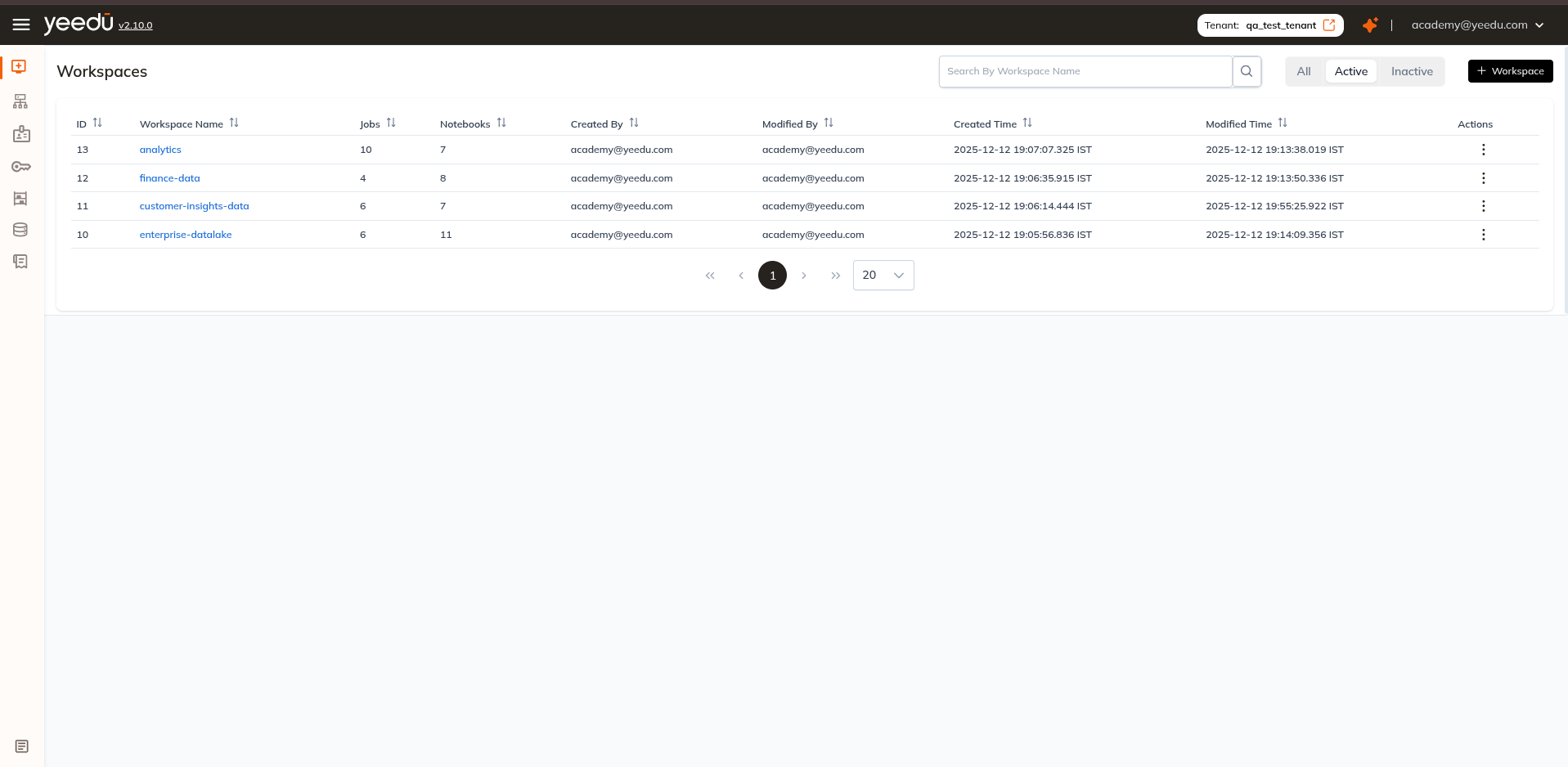
Toolbar and filter pills
The toolbar carries a Search By Workspace Name box with a search icon on the left. On the right are three filter pills, each showing a live count of the Workspaces in that state. The pill you pick is reflected in the tab query parameter, which makes a filtered list a shareable URL: tab=all, tab=active or tab=inactive, sitting alongside the page and limit parameters already in the address bar.
| Pill | Query parameter | Shows |
|---|---|---|
| All | tab=all | Every Workspace in the tenant, active and inactive. |
| Active | tab=active (default) | Only Workspaces currently active. |
| Inactive | tab=inactive | Only Workspaces that have been made inactive. |
The counts on the pills are instance-specific, so don't take ours as a baseline. Read them from your own screen. On our demo instance the pills read All 75, Active 3, and Inactive 72.
Columns
| Column | Description |
|---|---|
| ID | Numeric Workspace identifier. Sortable. |
| Workspace Name | Name of the Workspace, rendered as a link. Sortable. |
| Jobs | Number of Jobs in the Workspace. Sortable. |
| Notebooks | Number of Notebooks in the Workspace. Sortable. |
| Created By | User who created the Workspace. Sortable. |
| Modified By | User who last modified the Workspace. Sortable. |
| Created Time | Creation timestamp. Sortable. |
| Modified Time | Last-modification timestamp. Sortable. |
| Actions | Row menu (⋮) — Edit, Inactive / Active, Import, Export. |
Clicking Workspace Name opens the Workspace and lands on the Runs tab.
Workspace Tabs
Opening a Workspace shows the breadcrumb Workspaces ❯ <workspace name> above a bar of seven tabs, in this order:
Runs | Notebooks | Jobs | Files | JDBC | Access Management | Secrets
| Tab | What it contains |
|---|---|
| Runs | Workspace statistics tiles and the run history for every Job and Notebook in the Workspace. See Workspace Runs. |
| Notebooks | The Notebooks list for this Workspace, and the + Notebook button. |
| Jobs | The Jobs list for this Workspace, and the + Job button. |
| Files | The Workspace file manager — upload, create, edit, and organise files, folders, Git folders, and Notebooks. See Files in Workspace. |
| JDBC | JDBC / Thrift server connection details for the Workspace. See Workspace JDBC, Access Management, and Secrets. |
| Access Management | Per-Workspace user and group permissions. |
| Secrets | Workspace-scoped secrets. |
Tab routes
| Tab | Route |
|---|---|
| Runs | /workspace/<id>/runs?pageNumber=1&limit=20 |
| Files | /workspace/<id>/workspace-files/root |
| JDBC | /workspace/<id>/jdbc?page=1&limit=20 |
| Access Management | /workspace/<id>/workspace-access-management?workspaceId=<id> |
| Secrets | /workspace/<id>/secrets |
You can't guess the routes from the tab labels. Files resolves to workspace-files/root, and Access Management resolves to workspace-access-management with the Workspace id repeated as a workspaceId query parameter. We would navigate by clicking the tabs rather than by typing or guessing URLs.
Update Workspace
Edit in the row Actions (⋮) menu reopens the Workspace dialog with the Workspace Name and Description fields populated. The primary button reads Update and stays disabled until something changes, and until it does its tooltip reads No changes to update.
We require MANAGE permission on a Workspace before it can be updated. Edit appears in the menu only for Workspaces that are Active.
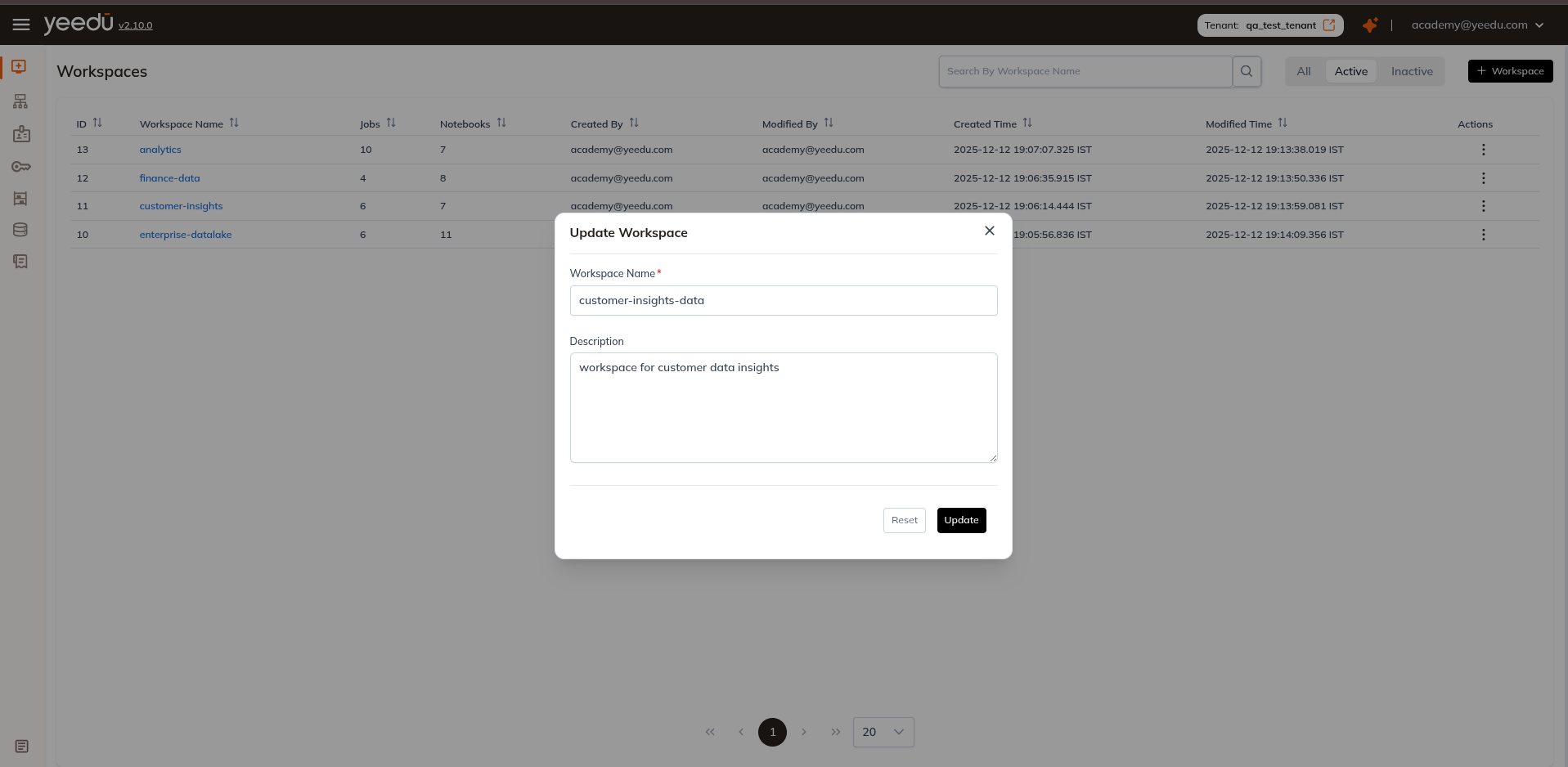
Workspace Permission Matrix
| Ability | MANAGE | EDIT | RUN | VIEW |
|---|---|---|---|---|
| Workspace Access Management | ✔ | ✖ | ✖ | ✖ |
| Update the Workspace, or make it Active / Inactive | ✔ | ✖ | ✖ | ✖ |
| Import into the Workspace | ✔ | ✔ | ✖ | ✖ |
| Create or update Job and Notebook configurations | ✔ | ✔ | ✖ | ✖ |
| Make a Job or Notebook Active / Inactive | ✔ | ✔ | ✖ | ✖ |
| Run or stop a Job or Notebook | ✔ | ✔ | ✔ | ✖ |
| Read Job and Notebook configurations and run history | ✔ | ✔ | ✔ | ✔ |