Import / Export Workspace
A Workspace's Jobs and Notebooks can be exported to a file and imported into another Workspace. Both actions live in the Actions (⋮) menu of a Workspace row on the Workspaces list. Export produces a .zip, import takes the .yeedu file from inside that package, and importing needs EDIT or MANAGE permission on the target Workspace.
Export Workspace
Exporting packages the Workspace's Job and Notebook configurations into a downloadable .zip file. To export a Workspace:
-
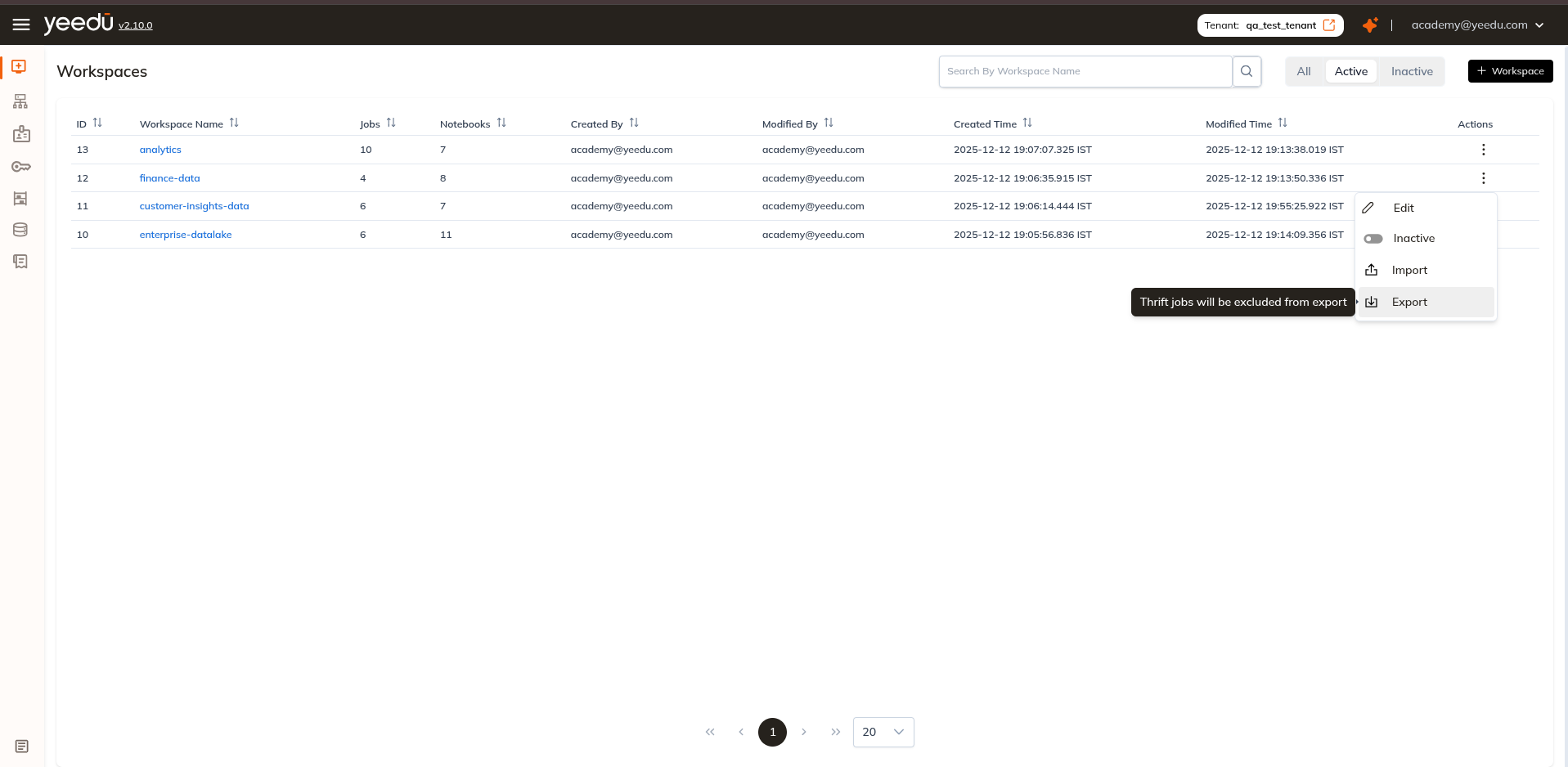
Open the Actions (⋮) menu of the Workspace.
-
Click Export. Its tooltip reads Thrift jobs will be excluded from export.
-
The Export Workspace dialog opens with two mutually exclusive options:
Option Description Strip Output (default) Removes all cell outputs before exporting. Reduces file size and avoids sharing potentially sensitive execution results. Keep Output Preserves all cell outputs in the exported file. Useful when sharing results with others. -
Click Export. The
.zipfile downloads to your machine.
Note: Thrift Jobs are excluded from the export.
Import Workspace
A previously exported package can be imported into a Workspace. Importing requires EDIT or MANAGE permission on the target Workspace.
Import Guidelines
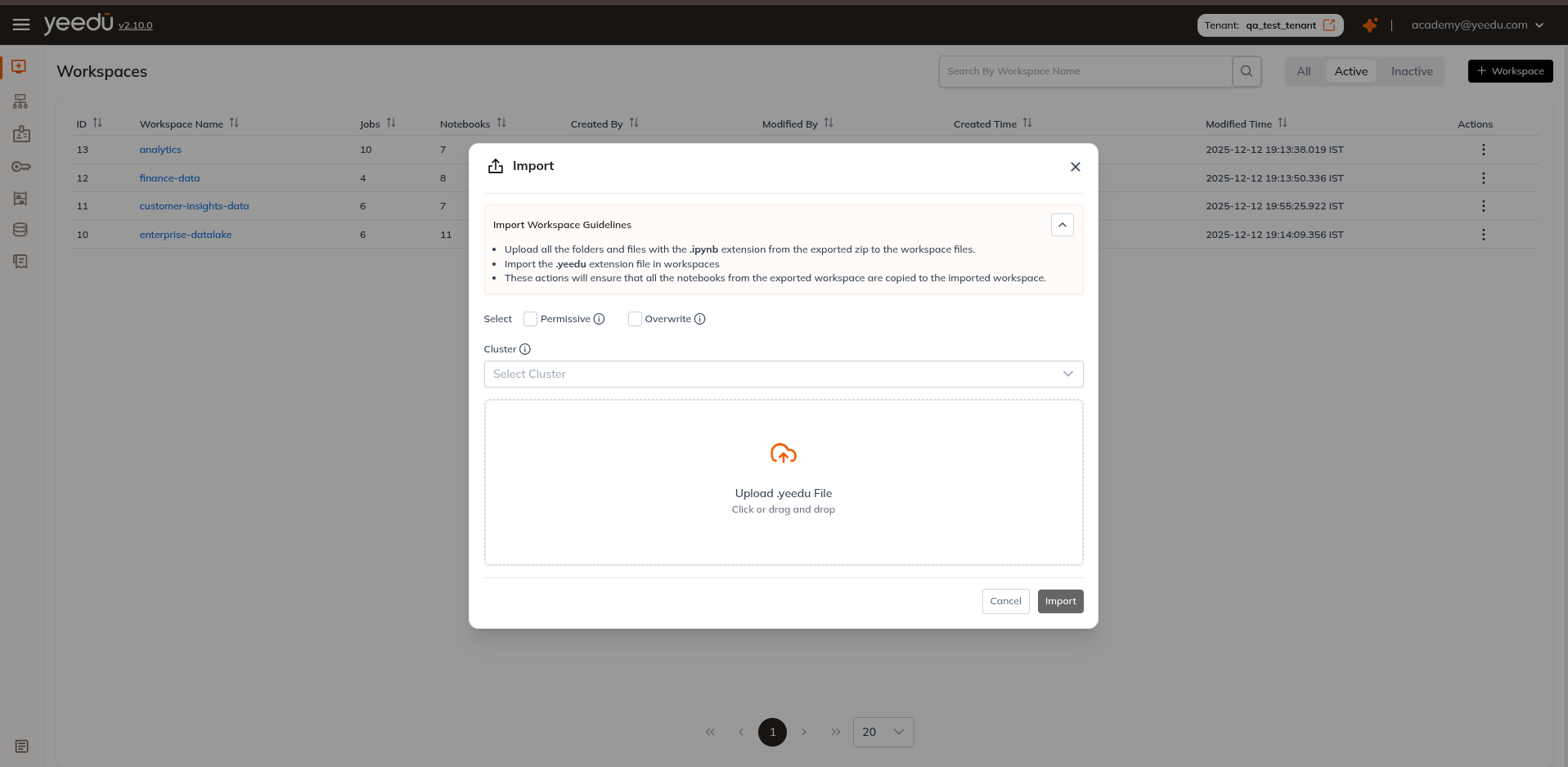
The import dialog carries a collapsible Import Workspace Guidelines panel that states:
- Upload all the folders and files with the
.ipynbextension from the exported zip to the workspace files. - Import the
.yeeduextension file in workspaces. - These actions will ensure that all the notebooks from the exported workspace are copied to the imported workspace.
Import a Workspace
To import jobs and notebooks into a workspace:
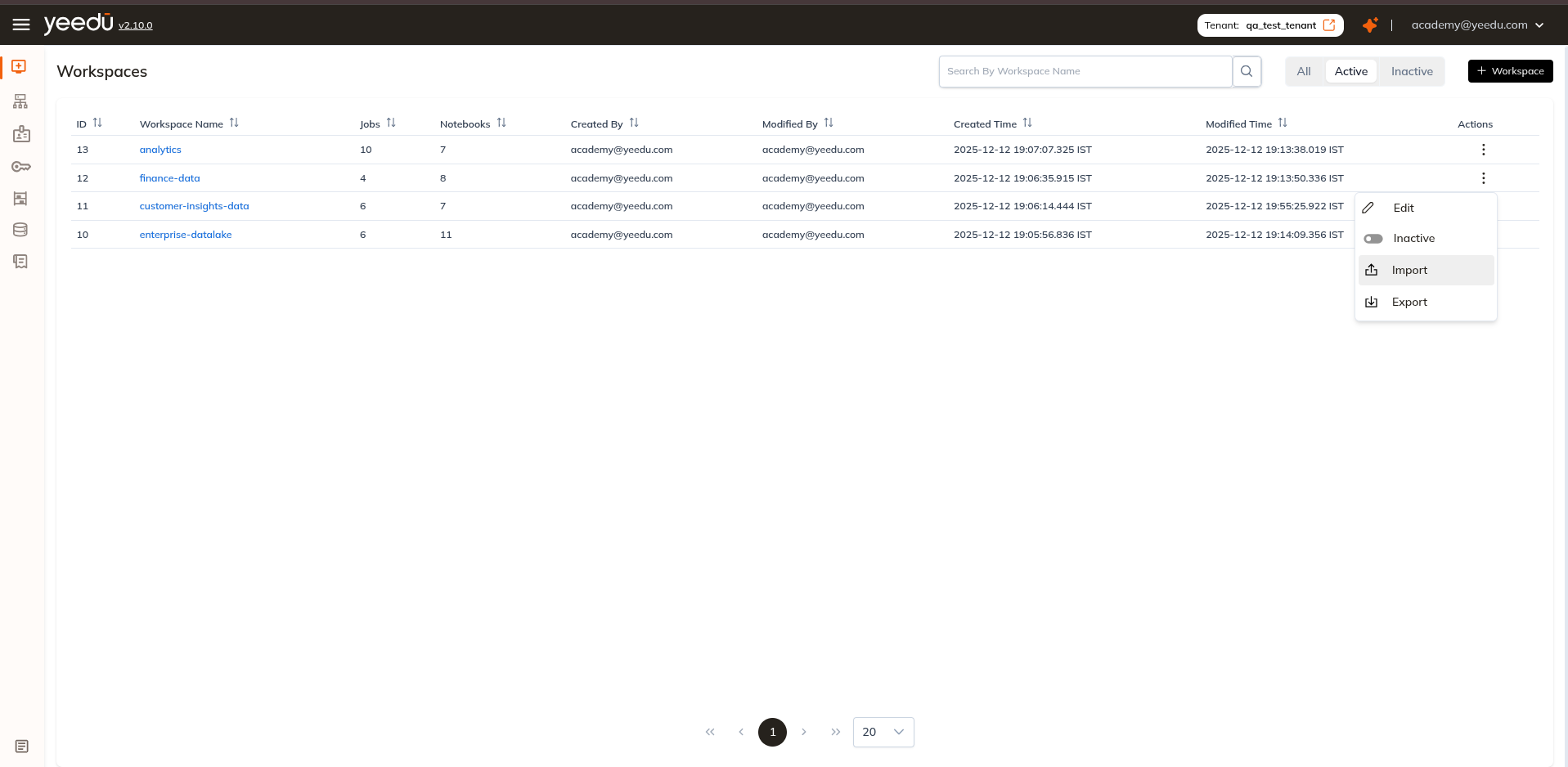
- Open the Actions menu of a specific workspace.
- Click Import to open the import pop-up.
- Configure the following options:
1. Select — Permissive, Overwrite (optional)
Two checkboxes, both unchecked by default. Each carries an ⓘ tooltip:
| Checkbox | Tooltip |
|---|---|
| Permissive | When enabled, allows partial batch import — jobs or notebooks that pass validation are created even if others in the batch fail. |
| Overwrite | When enabled, replaces any existing job or notebook that has the same name as one being imported. |
2. Cluster (optional)
A cluster selector with the ⓘ tooltip: Overrides the original cluster reference in imported jobs or notebooks with the cluster you select here.
3. Upload a .yeedu file
The upload area accepts a single .yeedu file (click, or drag and drop). We mark a file of any other extension Invalid file. Click Import to start. When the import finishes, we show an import-log view listing the outcome per item.
Workspace Permission Matrix
| Ability | MANAGE | EDIT | RUN | VIEW |
|---|---|---|---|---|
| Workspace Access Management | ✔ | ✖ | ✖ | ✖ |
| Update the Workspace, or make it Active / Inactive | ✔ | ✖ | ✖ | ✖ |
| Import into the Workspace | ✔ | ✔ | ✖ | ✖ |
| Create or update Job and Notebook configurations | ✔ | ✔ | ✖ | ✖ |
| Make a Job or Notebook Active / Inactive | ✔ | ✔ | ✖ | ✖ |
| Run or stop a Job or Notebook | ✔ | ✔ | ✔ | ✖ |
| Read Job and Notebook configurations and run history | ✔ | ✔ | ✔ | ✔ |