LLM Model Selection
Every code cell in the notebook editor can call an AI assistant to write, fix, or explain code. You choose the model per prompt, from a dropdown inside the prompt bar, rather than configuring it once for the notebook.
We made it a per-prompt choice because the appropriate model varies with the request. Explaining an unfamiliar transformation or restructuring a complicated query benefits from the larger models, while a /prettify on a cell you've already written doesn't, and paying for the difference on every trivial reformatting adds up quickly.
Opening the Prompt Bar
Open Ask AI Assistant in either of two ways:
- Click the sparkle icon in the cell toolbar (the third icon).
- Press
Ctrl + Shift + Y.
An inline prompt bar appears at the top of the cell, positioned above the code it will act on so that the surrounding context stays visible while you're describing what you want done to it.
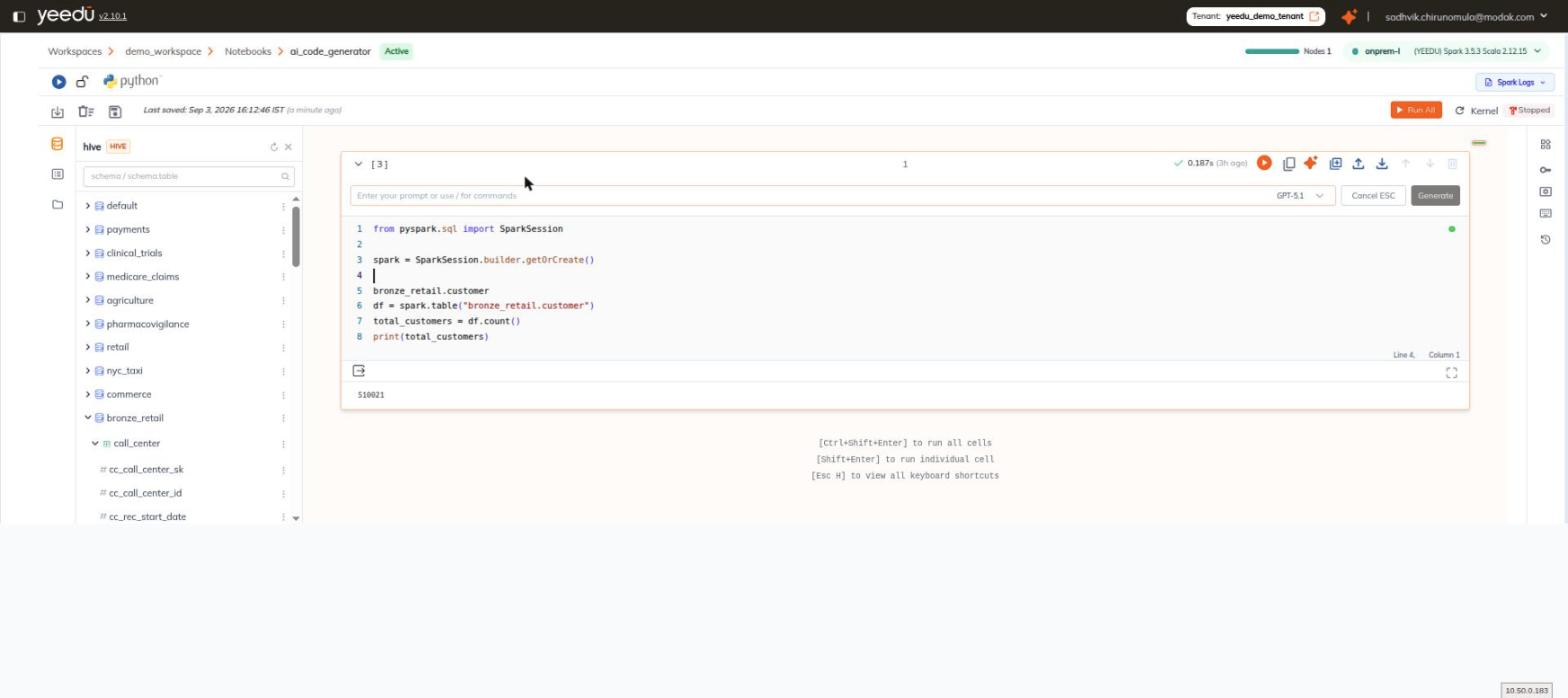
Prompt Bar Controls
| Element | Detail |
|---|---|
| Prompt input | Placeholder Enter your prompt or use / for commands. |
| Model select | The LLM used for this prompt. Defaults to GPT-5.1. |
| Cancel ESC | Closes the prompt bar without generating. |
| Generate | Runs the prompt against the selected model. |
Available Models
The model select offers nine models, in this order. They span several generations and three size classes within the most recent one, which gives you a genuine cost and capability gradient to work along rather than a single option presented as universally appropriate, and the ordering puts the newest and most capable at the top so the default position of the list matches what most people reach for when the request is genuinely difficult:
| # | Model |
|---|---|
| 1 | GPT-5.4 |
| 2 | GPT-5.4 Mini |
| 3 | GPT-5.4 Nano |
| 4 | GPT-5.2 |
| 5 | GPT-5.1 — default selection |
| 6 | GPT-5 |
| 7 | GPT-5 Mini |
| 8 | GPT-5 Nano |
| 9 | GPT-4o |
The selection is made in the prompt bar each time you open it. The bar opens on GPT-5.1.
Slash Commands
Type / in the prompt input to open the command list. There are seven commands, in this order:
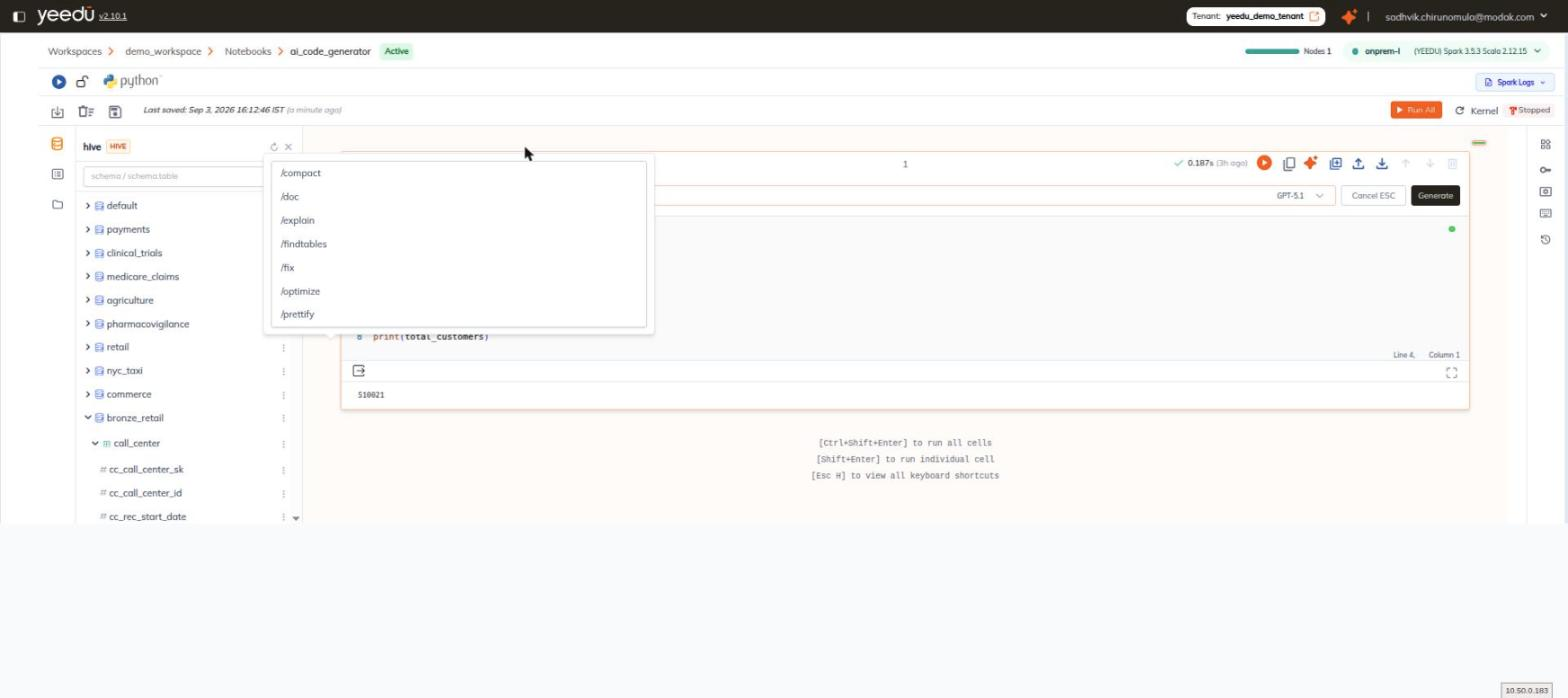
| # | Command |
|---|---|
| 1 | /compact |
| 2 | /doc |
| 3 | /explain |
| 4 | /findtables |
| 5 | /fix |
| 6 | /optimize |
| 7 | /prettify |