Jobs Dashboard
Jobs Dashboard
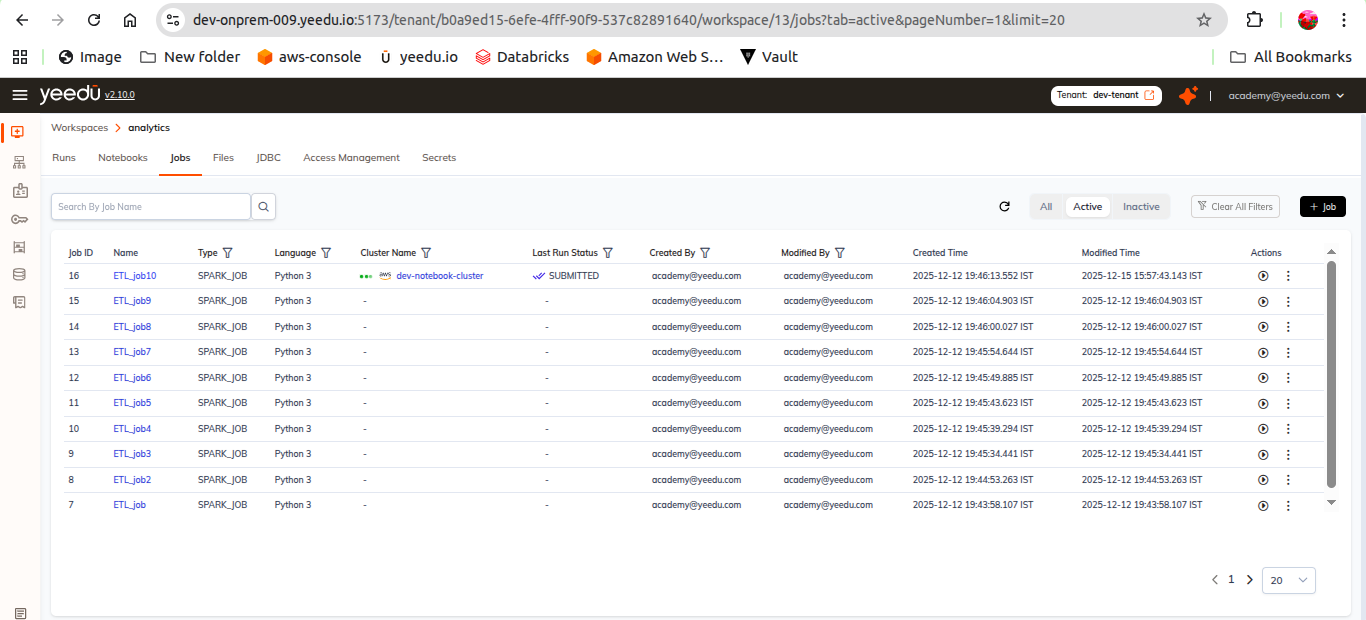
A job is a batch task you define once and run repeatedly. The Jobs Dashboard is the Jobs
tab inside a workspace, and it lists every job that workspace holds. Each row tells you what the job is, what it runs on and how it last went: the type, which is Custom Code, JAR, Functions or Thrift SQL, the language where the type takes one, the bound cluster with its status dot, and the Last Run Status. From that same row you can run the job, run it with overridden arguments, archive it, or export its configuration.
Filter pills
Three pills at the top right of the table switch what is listed. Each carries a live count.
| Pill | Shows |
|---|---|
All | Every job in the workspace, active and inactive. |
Active | Jobs that are currently usable. This is the default. |
Inactive | Jobs that have been archived from the row menu. |
Columns
| Column | Detail |
|---|---|
Job ID | The job's unique numeric identifier. |
Name | The job name, linking through to the job. |
Type | Custom Code, JAR, Functions or Thrift SQL. Filterable. |
Language | The language the job runs in, or - where the type doesn't take one. Filterable. |
Cluster Name | The cluster the job is bound to, with a status dot. Filterable. |
Last Run Status | The outcome of the job's most recent run. Filterable. |
Modified By | The user who last changed the job. Filterable. |
Modified Time | The absolute timestamp, with a relative age beneath it. |
Actions | The per-row controls described below. |
We make the column set configurable. The column-picker icon in the toolbar lets you show or hide columns, so your view won't necessarily match our screenshot.
Toolbar
To the right of the search box sit a filter icon, a refresh icon and the column picker, then the
three pills and the + Job button.
Search is by job name only, through the Search By Job Name box at the top left.
Row actions
Each row ends with two controls.
| Control | Tooltip | Behaviour |
|---|---|---|
| Play button | Run | Submits the job immediately, using its saved configuration. Present on every row whatever the last run status. |
Kebab ⋮ | (none) | Opens the row menu below. |
The kebab menu holds three entries:
| Entry | Behaviour |
|---|---|
Run with Arguments | Submits the job after letting you override its arguments for this run only. |
Inactive / Active | Archives the job, or restores it. The entry reads Inactive while you're on the All or Active pill and Active while you're on the Inactive pill. |
Export | Downloads the job's configuration. |
Archiving is reversible. An inactive job isn't deleted, only hidden from the default view,
switch to the Inactive pill and choose Active from its row menu to bring it back.
Diagnosing a failed job
When a job's Last Run Status is ERROR, a small orange sparkle appears beside the status.
Hovering it expands the glyph into a Diagnose pill, and that hands the failure to Yeedu
Assistant so we can attempt a root-cause analysis. See Error Diagnosis.