Advanced Options
The Advanced Options panel attaches Spark configuration and dependencies to an individual notebook, on top of, or instead of, the settings inherited from its cluster. The Append checkbox at the top of the panel decides which of those two you get. Five tabs follow it: Configs, Packages, Jars, Files and Resources. Only the first four accept input, since Resources is read-only. One related setting, max_concurrency, is configured on the notebook form rather than in this panel.
Open it from the Advanced Options icon on the right rail of the notebook editor.
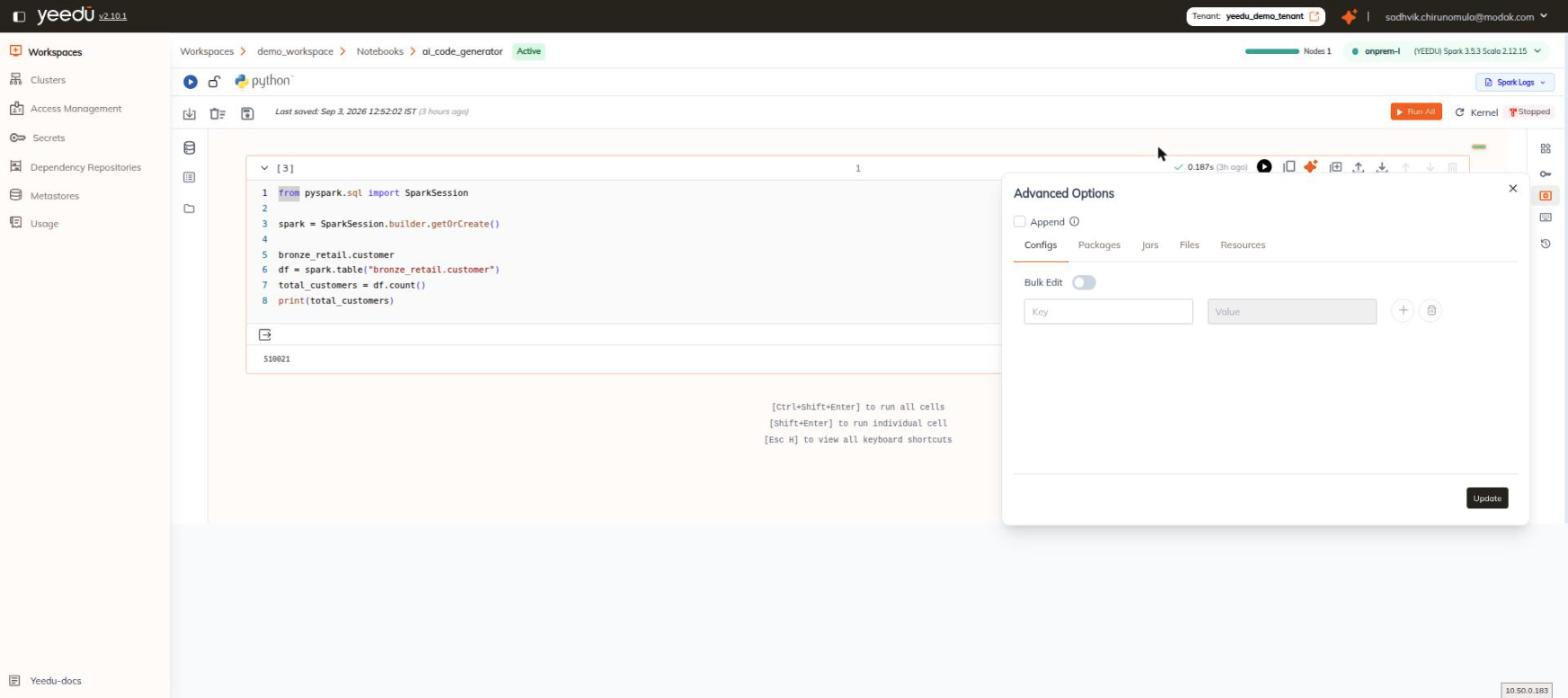
Append
An Append checkbox sits at the top of the panel. Its tooltip reads, verbatim:
If enabled, notebook-level Spark settings are added on top of cluster settings. If disabled, they replace the cluster settings entirely.
Tabs
The panel has five tabs, in this order:
| Tab | Contents |
|---|---|
| Configs | A Bulk Edit toggle, then a Key / Value input pair with a + button to add a row and a trash button to delete a row. |
| Packages | A Bulk Edit toggle, then an input with the placeholder Enter Package Name and an add icon. An empty list reads No data. |
| Jars | Reads No jars selected. with a Choose jars button that opens the workspace file picker. |
| Files | Reads No files selected. with a Choose files button. |
| Resources | A read-only Label / Value table. |
We put an Update button in the panel footer on the Configs, Packages, Jars, and Files tabs. It isn't shown on Resources.
Resources Tab
Resources is read-only. It reports the resource allocation currently in effect for the notebook session, across six rows:
| # | Label |
|---|---|
| 1 | Driver Memory |
| 2 | Executor Memory |
| 3 | Driver Cores |
| 4 | Executor Cores |
| 5 | Number of Executors |
| 6 | Total Executor Cores |
We show -- in every row while the value is inherited from the cluster rather than set on the notebook.
The Advanced Options section on the Create Notebook form has only four tabs, Configs, Packages, Jars, and Files. We expose Resources only in the editor panel, because it reflects a live session.
Max Concurrency
max_concurrency controls how many runs of the same notebook may execute simultaneously. It isn't a Spark task-parallelism setting. It's configured on the notebook form, not in this panel.
Configure Max Concurrency
- Open the notebook create or edit form.
- Expand the Concurrent Runs section.
- Set Maximum Concurrent Notebook Runs. The default is
1. - Save the configuration.
The field's help text reads:
Set this value higher than the default of 1 to perform multiple runs of the same Notebook concurrently.
Field Names
| Surface | Name |
|---|---|
| UI label | Maximum Concurrent Notebook Runs (under Concurrent Runs) |
| API / CLI property | max_concurrency |
Impact
- At the default of
1, a new run of the notebook must wait for the currently executing run to finish. - Raising the value permits that many simultaneous runs of the notebook.
- Each concurrent run consumes additional cluster slots. Check Slots (Avail/Total) on the CLUSTER DETAILS panel of the notebook form before raising it.
See Create Notebook for the field documented in context.