Markdown Cells
Yeedu notebooks support Markdown cells, so formatted explanation and executable code can occupy the same document. That's what separates a notebook from a script: somebody reading it six months afterwards gets your reasoning alongside the transformation, instead of reconstructing the intent from the code by itself.
We render the Markdown when you click away from the cell. The formatting reference below covers the constructs we support, and it's ordinary Markdown throughout, so headings, emphasis, fenced code, links, images, tables, blockquotes and horizontal rules all behave the way they would anywhere else you've written it. Nothing in this notebook implementation extends the syntax with proprietary directives, which means a cell you author here transfers unchanged to any other environment that renders Markdown, and a cell somebody pastes in from elsewhere renders correctly without adjustment.
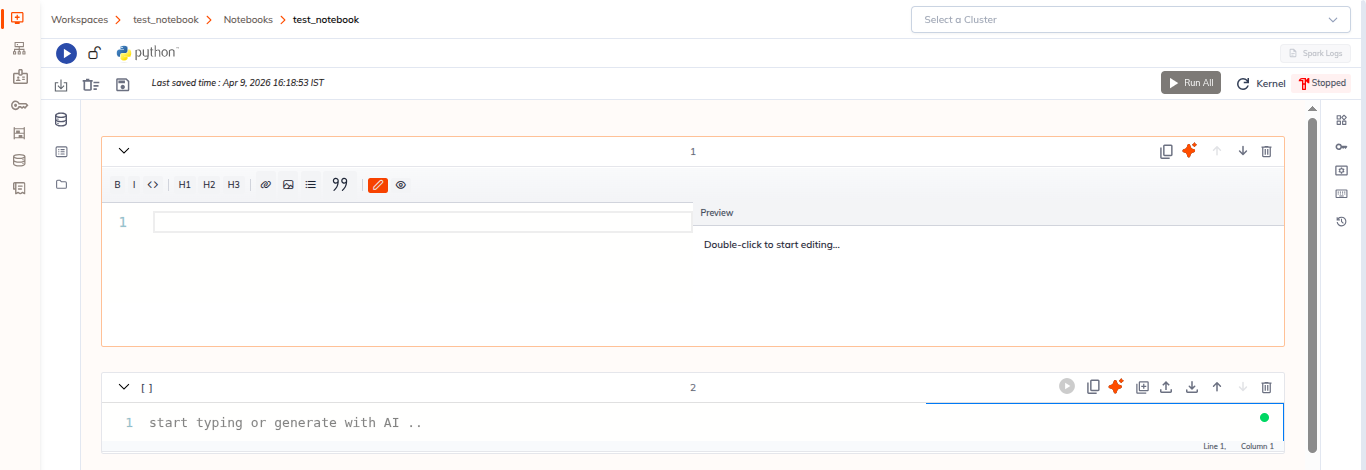
Creating a Markdown Cell
- Hover the gap between two cells in the notebook editor.
- Click + Text. A Markdown cell is inserted at that point.
- Double-click the cell body to enter edit mode.
- Type your content, then click outside the cell to render it.
To edit an existing Markdown cell, double-click the rendered content. There's no separate edit mode toggle to hunt for, and a cell that won't respond to a single click is behaving correctly.
+ Code inserts a code cell at the same point. Both buttons appear only while the pointer is in the gap between cells.
Markdown Formatting Reference
Headings
# Heading 1
## Heading 2
### Heading 3
Text Formatting
**Bold text**
*Italic text*
***Bold italic***
~~Strikethrough~~
`Inline code`
Lists
Unordered:
- Item 1
- Item 2
  - Nested item
Ordered:
1. First item
2. Second item
3. Third item
Code Blocks
```python
def hello():
    print("Hello, World!")
```
Links and Images
[Link text](https://example.com)

Tables
| Column 1 | Column 2 | Column 3 |
|----------|----------|----------|
| Value 1  | Value 2  | Value 3  |
Blockquotes
> This is a blockquote
> with multiple lines
Horizontal Rule
---
Saving
Markdown cells are covered by auto-save exactly like code cells, and by Ctrl + S. Nothing about documentation is treated differently from executable content here, which means a notebook you've been annotating carries the same persistence guarantees as one you've been running, and an accidental browser refresh costs you neither.