Notebook Enhancements
Auto-Save
Auto-Save Functionality
- Detects when you've stopped typing in a cell and saves after a short debounce, 3 seconds for a code cell, 2 seconds for a Markdown cell.
- Shows an unsaved-changes indicator (orange dot, tooltip
Unsaved changes), which turns green with the tooltipAll changes savedonce saved. - Supports manual save with the save icon or
Ctrl + S. Autosaves are silent; only a manual save reports success.
In the editor top bar we carry a Last saved: <timestamp> (<relative>) indicator and a save icon whose tooltip reads Save Notebook.
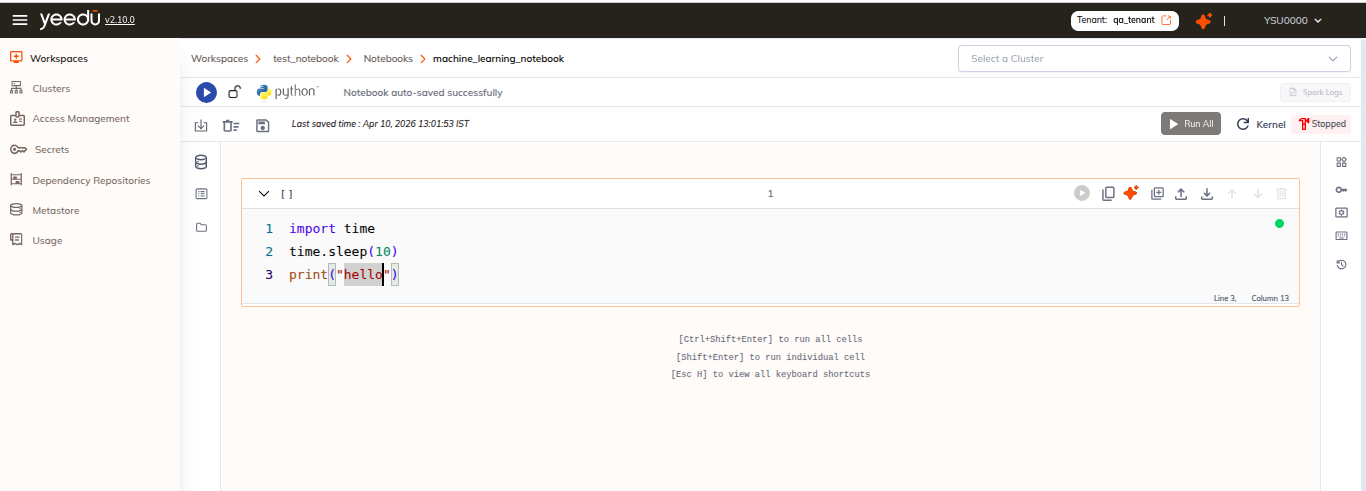
See Auto-Save.
Markdown Cell Support
In Yeedu notebooks, hover the gap between two cells and click + Text to add a Markdown cell. Double-click the new cell to edit its content, then click outside the cell to render it.
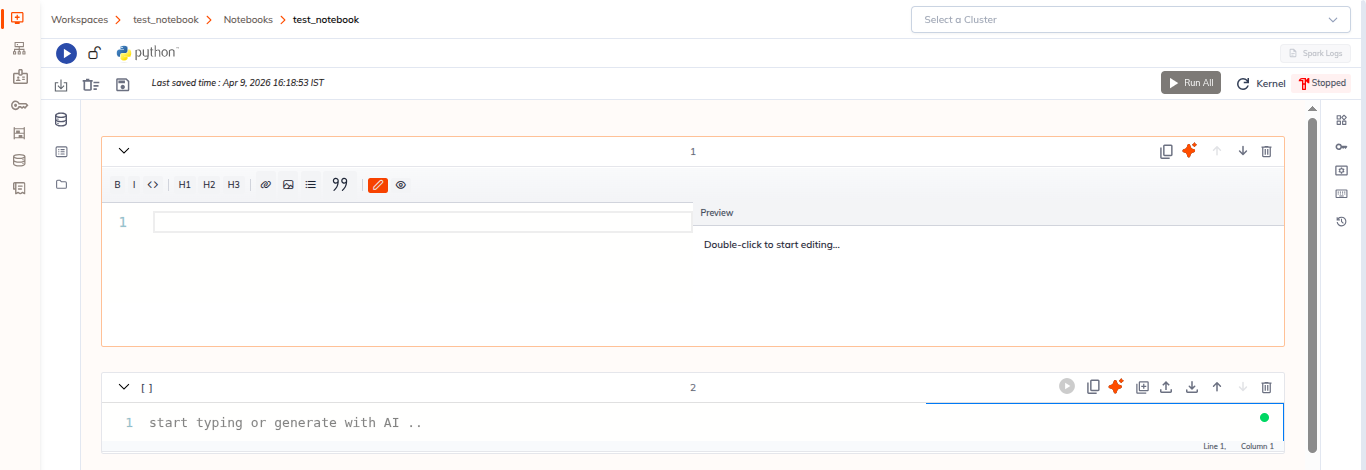
See Markdown Cells.
Spark Logs
In the notebook editor, click Spark Logs (tooltip View Spark application logs) to list the Spark runs of the current notebook. Each entry shows Run ID: <id> and Last Updated: <timestamp> (<relative>); select one and we open a new browser tab at that run's App Info page.
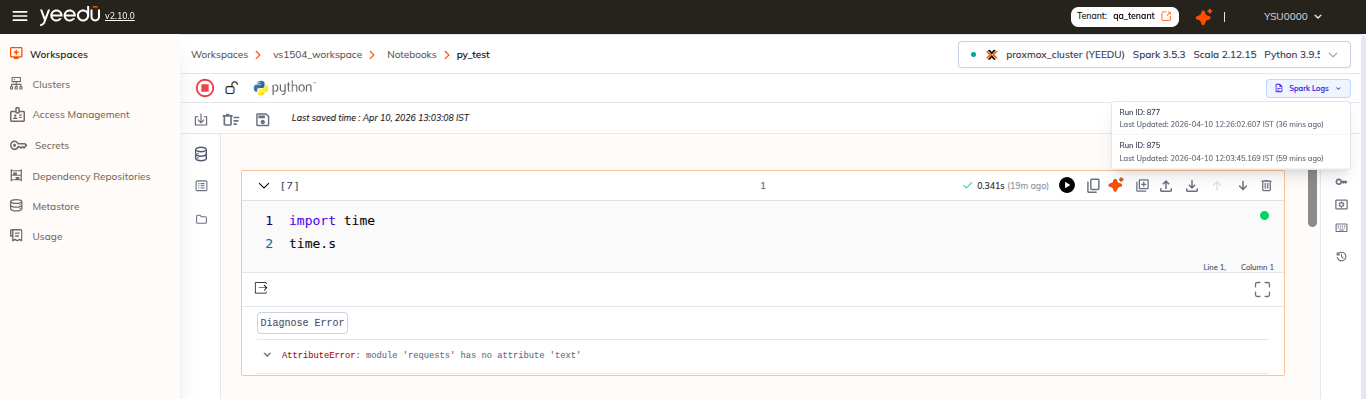
See Spark Logs.
General Enhancements
- Display multiple notebook instances in the UI. The All Notebooks panel on the left rail switches between them.
-
Added
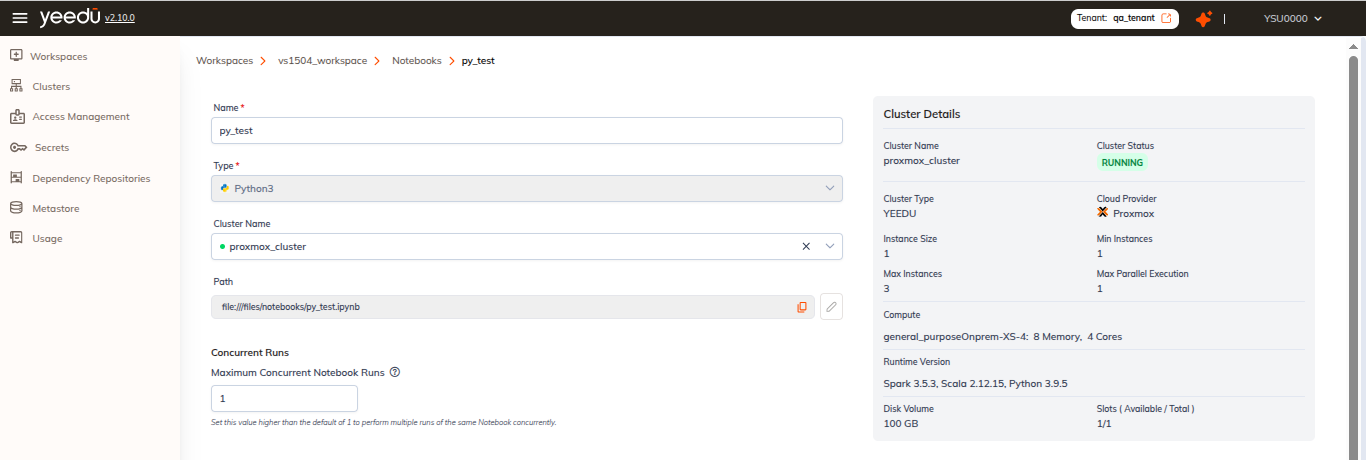
max_concurrencywhen creating or editing notebooks. In the UI this is the Maximum Concurrent Notebook Runs field, under the Concurrent Runs section of the notebook form. It defaults to1, so a second run won't start until the first has finished; set it higher to allow multiple runs of the same notebook to execute concurrently. See Create Notebook. -
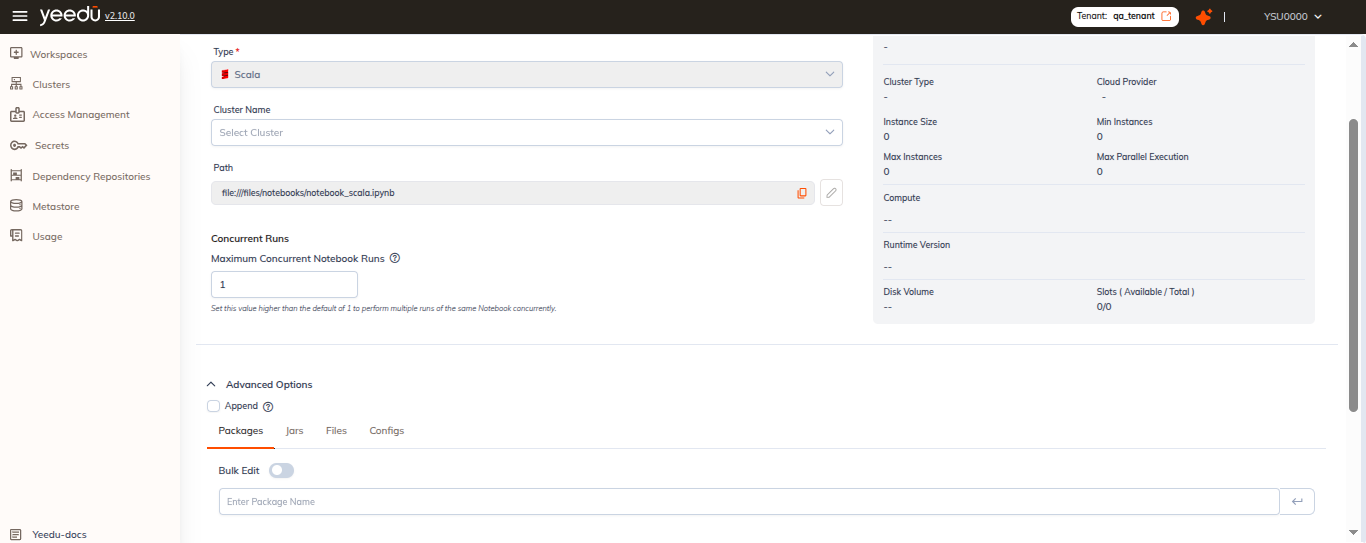
Enabled advanced options for Scala and Sql notebooks. We expose the same four Advanced Options tabs on the notebook form for all three notebook types, Configs, Packages, Jars, Files, plus the Append checkbox. The Advanced Options panel inside the editor adds a fifth, read-only Resources tab.
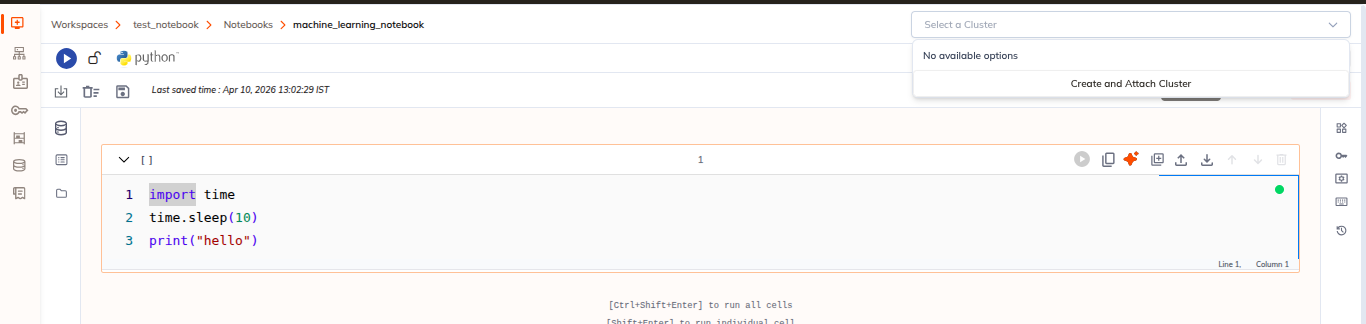
- Added cluster creation directly from the notebook editor. The cluster dropdown footer carries a Create and Attach Cluster button.
- Added
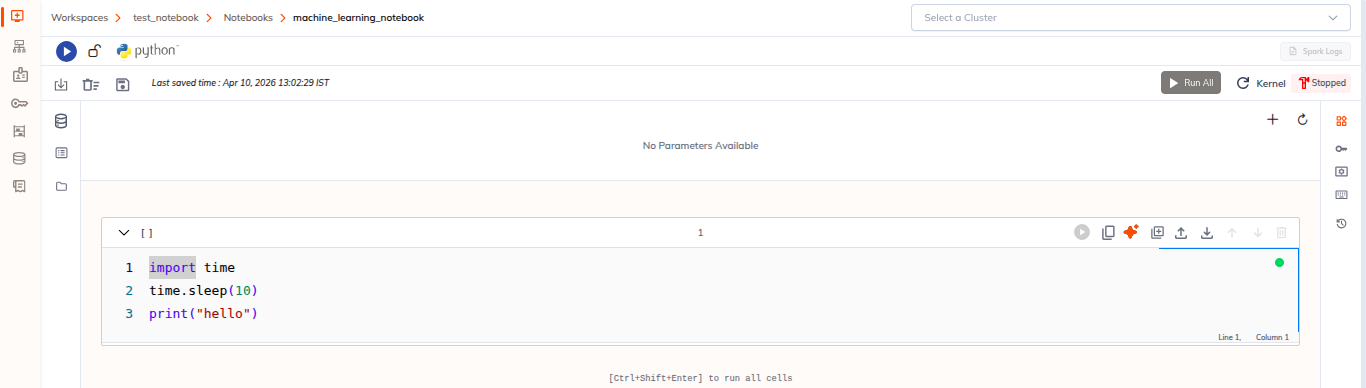
dbutils.widgetsrendering support in the Widgets Panel after execution. See Widgets Panel. - Added a Turbo toggle from the cluster dropdown in notebooks: the turbo icon on a cluster card, tooltip
Enable turbo.
- Improved notebook tooltips and permission-aware action states.
- Added notebook run snapshot downloads for better debugging and analysis.
- Included
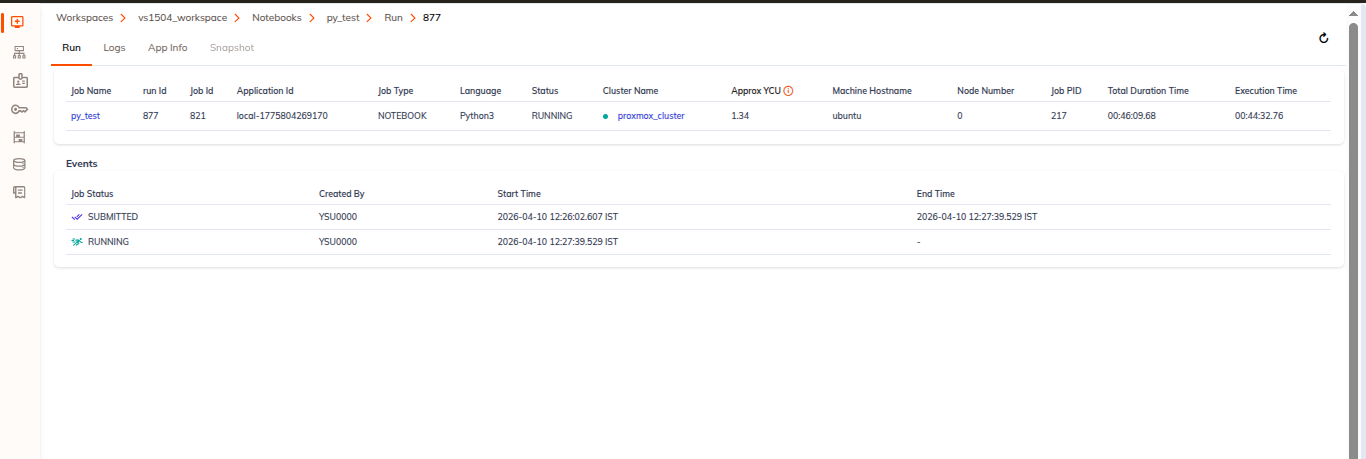
application_idin notebook run tracking.
- Added creating and editing secrets from the notebook interface. See Notebook Secrets.
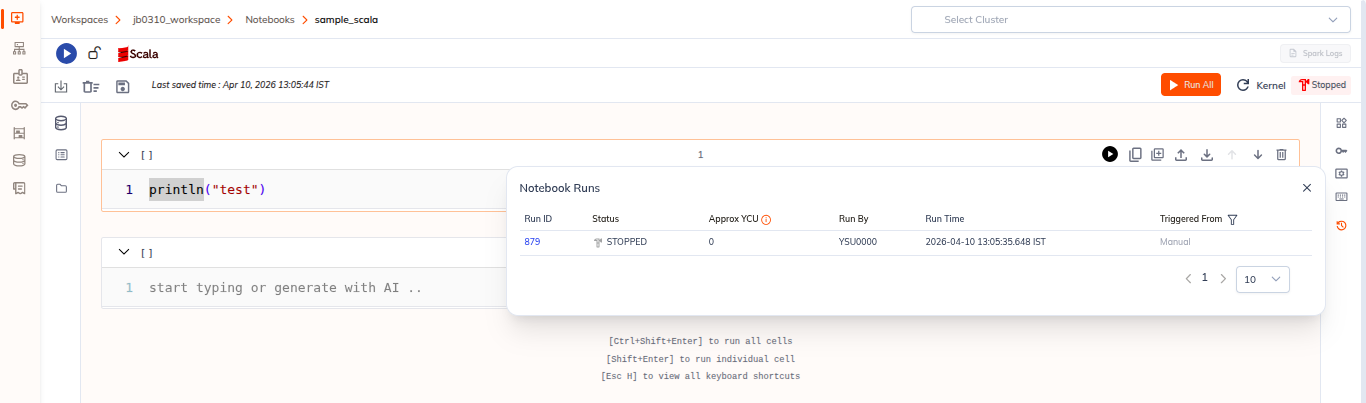
- Added filtering for background notebook runs. The Notebook Runs panel's Triggered From column filters on
All,Manual, orAirflow. See Notebook Runs.