Spark Logs
Spark Logs in the notebook editor is the jump-off point from a notebook to the Spark application underlying any of its runs. Notebook output tells you what a computation produced, whereas the Spark application view tells you how it executed: the stages, the partitioning, the shuffles, and whichever executor was responsible for the memory pressure that made everything slow.
That's where you go when a cell completed successfully but took considerably longer than it should have.
Opening Spark Logs
The Spark Logs control sits on the right of the first row of the editor top bar. Its tooltip reads View Spark application logs.
Clicking it opens a dropdown listing every run of this notebook. Each entry shows:
| Line | Content |
|---|---|
| 1 | Run ID: <id> |
| 2 | Last Updated: <timestamp> (<relative>) |
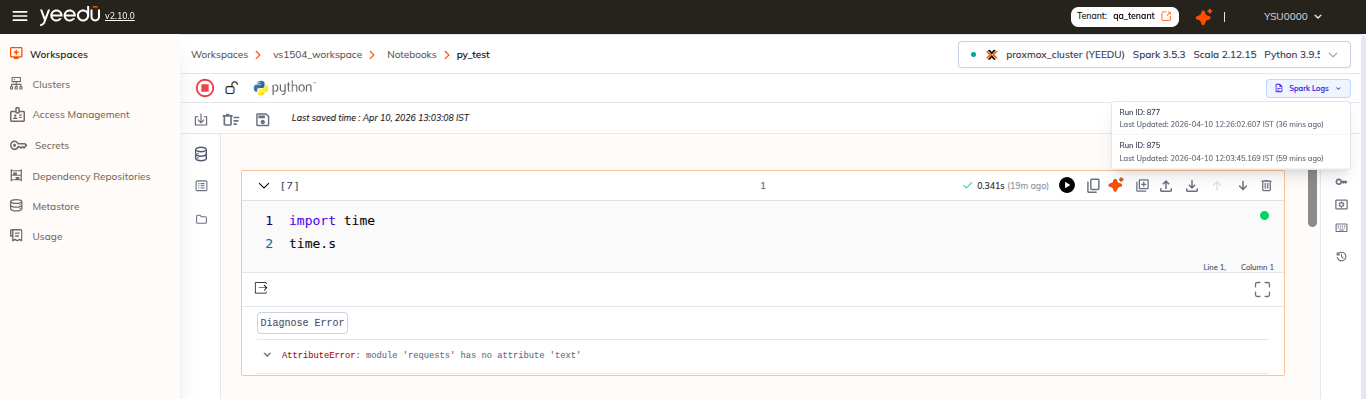
Opening a Run
Selecting an entry opens a new browser tab at that run's App Info page:
/workspace/<workspaceId>/run/<runId>/run-appinfo
We proxy the Spark application view for the run at that page.
The list is per-notebook. To browse runs with their status, YCU and trigger source instead, use the Notebook Runs panel on the right rail.