Keyboard Shortcuts
The Keyboard Shortcuts panel lists every shortcut the notebook editor recognises. The bindings deliberately follow the conventions established by Jupyter and the notebook environments people arrive from, so muscle memory developed elsewhere generally transfers and you shouldn't need to consult this table at all.
The one binding that will be unfamiliar is Ctrl + Shift + Y, which opens the AI assistant. That combination has no equivalent in a conventional notebook environment, so it's the single entry in this table genuinely worth committing to memory, particularly since the alternative route to the same prompt bar requires locating a small sparkle icon in the cell toolbar that only becomes visible once the pointer is already inside the cell.
Open it in either of two ways:
- Click the Keyboard Shortcuts icon on the right rail of the editor.
- Press
Esc, thenH.
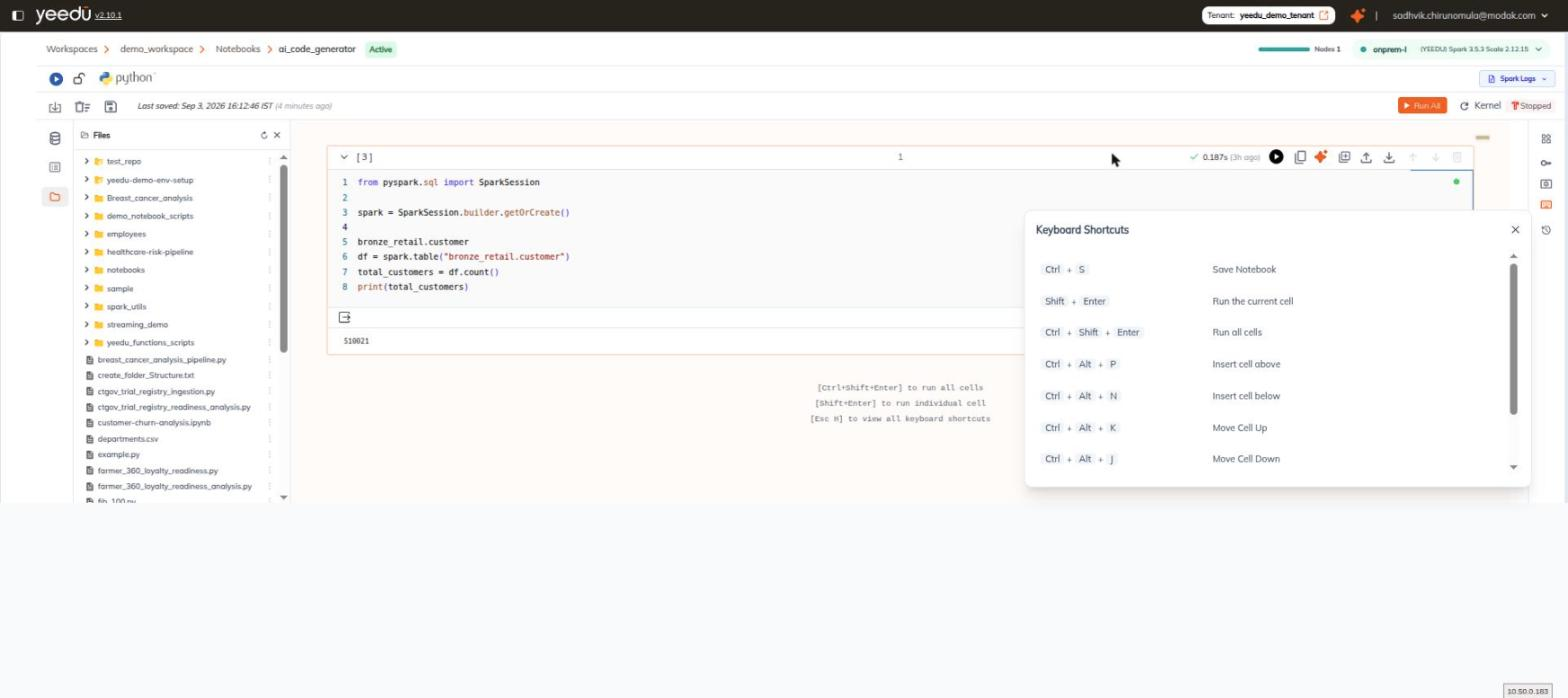
Shortcuts
| Shortcut | Action |
|---|---|
Ctrl + S | Save Notebook |
Shift + Enter | Run the current cell |
Ctrl + Shift + Enter | Run all cells |
Ctrl + Alt + P | Insert cell above |
Ctrl + Alt + N | Insert cell below |
Ctrl + Alt + K | Move Cell Up |
Ctrl + Alt + J | Move Cell Down |
Esc + H | Show Keyboard Shortcuts |
Ctrl + Shift + Y | Ask AI Assistant |
The panel scrolls, and the last two rows sit below the fold when it first opens, so don't assume the list ends at Ctrl + Alt + J.
We repeat three of these in the canvas footer as inline hints, on the assumption that these are the three you will want before you have had any reason to open this panel:
[Ctrl+Shift+Enter] to run all cells
[Shift+Enter] to run individual cell
[Esc H] to view all keyboard shortcuts